
Updated September 2026
Sending a video file over email usually fails somewhere: the attachment bounces, the quality gets crushed, or the recipient just never opens a random MP4. The fix is to turn your video into a link instead. A video link works everywhere — email, LinkedIn, SMS, Slack — with no file-size ceiling and no quality loss, and the recipient just clicks to watch. This guide covers exactly how to do it with Sendspark, a platform trusted by sales teams at HubSpot, Salesforce, Microsoft, and Snowflake, plus what changed in 2026: AI sales agents can now generate and send these links on their own as part of a fully automated outbound sequence.
Key Takeaways
- Turning a video into a link means uploading it to a platform like Sendspark that generates a shareable URL — no compression, no file-size limits, and built-in view tracking.
- Gmail caps attachments at 25MB (effectively closer to 18MB once encoding overhead is factored in) and standard Outlook.com accounts cap at 20MB, which is why most videos over a minute or two simply won't attach.
- Personalized video links can lift email open rates by up to 42% and drive 3x more replies compared to plain text, according to Sendspark customer data.
- In 2026, agentic AI SDR tools have started triggering personalized video generation automatically — Salesforce's 2026 State of Sales report found 54% of sellers have already used an AI agent in their workflow.
- Video link analytics (watch percentage, CTA clicks, heatmaps) can feed directly into HubSpot or Salesforce so reps follow up with the most engaged prospects first.
What Does "Turn a Video Into a Link" Mean?
Turning a video into a link means uploading your video to a hosting platform that generates a single shareable URL, so instead of attaching a large file you send a short web address. When someone clicks it, they land on a clean page and watch your video instantly — no download, no plugin, no waiting for an attachment to finish loading. Here's what a real one looks like:
You can also share that same link as a clickable animated thumbnail or a static preview image, which tends to pull more clicks in an inbox than a bare text URL. One upload, one link, and you can send it to as many people as you want — it doesn't get "used up" the way an attachment does.
How to Turn a Video Into a Link
You can turn a video into a link in under a minute using Sendspark, whether you already have a video file saved or need to record one from scratch. Both paths end the same way: a branded, trackable URL you can paste anywhere.
Method 1: Turn an Existing Video Into a Link
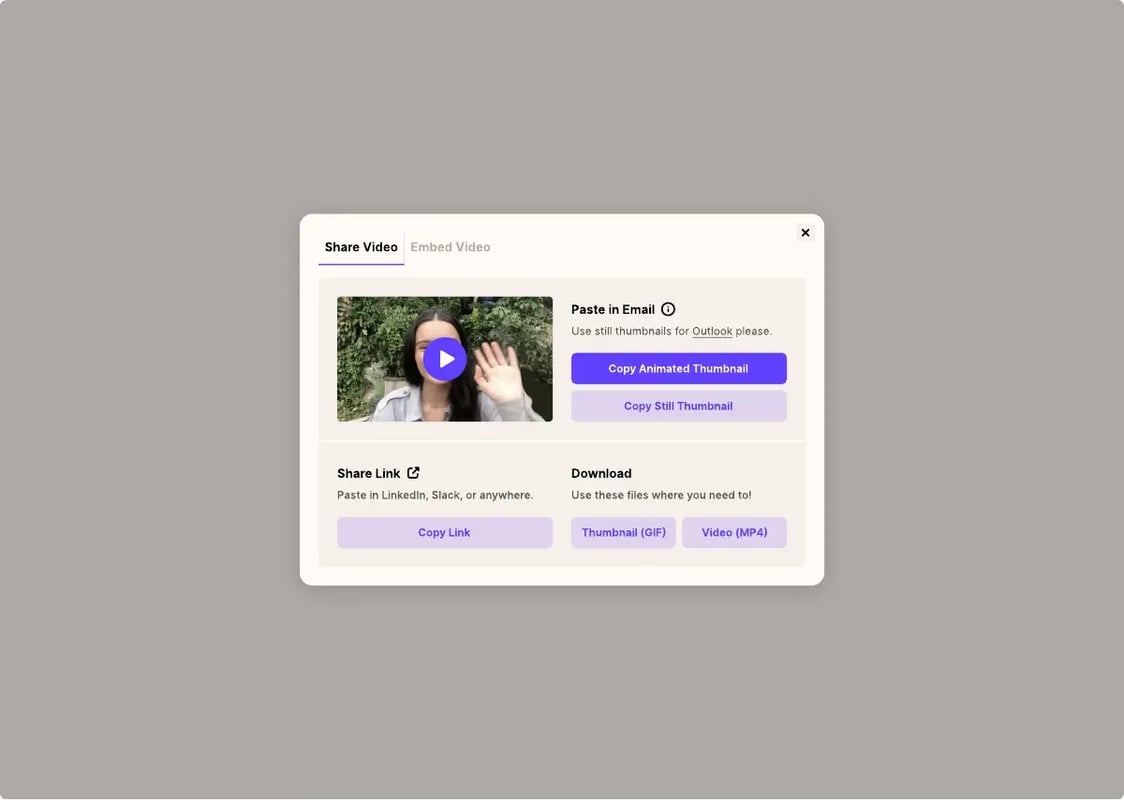
Already have a video on your computer? Create a free Sendspark account, click "New Video," and choose "Upload or select a video here." Sendspark accepts MP4, MOV, WebM, and other common formats — if it plays on your computer, it will upload. Once processing finishes, click "Share Video" and choose Copy Link, Copy Animated Thumbnail (best for email, since GIF previews outperform static images), or Copy Still Thumbnail (better for Outlook, which doesn't reliably render animated GIFs).
Method 2: Record a Video and Turn It Into a Link
Need a new video? Install the free Sendspark Chrome Extension, then click its icon in your browser toolbar to start recording. You can record Face only (webcam), Screen only (great for tutorials and demos), or Both, which overlays a resizable webcam bubble on top of your screen share — use the Spotlight option if you want that bubble to fill the screen first before shrinking down when you begin sharing. When you finish, the video uploads automatically and your link is ready to copy.
Personalize It With AI Before You Share
This is where a video link stops being just a file-size workaround and becomes a scale play. Sendspark's AI personalization tools let you record one video and generate a personalized version for every recipient automatically: AI voice cloning inserts each prospect's name naturally in your own voice (record with a placeholder word like "Watermelon" and the AI swaps it in), dynamic backgrounds display the recipient's website or LinkedIn profile behind you as you talk, and Combined Videos let you attach a short personalized intro to one reusable core demo. Sales teams using this combination report email conversions climbing by more than 20% — a number Chris Draper, Head of Sales at OmniPanel, has seen firsthand: after his team adopted personalized video prospecting, they saw a 20% increase in email conversions. "Sendspark helps us increase the level of humanization, personalization, and trust in our prospecting emails to establish ourselves in the space and land big clients," Draper says.
Customize the Link and Landing Page
Before you share, click "Customize" in the share modal to open the thumbnail editor. Choose a frame, add a short text overlay (five words or fewer reads best), and drop in your logo. On paid plans you can set workspace-wide brand colors so every video looks consistent, and on higher tiers you can white-label the player entirely and run it on a custom subdomain like video.yourcompany.com. Add a header above the video and a call-to-action button below it — link it to your calendar, a pricing page, or a phone number, since a video link without a next step is a dead end.
Pro tip
Use dynamic variables like or {name=your company} in your thumbnails when sending in bulk, and always set a fallback value (like "there" instead of a missing name) so the personalization never breaks if your CRM data is incomplete.
Why Turn a Video Into a Link Instead of Sending a File?
A video link avoids the compression, size limits, and unprofessional viewing experience that come with email attachments or public platforms like YouTube. The practical trigger is almost always file size: Outlook.com caps attachments at 20MB, and while personal Gmail allows up to 25MB, Google only raised that to 50MB for Workspace Enterprise Plus customers in February 2026 — and even then, email encoding inflates a file's size by roughly a third on the wire, so the real usable ceiling is smaller than the advertised number. A 90-second screen recording will blow past most of these limits before you've said much of anything.
Beyond the size problem, a video link keeps your full resolution intact instead of getting crushed by Gmail or WhatsApp's automatic compression, and it lands the viewer on a clean, distraction-free page instead of a YouTube watch page cluttered with ads and suggested videos. It also comes with analytics and 50+ integrations (HubSpot, Salesforce, Outreach, SalesLoft, Apollo, Clay, Slack, and more) built in, none of which a plain attachment can offer — see our video email platform for how this fits directly into your existing inbox and sequences. If email delivery of video is a recurring problem for your team, our comprehensive guide to sending video through email covers the full range of workarounds, and our breakdown of what to do when a video file is too large to send goes deeper on the compression and hosting trade-offs specifically.
How AI Sales Agents Use Video Links in Autonomous Outreach
In 2026, AI sales agents increasingly generate and send personalized video links automatically as one step inside a larger autonomous outbound sequence, without a rep recording or sharing anything manually. Instead of a human hitting record, an agentic workflow watches for a trigger — a form fill, a CRM stage-change, or a buying-intent signal like a pricing-page visit — and kicks off a pre-built video template with the lead's name and company dropped in automatically.
Salesforce's 2026 State of Sales report found that 87% of sales organizations now use AI in some form, and 54% of sellers say they've already used an AI agent directly in their workflow — up sharply from a year earlier. That shift matters for video specifically: buyers are also changing how they want to be sold to. A 2025 Gartner sales survey found 61% of B2B buyers now prefer a rep-free buying experience, which pushes teams toward always-on outreach where a personalized video can act as a lightweight, asynchronous stand-in for a live call.
In practice, this looks like connecting Sendspark to a workflow automation platform so that a lead reaching a specific lifecycle stage automatically enrolls in a sequence that generates and sends a personalized video link, with a short delay built in so the AI has time to render the video before the email goes out. Good fallback personalization logic still matters here: if a variable like company name or website is missing, the workflow needs a generic-but-still-warm default rather than sending a broken "Hey ," to a real prospect.
Common mistake
Don't let an agentic workflow send a video link with zero human review of the first batch. Preview a handful of generated videos for real (not test) contacts before turning a trigger-based sequence loose at volume — a mispronounced name or a broken dynamic background is far more damaging coming from an "automated" video than from a normal templated email.
When Should You Use a Video Link?
Video links are useful anywhere a written message would be slower or less convincing, especially in prospecting, customer success, sales enablement, and deal progression. B2B SaaS company Qwilr saw 200-300% higher reply rates and booked 40% more meetings after switching to video outreach, and customer-success team Textla achieved nearly 100% reply rates on support videos while saving 10+ hours per campaign compared to writing out long text explanations. See more results in our customer case studies. For a broader look at how async video fits into a modern sales motion, see our guide to video messaging for business outreach.
Video pays off particularly well before a call: Emilia K, VP of Marketing at Userpilot, uses personalized videos to warm prospects up ahead of meetings. "Sendspark videos work as pre-boarding," she explains. "If prospective customers watch the videos, then they understand why they need our product better, and are more receptive to demos." The same logic applies after a call — a short recap video highlighting key points and next steps helps a champion share your value prop internally without having to re-explain it themselves.
On LinkedIn specifically, pasting a Sendspark link into a message generates an automatic preview, though that preview only renders once the recipient has accepted your connection request, and the Sendspark Chrome Extension adds a one-click record button directly inside the LinkedIn message composer. "Sending a video in LinkedIn Sales Navigator helps you stand out and add a face to the name," says Bethany Stachenfeld, Co-founder of Sendspark. "Whether you're doing sales outreach or following up with a connection, a short video builds trust faster than text alone." One gotcha worth knowing: LinkedIn caches link previews, so if you edit a video after sharing it, the old thumbnail will stick around — duplicate the video in Sendspark to generate a fresh URL instead of trying to overwrite the original.
Video Link Analytics: What to Track
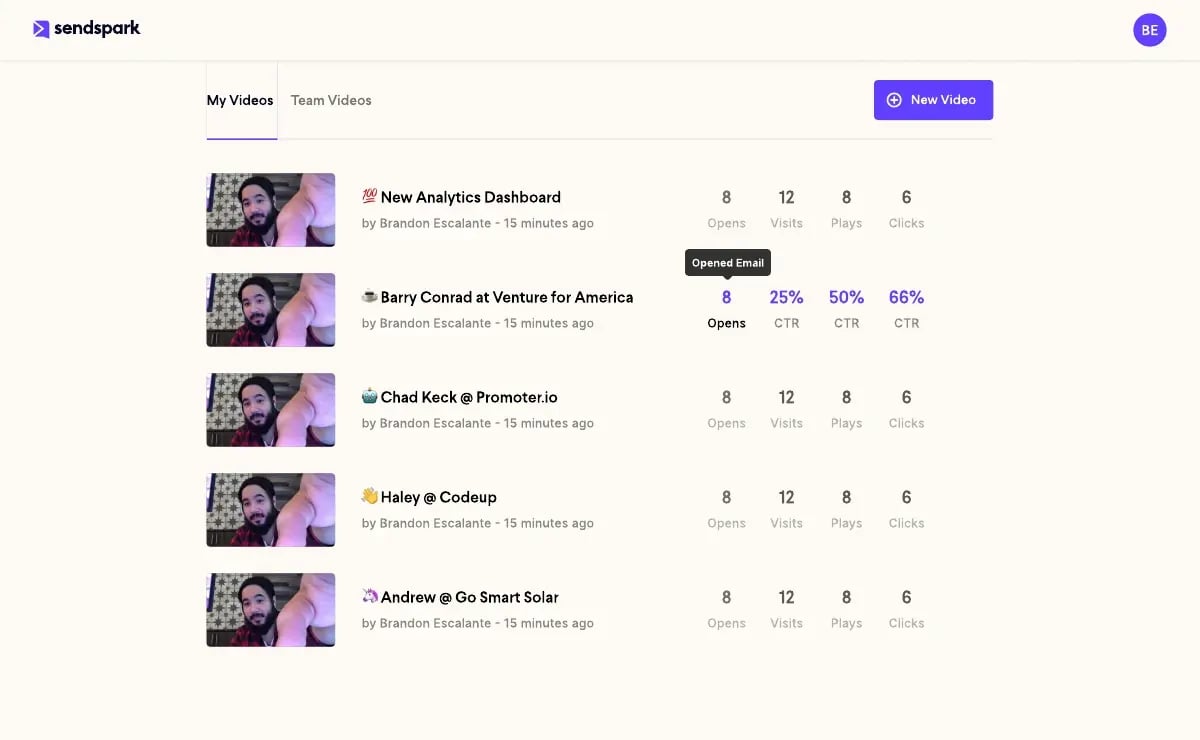
Every video link you send should be tracked on at least three metrics — views, watch percentage, and CTA clicks — because that data tells you who's actually engaged and ready for a follow-up call. Sendspark's dashboard also layers in heatmaps and viewer-level detail (location, device, browser) so you're not just seeing that someone watched, but which parts they rewatched.
| Metric | What It Means | How to Use It |
|---|---|---|
| Video Visited | Prospect clicked the link | Confirms your subject line and thumbnail worked |
| Video Played | Prospect hit play | Signals genuine interest, not just curiosity |
| Watch Percentage | How much of the video they watched | 80%+ is a strong signal they're ready for a conversation |
| CTA Clicked | Call-to-action was clicked | Highest-intent signal — prioritize immediate follow-up |
| Video Heatmap | Which segments got rewatched | Tailor your follow-up to the specific part they cared about |
Sync this data into your CRM and it becomes actionable rather than just interesting. Connect Sendspark to HubSpot or Salesforce and viewer engagement pushes directly into the contact timeline, so a rep can see video activity alongside every other touchpoint. You can also automate the next step: if a prospect watches more than 50% of a video but never clicks the CTA, that's a clean trigger to enroll them in a targeted follow-up sequence instead of leaving it to a rep to remember.
Record One Video. AI Personalizes Thousands.
Sendspark is the AI video personalization platform for B2B sales. Record once, and AI voice cloning generates thousands of individually personalized videos with dynamic backgrounds and personalized thumbnails — each prospect hears their name, sees their website, in your voice. Sales teams see 2-3x more replies.
Get Started NowBest Practices for Video Links That Get Watched
A video link only pays off if people actually click play and stick around, so treat the thumbnail, length, and captions as seriously as the recording itself. Use an eye-catching animated thumbnail rather than a static frame — these consistently pull more clicks in an inbox. Show your face while sharing your screen when possible; it creates a personal connection that a voiceover-only screen recording doesn't.
Keep outreach videos short: aim for 30-90 seconds, since a completion rate of at least 60% is a reasonable benchmark to hit for that length, and attention drops off quickly past the two-to-three-minute mark. Add captions if you're not already — captioned videos see roughly 40% more views and about 80% better watch-through than uncaptioned ones, since a large share of videos get watched with the sound off. Finally, always end with one clear call-to-action; embedding a lead-capture form directly in the video can pull close to a 25% completion rate when the ask is simple (book a meeting, reply, or visit a page).
Advanced strategy
For sales automation platforms like Outreach or Salesloft, resize your video thumbnail snippet to roughly 400px and test it in a real send before scaling — some HTML email editors render full-size thumbnails awkwardly, which quietly kills your click-through rate without ever showing up as an obvious error.
Video Links vs. Other Sharing Methods
A dedicated video link consistently outperforms attachments, public video platforms, and file-sharing links on the things that matter for B2B outreach: quality, professionalism, and the ability to prove someone actually watched.
| Method | Pros | Cons |
|---|---|---|
| Video link (Sendspark) | No file-size limits, full quality, works everywhere, built-in analytics, AI personalization | Requires an internet connection to view |
| Email attachment | Simple, no third-party tool needed | Large files bounce, quality gets compressed, zero tracking |
| YouTube / Vimeo | Free hosting, familiar to viewers | Ads and suggested-video distractions, unprofessional for B2B outreach, limited analytics |
| Google Drive / Dropbox | Free for smaller files | Viewer has to download or use their own player, no engagement tracking, feels impersonal |
Frequently Asked Questions
How do I turn a video into a link for free?
Sign up for a free Sendspark account, upload an existing video or record a new one with the Chrome extension, then click "Share Video" and copy the link. The whole process takes under a minute and costs nothing to start.
Can I turn a video into a link on my phone?
Yes. Log into Sendspark from your mobile browser, tap "New Video," and upload a video from your camera roll to get a shareable link just like on desktop.
Does turning a video into a link reduce quality?
No. Unlike an email attachment, which gets compressed by services like Gmail, a Sendspark video link preserves your original resolution and length.
What video formats can I turn into a link?
Sendspark accepts common formats including MP4, MOV, AVI, and WebM. If the file plays on your computer, it will upload successfully.
Can I see who watched my video link?
Yes. Sendspark's analytics show who viewed your video, how much of it they watched, and whether they clicked your call-to-action, and this data can sync directly into HubSpot or Salesforce.
How do AI sales agents use video links in outreach?
Agentic AI SDR tools can trigger personalized video generation automatically when a lead hits a specific CRM stage or buying-intent signal, then send the resulting video link as part of an autonomous sequence without a rep manually recording anything.
How do I share a video link on LinkedIn?
Paste your Sendspark link directly into a LinkedIn message and it will generate a clickable preview once the recipient has accepted your connection request. The Sendspark Chrome Extension also lets you record and share without leaving LinkedIn.
Sources & References
- Microsoft Support — "Sending limits in Outlook.com" (2026)
- Google Workspace Updates — "New 50MB attachment limits for Enterprise Plus customers" (February 2026)
- Salesforce — "State of Sales Report 2026" — 87% of sales orgs use AI, 54% of sellers have used an AI agent (2026)
- Gartner — "Gartner Sales Survey Finds 61% of B2B Buyers Prefer a Rep-Free Buying Experience" (2025)
Record One Video. AI Personalizes Thousands.
Sendspark is the AI video personalization platform for B2B sales. Record once, and AI voice cloning generates thousands of individually personalized videos with dynamic backgrounds and personalized thumbnails — each prospect hears their name, sees their website, in your voice. Sales teams see 2-3x more replies.
Get Started Now