HD screen recording has become table stakes for B2B sales teams — but resolution alone no longer separates good sales videos from great ones. In 2026, the real differentiator is whether your video feels like it was made for that specific prospect, or mass-produced for anyone. This guide covers the best free HD screen recording tools for sales teams, plus the AI personalization layer that turns a solid recording into a reply-generating machine.
Key Takeaways
- 1080p at 30fps is the minimum spec for professional sales demos and walkthroughs in 2026 — anything below reads as low-effort to prospects.
- Free tools like OBS Studio, Panopto Express, and ScreenRec deliver solid HD recording with no watermarks or time limits for straightforward use cases.
- AI personalization — voice cloning, dynamic backgrounds, and personalized thumbnails — is now the primary quality signal in B2B sales video outreach, not pixel count.
- Sendspark is an AI video personalization platform with built-in HD screen recording: record one video, and AI generates individually personalized versions for every prospect at scale.
- Sales teams using AI-personalized video report 200–300% more email replies and 2x more LinkedIn responses compared to plain HD recordings, according to Sendspark customer data.
What Makes HD Screen Recording Valuable for B2B Sales Teams
HD screen recording — meaning 720p or higher, with 1080p as the practical standard for sales — gives prospects a clear, professional view of your demo, walkthrough, or product tour. At minimum, sales teams should record at 1080p and 30fps to ensure smooth playback and legible text in screen captures. Anything lower signals a lack of care before the prospect has heard a word you've said.
What counts as HD for sales videos
HD technically starts at 720p (1280×720), but most sales professionals default to 1080p (1920×1080) as their baseline. 4K (3840×2160) is increasingly available in free tools but rarely necessary for sales outreach — it creates large file sizes without a meaningful boost in perceived quality on a prospect's laptop screen.
For screen-recorded product demos, 1080p at 30fps is the sweet spot. It keeps file sizes manageable, loads fast in email or LinkedIn, and renders text and UI elements sharply enough that prospects can follow along without squinting.
Why video quality signals professionalism in sales demos
Prospects make fast judgments. A pixelated, laggy, or watermarked recording tells them your team doesn't invest in quality — before your product has had a chance to impress. Clean HD recording, on the other hand, signals that your team is organized, detail-oriented, and worth their time.
According to HubSpot's research on video in sales, video prospecting significantly outperforms plain text emails in response rates — but only when the video looks professional enough to be taken seriously. Resolution is a baseline requirement for that threshold.
How we evaluated these tools
We assessed each tool based on five criteria relevant to sales teams: minimum resolution (1080p or higher required), time limits on free plans, presence of watermarks, ease of sharing, and whether the tool integrates with common sales stacks. Tools that required complex setup without meaningful quality payoff were deprioritized.
Minimum specs for sales use
Before you hit record, confirm your settings meet these minimums:
- Resolution: 1080p (1920×1080)
- Frame rate: 30fps minimum (60fps for fast-moving UI demos)
- Audio: System audio + microphone, or microphone only for talking-head clips
- File format: MP4 for broadest compatibility with email and CRM platforms
Pro tip
Close unused browser tabs and apps before recording. A clean desktop and smooth cursor movement matter more than you'd think — cluttered screens pull attention away from the product you're demonstrating.
Why AI Personalization Is the Real Quality Upgrade for B2B Sales Videos
In 2026, HD resolution is the floor, not the ceiling. Every serious sales tool records in HD. The quality gap that actually drives replies is personalization — whether the prospect feels like the video was made specifically for them, or copied from a template. AI now makes true personalization possible at scale, without recording hundreds of individual videos.
HD is table stakes — personalization is the differentiator
Think about it from the prospect's perspective: they receive dozens of video messages a week. Most are HD. What makes them stop, watch, and reply is seeing their own name, their own company, their own website — something that proves this wasn't blasted to 500 people. That's a signal only personalization can send.
The Salesforce State of Sales report consistently finds that buyers expect personalized engagement — and disengage quickly when outreach feels generic. In video, that expectation is even higher because video implies effort. If the effort clearly wasn't there, the credibility hit is worse than sending no video at all.
AI voice cloning: one recording, thousands of personalized greetings
AI voice cloning lets you record a single video and have AI generate a personalized spoken greeting for each prospect — in your voice. Instead of "Hey there," the prospect hears "Hey Sarah" or "Hey Marcus at Acme Corp" — spoken naturally, in a voice that sounds like yours.
This is the core of what makes AI personalized video transformative for outbound sales. You record one strong product walkthrough or demo, and the AI handles the personal layer for every prospect on your list. No re-recording. No clunky insert-name-here text overlays.
Dynamic backgrounds: show each prospect their own world
Dynamic backgrounds take personalization a step further. Instead of a static background behind you, AI replaces it with each prospect's own website, LinkedIn profile, or company page — automatically, for each contact in your sequence.
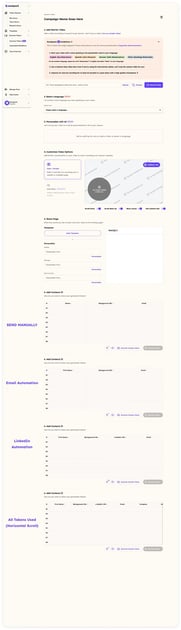
When a prospect sees their own homepage behind the sales rep, the message is unmistakable: this rep did their homework. That context shift dramatically increases engagement. Learn more about how video personalization works in practice.
Personalized thumbnails: conversion starts before they click
A personalized thumbnail showing the prospect's name — or their company logo next to yours — increases click-through rates before the video even plays. The prospect sees evidence of personalization in their inbox, which raises curiosity and signals that this message is worth their time.
What the data says
Sendspark customers report 200–300% more email replies and 2x more LinkedIn responses when using AI-personalized video compared to standard HD recordings sent as-is. The resolution is identical — the difference is entirely in the personalization layer. You can explore the full breakdown in this AI video personalization guide for sales teams.
Common mistake
Spending hours perfecting your recording setup while sending the same generic video to every prospect. A well-lit 1080p video that opens with "Hey [First Name]" in an obvious mail-merge style will underperform a modestly lit video that opens with a genuinely personalized greeting. Personalization ROI beats resolution ROI every time in cold outreach.
Record One Video. AI Personalizes Thousands.
Sendspark is the AI video personalization platform for B2B sales. Record once, and AI voice cloning generates thousands of individually personalized videos with dynamic backgrounds and personalized thumbnails — each prospect hears their name, sees their website, in your voice. Sales teams see 2-3x more replies.
Get Started NowBest Free HD Screen Recording Tools for Sales Teams
Several free tools record in HD without watermarks or time limits — each suited to a different use case. The right choice depends on whether you need browser-based simplicity, advanced desktop control, or a full AI personalization layer built in. Here's a focused comparison of the top options for sales teams.
| Tool | Platform | HD/4K | Time Limit | Watermark | AI Personalization |
|---|---|---|---|---|---|
| Sendspark | Web, Windows, macOS | HD | Unlimited | No | Yes (voice cloning, dynamic backgrounds, personalized thumbnails) |
| OBS Studio | Windows, macOS, Linux | HD/4K | Unlimited | No | No |
| Panopto Express | Web (browser) | HD | Unlimited | No | No |
| ScreenRec | Windows, macOS, Linux | HD/4K | Unlimited (free signup) | No | No |
| VLC | Windows, macOS, Linux | HD/4K | Unlimited | No | No |
Sendspark — AI Video Personalization Platform with Built-in HD Screen Recording
Sendspark's primary function is AI video personalization for B2B sales — the built-in HD screen recording is the capture layer that feeds the AI engine. You record one product demo or walkthrough in HD, and Sendspark's AI voice cloning generates a personalized version for every prospect on your list — each one hears their own name in your voice, sees their website in the background, and gets a thumbnail with their name on it before they even click play.
Trusted by 50,000+ companies and rated 4.8/5 on G2, Sendspark integrates natively with HubSpot, Salesforce, Outreach, SalesLoft, and Apollo. The Chrome extension lets reps record and send directly from their browser without switching tools. Pricing starts at $49/month for Solo, $99/month for Growth, and $299/month for Team plans. For teams doing high-volume outbound, the ROI calculation is straightforward: if you're sending 500 videos per month, you don't have 500 recording sessions — Sendspark's AI does that work for you.
If you prefer recording without installing anything, Sendspark also supports browser-based recording with no install needed.
OBS Studio — Best for Advanced Desktop Recording
OBS Studio is the most capable free screen recorder available, with full HD and 4K support, granular audio controls, and no time limits or watermarks. It's open-source, cross-platform, and genuinely powerful for sales engineers who want to produce polished, long-form product demos with custom scenes and audio mixing.
The trade-off is setup time. OBS has a learning curve that most sales reps won't want to climb for quick prospecting videos. It's best reserved for high-production demos or content your team will reuse — not for personalized outbound sequences where volume matters.
Panopto Express — Best for Zero-Install Browser Recording
Panopto Express records directly in your browser with no account required, no watermarks, and no time limits. For sales teams that need to send a quick HD walkthrough without touching IT or downloading software, it's a practical option. It lacks any personalization or CRM integration, so you'll want to pair it with your own hosting and sharing setup.
ScreenRec — Solid Free Option with Cloud Storage
ScreenRec offers HD and 4K recording with a free account, includes 2GB of cloud storage, and generates shareable links instantly. It's a practical middle ground for sales reps who want more than a browser tool but don't need the complexity of OBS. No personalization features, but straightforward for one-off demos or follow-up videos.
VLC — Hidden HD Recording Capability
Most sales reps don't know VLC records screens at all. It's primarily a media player, but its screen capture function supports HD and 4K output with no watermarks or time limits. It's not built for sales workflows — no sharing, no thumbnails, no CRM hooks — but if you already have VLC installed and need to capture something quickly, it works.
What sales teams are saying
In sales communities on Reddit and LinkedIn, the consistent theme is that reps who switched from plain HD recordings to AI-personalized video report dramatically better response rates — particularly in cold email outreach where standing out is the entire challenge. Reps using tools without personalization capabilities often note they plateaued in response rates even after improving recording quality, and only saw lifts when they added a personal layer to their video messages. You can see how teams are approaching this in Sendspark's guide to personalizing sales videos at scale with AI.
How to Set Up HD Screen Recording for B2B Sales Outreach
Getting your HD screen recording setup right for sales outreach takes four steps: choosing the right tool for your use case, locking in the correct settings, adding the AI personalization layer, and connecting everything to your sales stack. Each step compounds the one before it.
Step 1: Choose your recorder based on use case
If you're sending personalized one-to-one or one-to-many prospecting videos, start with Sendspark — the AI personalization platform's built-in HD screen recording means you capture and personalize in a single workflow. If you're producing detailed technical demos for later repurposing, OBS gives you the most control. For quick, no-install walkthroughs, Panopto Express removes all friction.
The question to ask is: will this video be sent to one person, or do I need it personalized for many? If the answer involves scale, a plain recorder and manual re-recording isn't a sustainable approach. See how to approach sales prospecting with video at scale.
Step 2: Optimize your HD settings
Regardless of which tool you use, configure these settings before your first recording session:
- Set output resolution to 1920×1080 (1080p)
- Set frame rate to 30fps (or 60fps for fast UI navigation)
- Enable microphone input, check levels before recording
- Export or save as MP4 (H.264 codec for widest compatibility)
- Test playback on a second screen or device before sending
Step 3: Add the AI personalization layer with Sendspark
Once your HD recording is complete, Sendspark's AI does the heavy lifting. Upload your video, import your prospect list, and the platform's AI voice cloning generates individualized greetings in your voice for each contact. Dynamic backgrounds pull each prospect's website or LinkedIn automatically. Personalized thumbnails are generated for every recipient.
What previously took a sales rep hours of re-recording now takes minutes of setup. Each prospect receives a video that feels like you recorded it specifically for them — because in every meaningful way, the AI ensured that it was. Read the full breakdown of AI video personalization for sales teams to understand the full capability.
Step 4: Distribute through your sales stack
Sendspark integrates directly with HubSpot, Salesforce, Outreach, SalesLoft, and Apollo — so personalized videos can be embedded in sequences, triggered by CRM events, or sent as one-off messages from within the tools your team already uses. No separate workflow, no copy-pasting links, no broken embed previews.
For reps working primarily in Gmail or LinkedIn, the Sendspark Chrome extension handles recording and sending without leaving the browser — keeping the friction low enough that reps actually use it consistently.
HD Recording vs. AI-Personalized Video: Which Gets More Replies?
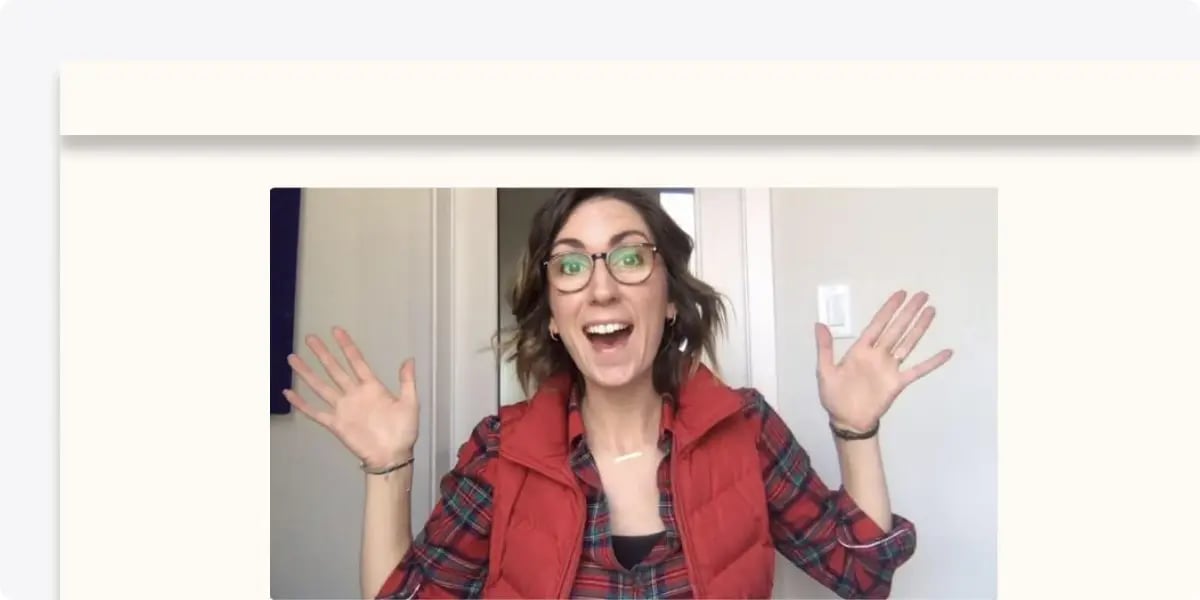
Plain HD recording and AI-personalized video serve different goals. Understanding when to use each will help you allocate your effort — and your recording setup — more effectively. The short answer: for cold outreach and prospecting, AI personalization consistently outperforms plain HD. For repurposed content and product demos consumed at scale, plain HD is efficient and adequate.
| Factor | Plain HD Recording | AI-Personalized Video (Sendspark) |
|---|---|---|
| What prospect sees | Generic intro, same for all recipients | Their name, their website, personalized thumbnail |
| Typical reply rate lift | Baseline (vs. text email) | 200–300% more replies vs. plain HD |
| Time per prospect | 1 recording serves all (but impersonal) | 1 recording + AI scales to thousands |
| Setup complexity | Low — any recorder works | Moderate — requires prospect list + Sendspark |
| Best for | Product demos, tutorials, team training | Cold outreach, prospecting sequences, follow-ups |
| CRM integration | Manual link sharing | Native HubSpot, Salesforce, Outreach, Apollo |
When plain HD recording is the right call
Not every video needs to be personalized. Long-form product tutorials, internal training recordings, webinar replays, and demo library content are all better served by a clean HD recording than by trying to personalize content that isn't inherently one-to-one. Tools like OBS Studio shine here — they give you the recording quality and flexibility to produce content that will be watched by many people in many contexts.
When AI personalization changes the math
In cold outreach, every variable that signals "this was made for you" increases the chance of a reply. A prospect receiving a video where they hear their name spoken in your voice, see their own company website in the background, and see their name on the thumbnail before clicking — that's a fundamentally different experience than receiving a polished but generic video. AI personalization is what makes that experience scalable. See the full case for video personalization for sales outreach.
Frequently Asked Questions
What is the minimum HD resolution for professional sales videos?
1080p (1920×1080) at 30fps is the practical standard for B2B sales demos and prospecting videos. It renders text and UI elements sharply, keeps file sizes manageable, and meets the visual quality bar that prospects expect in 2026. 720p is technically HD but looks noticeably softer on modern screens.
Can I record HD video without installing software?
Yes. Both Panopto Express and Sendspark support browser-based HD recording with no installation required. Sendspark's browser recorder also feeds directly into the AI personalization workflow, so you can capture and personalize in a single session. See the full guide on browser-based video recording with no install needed.
What is AI voice cloning in video personalization?
AI voice cloning analyzes your recorded voice and generates new spoken phrases — like personalized greetings — that sound like you. In Sendspark, this means recording one video and having the AI generate a personalized spoken intro for each prospect on your list, in your voice, without you re-recording anything. The result is a video that opens with the prospect's name spoken naturally.
How does Sendspark differ from a standard screen recorder?
Sendspark is an AI video personalization platform for B2B sales, with built-in HD screen recording as one of its capture methods. The key difference is what happens after recording: Sendspark's AI voice cloning, dynamic backgrounds, and personalized thumbnail features transform a single HD recording into thousands of individually personalized videos. A standard screen recorder captures video and stops there.
Is OBS Studio good for sales video recordings?
OBS Studio is excellent for high-quality, long-form recordings like detailed product demos, technical walkthroughs, or content you plan to repurpose multiple times. It's less suited for quick prospecting videos or any use case requiring personalization at scale, since it outputs a single video with no sharing or CRM integration built in.
What sales tools does Sendspark integrate with?
Sendspark integrates natively with HubSpot, Salesforce, Outreach, SalesLoft, and Apollo. The Chrome extension also lets reps record and send directly from Gmail and LinkedIn without switching platforms. These integrations allow personalized videos to be embedded in automated sequences or triggered by CRM activity.
Do I need 4K for sales videos, or is 1080p enough?
1080p is enough for almost all sales use cases. 4K creates significantly larger file sizes that can slow down loading in email clients and LinkedIn messages, and most laptops display content at effective resolutions below 4K anyway. Save 4K for content that will be displayed on large screens or produced for broadcast-quality marketing assets — not for prospecting videos.
Record One Video. AI Personalizes Thousands.
Sendspark is the AI video personalization platform for B2B sales. Record once, and AI voice cloning generates thousands of individually personalized videos with dynamic backgrounds and personalized thumbnails — each prospect hears their name, sees their website, in your voice. Sales teams see 2-3x more replies.
Get Started NowSources
- HubSpot — Video Prospecting in Sales
- Salesforce — State of Sales Report
- OBS Studio — Open Broadcaster Software
- Panopto Express — Browser-Based Recording
- Sendspark — AI Personalized Video
- Sendspark — Video Personalization Platform
- Sendspark Blog — AI Video Personalization Guide for Sales Teams
- Sendspark Blog — Personalizing Sales Videos at Scale with AI