Updated August 2026
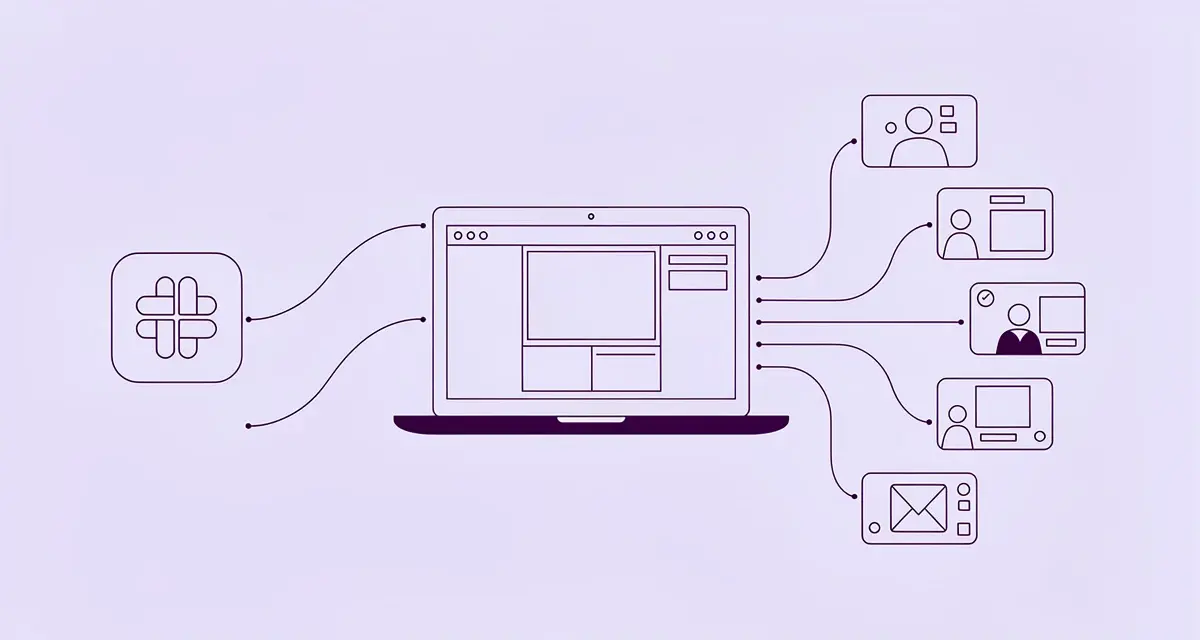
Screen sharing in Slack lets you broadcast your screen during Huddles and calls so teammates, prospects, and clients see exactly what you see. Whether you are walking a prospect through a product demo, debugging code with an engineer, or presenting quarterly metrics, Slack’s built-in screen sharing removes the friction of switching between video conferencing tools. Sales teams that pair Slack screen sharing with AI-personalized video outreach can turn internal recordings into thousands of individually personalized prospect videos.
Key Takeaways
- Slack screen sharing works on paid plans via Huddles (up to 50 participants) and standard calls, requiring macOS 13+, Windows 11 23H2+, or Linux with Slack v4.43+.
- Two people can share screens simultaneously in Huddles, making collaborative debugging and side-by-side design reviews possible without leaving Slack.
- Bandwidth matters: you need at least 600 kbps upload and download for two participants, scaling to 2 Mbps download for groups of five or more.
- Slack Clips let you record async screen walkthroughs up to 5 minutes, which Sendspark’s AI video personalization platform can then repurpose into personalized outreach videos at scale.
- Sales teams see 2-3x more replies when they replace generic screen recordings with AI-personalized videos that address each prospect by name and company.
How to Screen Share in Slack
To screen share in Slack, start or join a Huddle in any channel or direct message, then click the “Share Screen” icon at the bottom of the call window. Slack will prompt you to choose your entire screen, a specific application, or a single window. Screen sharing is available on paid Slack plans (Pro, Business+, Enterprise Grid) and works on the desktop app for macOS 13+, Windows 11 23H2+, and Linux. You can also share via browser using Chrome 137+ or Firefox 139+, though Safari and Edge are not currently supported.
System Requirements and Permissions
Before you start screen sharing, make sure your system meets Slack’s requirements. As of August 2026, the Slack desktop app needs macOS 13 or later, Windows 11 (version 23H2 or later), or Linux (Ubuntu 22.04 LTS or RHEL 9.0+) running Slack version 4.43 or higher. You can check your Slack version by navigating to Help > About Slack on Windows or Slack > About Slack on Mac.
For browser-based screen sharing through Huddles, use Google Chrome (version 137+) or Firefox (version 139+). Safari and Microsoft Edge are not supported for screen sharing in Slack Huddles. For annotation features like drawing on shared screens, use the Slack desktop app on Mac or Windows.
Your internet connection also matters. Slack requires a minimum of 600 kbps (download and upload) for two participants screen sharing. For groups of five or more, you need at least 2 Mbps download and 600 kbps upload. Make sure UDP port 22466 is open for outgoing traffic. If your network blocks UDP, Slack falls back to TCP port 443, which may reduce video quality.
Pro tip
Run Slack’s built-in connection test before important calls. Go to Preferences > Audio & Video > Troubleshooting > Run test to check your bandwidth, camera, and microphone in one click. This catches issues before prospects join the call.
Enabling Screen Sharing on Your Device
To grant Slack the permissions it needs for screen sharing, follow the steps for your operating system:
- macOS: Open System Settings > Privacy & Security > Screen Recording. Toggle on Slack, then restart the app. You may need to enter your administrator password.
- Windows: Go to Settings > Privacy & security > Microphone and Camera, then make sure Slack has access. Windows handles screen sharing permissions automatically once the app is installed.
- Google Chrome (browser): Navigate to Settings > Privacy and security > Site settings, find Slack, and allow camera, microphone, and screen sharing permissions.
Once permissions are set, screen sharing becomes available automatically during calls and Huddles. No additional configuration is needed.
| Feature | Free Plan | Paid Plans (Pro, Business+, Enterprise) |
|---|---|---|
| Screen Sharing Availability | Limited (1 sharer in Huddles) | Full (calls + Huddles) |
| Max Huddle Participants | 2 | 50 |
| Simultaneous Screen Sharers (Huddles) | 2 | 2 |
| Simultaneous Screen Sharers (Standard Calls) | N/A | 1 |
| Slack Clips Recording | Limited | Up to 5 minutes |
How to Screen Share During Slack Calls and Huddles
Screen sharing during Slack calls works through Huddles and standard calls. In a Huddle, click the headphones icon in any channel or DM to start, then select the “Share Screen” icon. In a standard call, click the “Call” button in a direct message or on a user’s profile, then choose “Share Your Screen”. You can share your entire screen, a specific app, or a single window, and up to two people can share simultaneously in Huddles for side-by-side collaboration.
Starting a Screen Share in a Huddle
To start screen sharing in a Slack Huddle, click the headphones icon in any channel or direct message to begin the huddle. Once the huddle window opens, click the “Share Screen” icon at the bottom of the window. Slack will ask you to pick what you want to share: your entire screen, a specific application, or a single window.
On mobile devices, tap the three-dots icon during a huddle and select “Share Screen”. The mobile experience is slightly more limited than desktop, but it works well for quick walkthroughs when you are away from your desk.
Standard Slack calls allow only one person to share their screen at a time. Huddles, however, let up to two people share screens simultaneously. This is especially useful when two team members need to present side by side, such as comparing dashboards or walking through a shared document.
Switching Between Screens and Applications
If you need to switch what you are sharing, stop your current screen share and start a new session, selecting the desired window or monitor. For multi-monitor setups, Slack lets you choose which screen to share, so you can keep sensitive information on your private display while presenting from your working screen.
“For multi-monitor setups, select the desired screen from the options provided. This will allow you to share specific apps in one screen, leaving the other screen private.”
- Ben Stockton, Technology Writer, Online Tech Tips
To stop sharing, click “Stop Sharing” in the bottom-right corner or click the blue screen-share icon to return to video mode. Slack automatically mutes notifications during screen sharing to prevent distractions and protect your privacy.
Managing Participants and Sharing Controls
Once your screen is live, managing participants and controls is straightforward. During a huddle, invite more people by clicking the “Invite people” icon. If someone outside the channel tries to join via a link, they will need to click “Request Access”, and any current participant can approve their request.
By default, all participants can annotate on a shared screen. To control this, click the “Draw together” icon. You can also draw yourself using the pencil icon and change pen colors by pressing Control (Windows) or Command (Mac).
Participants can use stickers like “Raise hand” or “Be right back” for subtle communication during longer sessions. If multiple screens are being shared in a huddle, viewers can expand any shared screen for a better view by clicking on it.
Slack Screen Sharing Use Cases for Sales Teams
Slack screen sharing shines in three core B2B sales scenarios: live product demos, team collaboration during deal progression, and remote technical support. Sales teams use Huddles to walk prospects through dashboards in real time, engineers swarbug issues with shared screens, and customer success teams guide clients through configurations visually. According to async video communication for sales research, teams that combine live screen sharing with recorded async follow-ups see higher engagement than those relying on live calls alone.
Sales Demos and Presentations
Screen sharing takes sales presentations to the next level by letting prospects experience your product live. A real-time demo leaves a stronger impression than a slide deck, making it easier to explain complex features and workflows. To keep things professional, share only a specific application window rather than your entire screen to avoid notification pop-ups and distraction.
Use the drawing tool to highlight key features or data points, keeping your audience engaged throughout the demo. Slack’s paid plans allow up to 50 participants in Huddles, so you can host demos for large buying committees or multiple stakeholders at once.
The huddle thread is a great place to share sales materials like pricing links, product specs, or meeting notes during the call. These files remain accessible afterward, so everyone has a record of what was discussed. For stakeholders who miss the live demo, record a short screen-share summary using Slack Clips (up to 5 minutes) and send it as an asynchronous follow-up, or see our guide on how to send a personalized video message in Slack if you want that follow-up individually tailored per stakeholder instead of one generic clip. For more tactics on using video throughout the sales cycle, see these video prospecting tips.
Record One Video. AI Personalizes Thousands.
Sendspark is the AI video personalization platform for B2B sales. Record once, and AI voice cloning generates thousands of individually personalized videos with dynamic backgrounds and personalized thumbnails, each prospect hears their name, sees their website, in your voice. Sales teams see 2-3x more replies.
Get Started NowCommon mistake
Sharing your full screen during a sales demo risks exposing sensitive client data, Slack notifications, or personal tabs. Always share a specific application window and enable Do Not Disturb before prospect-facing calls.
Team Collaboration and Brainstorming
Screen sharing in Slack makes team collaboration faster and more focused. When typing out ideas feels too slow, start a huddle and share your screen to keep the momentum going. The drawing tool adds a visual layer to discussions: engineers can circle specific lines of code during pair programming, while design teams annotate mockups to point out elements that need changes.
Huddles come with a dedicated canvas for jotting down meeting notes, sharing links, and uploading files while the screen is being shared. These notes persist after the session ends, saved in the conversation tab so your team can revisit decisions and action items later.
Remote Support and Troubleshooting
For technical support, screen sharing removes the guesswork. Instead of trying to explain what is happening over text, users can show their screen, allowing support agents to see the issue firsthand and provide real-time visual guidance. The drawing tool is especially useful here: agents can circle specific parts of the interface, highlight error messages, or point out configuration steps directly on the user’s screen.
For complex issues, teams can open a huddle in a dedicated channel to swarm the problem. Multiple engineers can view and discuss the issue simultaneously, and since Slack allows two people to share screens at the same time, you can compare a working setup with the broken one to pinpoint discrepancies. Use the huddle thread to post error logs, troubleshooting commands, or links to support documentation.
Turn Slack Screen Shares Into AI-Personalized Video Outreach
Slack screen sharing is powerful for internal collaboration, but sales teams increasingly need to turn those screen recordings into prospect-facing outreach. This is where AI video personalization changes the workflow: instead of manually recording a unique video for each prospect, you record one screen-share demo and let AI voice cloning generate thousands of individually personalized videos. Each prospect hears their name, sees their company website in the dynamic background, and receives a personalized thumbnail, all in your cloned voice.
The convergence of Slack Huddles, Slack Clips, and AI-personalized video creates a new async sales workflow. A sales engineer records a product walkthrough as a Slack Clip during an internal enablement session. That recording becomes the base video. Sendspark’s AI video personalization platform then generates personalized variants for every prospect in your pipeline, swapping in the prospect’s name, company, and relevant use case. According to asynchronous selling research, teams that adopt async video workflows see 2-3x more replies than those relying on text-only outreach.
This approach solves the personalization-at-scale trade-off that B2B sales teams face. Recording individual videos for 200 prospects is not feasible, but sending a generic screen recording gets ignored. Record one video, personalize at scale bridges that gap. The AI voice cloning technology maintains your natural delivery and tone across every variant, while dynamic backgrounds show each prospect’s website or logo, creating the feeling of a one-to-one video without the recording time.
Advanced strategy
Pair your Slack screen-share demos with AI-personalized video outreach to build a digital sales room experience. Record the core demo once, generate personalized variants for each stakeholder in a deal, and track engagement through video CRM integration so your AE knows exactly which sections each prospect watched before the next call.
The workflow extends beyond initial outreach. After a live Slack Huddle demo, record a personalized video follow-up that references specific points discussed on the call. This personalized video follow-up reinforces key value props and keeps the deal moving forward. Sales teams using AI-personalized video for follow-ups report a 40-50% increase in meetings booked, according to Sendspark’s internal data.
To get started, connect your Slack workspace to Sendspark’s AI video personalization platform with screen recording. Record your screen-share demo inside Sendspark, select the personalization fields (prospect name, company, use case), and generate personalized variants in minutes. Distribute them through HubSpot, Outreach, or Smartlead using video CRM integration, and track watch-through rates to prioritize follow-up. For a deeper dive, read our comprehensive guide to video prospecting.
Troubleshooting Common Slack Screen Sharing Issues
When Slack screen sharing stops working, the cause usually falls into three categories: system permissions, subscription plan limitations, or network restrictions. On macOS, check Screen Recording permissions in System Settings. On Windows, verify Slack is allowed through the firewall. For network issues, ensure UDP port 22466 is open and your bandwidth meets Slack’s minimum requirements (600 kbps for two participants, 2 Mbps for five or more). Most issues resolve within a few minutes of checking these three areas.
Screen Sharing Not Working
If your screen sharing refuses to start, check system permissions first. On macOS, ensure Slack has screen recording permissions by navigating to System Settings > Privacy & Security > Screen Recording. On Windows, confirm Slack is allowed through the Windows Defender Firewall. For docked laptops, try opening the lid or disconnecting external monitors, as some display configurations block screen sharing.
Your subscription plan could also be the issue. Screen sharing in standard Slack calls is only available on paid plans like Pro, Business+, or Enterprise Grid. On the free plan, Huddles are limited to two participants, which restricts screen sharing functionality. If you encounter a spinning circle when attempting to share your screen, try minimizing Slack and reopening it after a few seconds.
Network restrictions can also block screen sharing. Make sure UDP port 22466 is open for outgoing traffic, with TCP port 443 as a fallback. Your IT team should approve access to the *.chime.aws domain and the IP range 99.77.128.0/18.
Audio or Video Problems During Screen Sharing
Poor audio or video quality usually stems from low bandwidth or incorrect device settings. Slack needs at least 600 kbps for both upload and download when two people are screen sharing. For Huddles with five or more participants, the download requirement increases to 2 Mbps.
To diagnose issues, use Slack’s built-in test tool: go to Preferences > Audio & Video > Troubleshooting > Run test. Double-check that the correct microphone, speaker, and camera are selected. Also confirm that Slack has permissions for Microphone, Camera, and Screen Recording.
If video quality is lagging, switch to audio-only mode to conserve bandwidth. On Windows, ensure your audio and graphics drivers are current to support video codecs like AV1, VP9, and H.264. If you are using an external camera, plug it in before starting the Huddle, as connecting it mid-session may prevent the video from displaying.
Performance Optimization Tips
Screen sharing lag is often caused by high CPU usage or network congestion. Activating hardware acceleration in Slack’s desktop app settings shifts video processing to your GPU, easing the load on your CPU. Before starting a session, close unnecessary applications and browser tabs to free up system resources.
For a more stable connection, switch to a wired Ethernet setup or use VPN split tunneling to minimize latency and packet loss. Adjust your device to High Performance mode and disable power-saving features that might throttle your CPU or GPU during calls.
| Huddle Type (with Screen Sharing) | Download Speed | Upload Speed |
|---|---|---|
| Voice only | 200 kbps | 100 kbps |
| Video/Screen Share (2 participants) | 600 kbps | 600 kbps |
| Video/Screen Share (3 participants) | 1.2 Mbps | 600 kbps |
| Video/Screen Share (5+ participants) | 2 Mbps | 600 kbps |
Source: Slack Help Center
Summary: Slack Screen Sharing Quick Reference
Use this quick-reference table to troubleshoot and optimize your Slack screen sharing setup. It covers the most common configurations, requirements, and fixes sales teams need during daily workflows.
| Aspect | Requirement | Quick Fix |
|---|---|---|
| macOS permissions | Screen Recording access for Slack | System Settings > Privacy & Security > Screen Recording |
| Windows permissions | Microphone + Camera access | Settings > Privacy & security > Microphone/Camera |
| Browser support | Chrome 137+ or Firefox 139+ | Switch from Safari or Edge to Chrome |
| Min bandwidth (2 people) | 600 kbps up and down | Close other bandwidth-heavy apps |
| Min bandwidth (5+ people) | 2 Mbps down, 600 kbps up | Switch to wired Ethernet |
| Network ports | UDP 22466 (TCP 443 fallback) | Ask IT to whitelist *.chime.aws |
| Simultaneous sharers | 2 in Huddles, 1 in standard calls | Use Huddles for side-by-side sharing |
| Plan requirement | Paid plan for full screen sharing | Upgrade from Free to Pro or higher |
| Slack Clips max length | 5 minutes | Split longer demos into multiple clips |
Frequently Asked Questions
How do I screen share in Slack?
To screen share in Slack, start or join a Huddle by clicking the headphones icon in any channel or direct message. Then click the “Share Screen” icon at the bottom of the huddle window and choose whether to share your entire screen, a specific application, or a single window. Screen sharing is available on paid Slack plans and works on the desktop app for macOS 13+, Windows 11 23H2+, and Linux.
Can you share screen on Slack huddle?
Yes, you can share your screen in a Slack Huddle. Click the “Share Screen” icon at the bottom of the huddle window after starting or joining a huddle. Up to two people can share screens simultaneously in Huddles, making it ideal for collaborative walkthroughs and side-by-side comparisons. Huddles support up to 50 participants on paid plans.
Does screen sharing work on Slack’s free plan?
Screen sharing is limited on Slack’s free plan. Huddles are restricted to two participants, and only one person can share their screen at a time during a call. For full screen sharing features, including standard calls and Huddles with up to 50 participants, you need a paid plan like Pro, Business+, or Enterprise Grid.
What internet speed do I need for Slack screen sharing?
You need at least 600 kbps download and upload for two-participant screen sharing in Slack. For Huddles with five or more participants, the requirement increases to 2 Mbps download and 600 kbps upload. For the best experience, use a wired Ethernet connection and close bandwidth-heavy applications before starting a screen share session.
Why is screen sharing not working in Slack?
The most common causes are missing system permissions, free plan limitations, or network restrictions. On macOS, check System Settings for Screen Recording permissions. On Windows, verify Slack is allowed through the firewall. Ensure UDP port 22466 is open, and confirm you are on a paid Slack plan for full screen sharing functionality. Restarting Slack often resolves temporary glitches.
Can I record a Slack screen share?
Yes, you can record screen shares using Slack Clips, which lets you record up to 5 minutes of screen content with audio. For longer recordings or personalized outreach, tools like Sendspark’s AI video personalization platform let you record screen-share demos and generate thousands of personalized video variants using AI voice cloning and dynamic backgrounds.
How do I share screen in Slack on mobile?
To share your screen in Slack on mobile, join or start a Huddle, tap the three-dots icon during the call, and select “Share Screen.” The mobile experience supports sharing your entire screen but has fewer annotation features than the desktop app. Make sure Slack has screen recording permissions in your phone’s settings before starting.
Sources & References
- Slack Help Center — “Record audio and video clips in Slack” (2026)
- Slack — “Slack Huddles: lightweight audio and video calls” (2026)
- Microsoft Support — “Firewall and network protection in Windows Security” (2026)
- Microsoft — “Windows 11 specifications and system requirements” (2026)
- Apple — “macOS: system requirements and compatibility” (2026)
Record One Video. AI Personalizes Thousands.
Sendspark is the AI video personalization platform for B2B sales. Record once, and AI voice cloning generates thousands of individually personalized videos with dynamic backgrounds and personalized thumbnails, each prospect hears their name, sees their website, in your voice. Sales teams see 2-3x more replies.
Get Started NowTopics: blog