
How to Record Your Screen for Free: The Sales Team Guide to AI-Powered Outreach
Sales reps who use video in outreach book 40-50% more meetings than those who rely on plain text alone. But most teams stop at "record and send" — missing the biggest opportunity in modern sales: using AI to turn one screen recording into thousands of individually personalized videos, each one speaking directly to a single prospect. Screen recording is the starting point. What happens after you hit record is where deals actually get closed. This guide covers both: how to record your screen for free on any platform, and how AI voice cloning takes that single recording and scales it into a full prospecting campaign. You can also explore OBS alternatives for B2B sales teams to see how sales-focused tools compare.
Key Takeaways
- You can record your screen for free right now using built-in tools on Windows (Game Bar), Mac (QuickTime), or Chrome — no software installation required.
- Free screen recording alone doesn't scale — AI voice cloning lets you record one video and generate thousands of personalized versions, each prospect hearing their own name in your voice.
- Sendspark is an AI video personalization platform — not just a screen recorder — that pairs screen recording with dynamic backgrounds and personalized thumbnails to drive 200-300% more email replies.
- OBS Studio is the most powerful free option for teams that need full control over recording quality, but it lacks AI personalization features.
- The best sales teams use screen recording as Step 1 and AI-powered personalization as Step 2 — that combination is what moves the reply rate needle.
Screen Recording for Sales: What Your Team Actually Needs
For sales teams, screen recording isn't about making tutorials or capturing gameplay — it's about showing a prospect exactly what you mean, faster than any email can. A 60-second video walking someone through their own website, a competitor gap, or a product feature they'd care about communicates in seconds what a three-paragraph email never quite manages. The question is which tools actually serve a sales workflow, and what capabilities you genuinely need versus what's just nice-to-have.
At the most basic level, your team needs a way to capture your screen, include your face via webcam, and share the result quickly via a link. Every free tool in this guide does that. But sales teams have additional requirements that most general-purpose screen recording tools ignore entirely.
You need speed — prospects don't wait, and neither does your pipeline. You need trackability — knowing when someone actually watched, how far they got, and whether they clicked anything. And increasingly in 2026, you need personalization at scale — the ability to make each video feel one-on-one without spending 20 minutes per prospect recording individual takes.
That last point is where the landscape has fundamentally shifted. Standard screen recording gives you a single video you can send to anyone. An AI video personalization platform takes that same recording and generates individual versions for every person on your list — each with their name spoken in your voice, their company's website in the background, and a personalized thumbnail. That's not a minor upgrade — it's a completely different category of tool, and it's what separates teams booking 40-50% more meetings from teams sending generic video blasts.
For a deeper look at how leading sales teams build full video prospecting workflows, the Sendspark Video Prospecting Guide covers the full strategy from first touch to close.
Pro tip
Before choosing any screen recording tool, decide whether you need it for one-off demos or for scalable outreach campaigns. Those are two different use cases — and they point to two different tools. For scalable outreach, you want screen recording paired with AI personalization from the start.
How to Record Your Screen for Free on Any Platform
The fastest way to record your screen for free is to use what's already on your computer. Windows, Mac, and Chrome all include built-in screen recording capabilities that require zero installation, zero subscription, and zero setup time. Here's exactly how each one works.
Windows: Xbox Game Bar (Built-In, Zero Install)
Windows 10 and Windows 11 both include Xbox Game Bar, a built-in utility designed for gamers but perfectly functional for sales recordings. Press Windows key + G to open the Game Bar overlay. From there, click the Capture widget, then hit the record button (or press Windows key + Alt + R) to start recording the active window.
Game Bar records the currently focused application, so it works well for capturing a product demo, a browser walkthrough, or any software you want to show a prospect. Your recording saves automatically to C:\Users\[YourName]\Videos\Captures as an MP4 file. One limitation: Game Bar doesn't record the full desktop or File Explorer — it works with individual app windows. For full-screen recordings, OBS Studio (covered below) fills that gap.
Mac: QuickTime Player (Built-In, Zero Install)
Every Mac ships with QuickTime Player, and it has a screen recording feature that most people never discover. Open QuickTime from your Applications folder, then go to File → New Screen Recording. A small toolbar appears — click the Record button and choose whether to record the full screen or drag to select a specific region.
You can include your microphone audio by clicking the dropdown arrow next to the record button and selecting your mic. QuickTime saves recordings as .mov files, which you can quickly convert or upload directly to most video hosting platforms. It's clean, reliable, and completely free — though like Game Bar, it stops at recording. There's no editing, no sharing link, and no analytics.
Chrome: Built-In Tab and Screen Recording
Chrome's built-in screen capture (available via the Tab Capture API and screen share functionality) lets you record directly from the browser without installing anything. Open Chrome, navigate to a page you want to record, then use Chrome's screen casting feature or access it through developer tools. For a more streamlined experience, the Sendspark Chrome extension adds a full screen and webcam recording workflow directly in your browser — and connects directly to your AI video personalization campaigns without any extra steps.
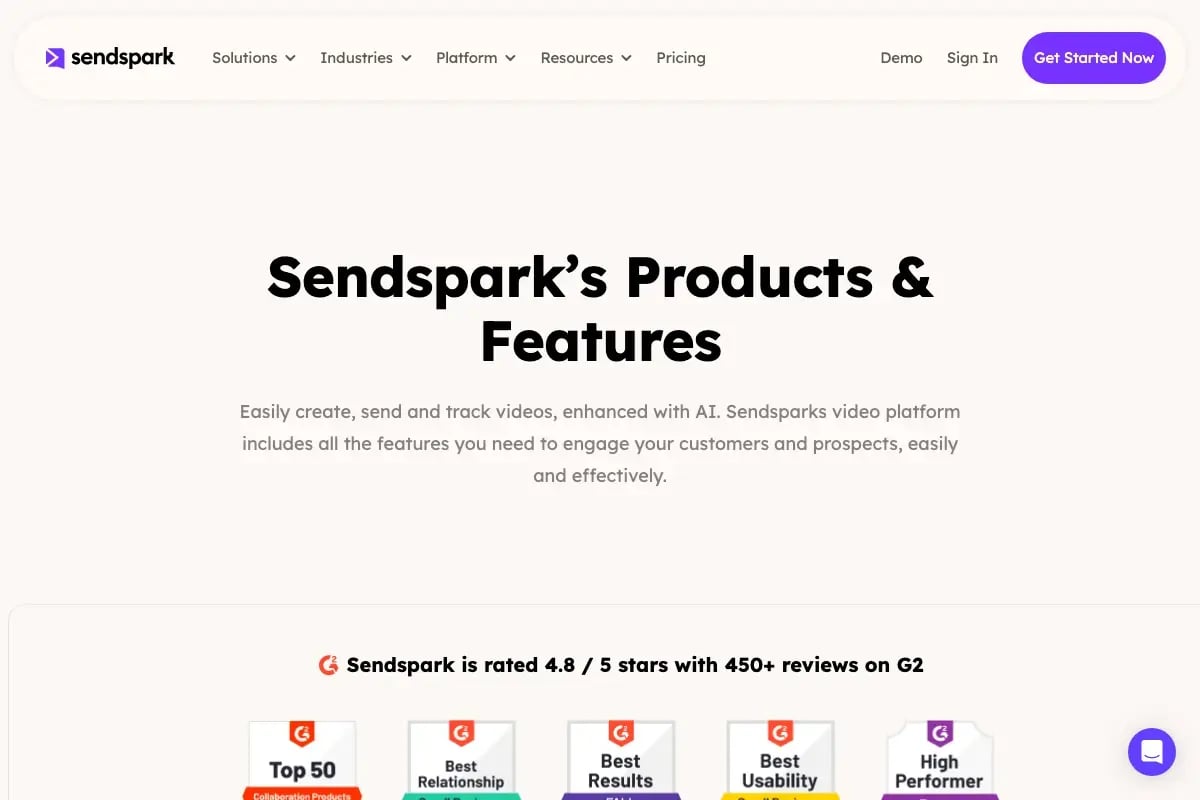
For teams doing outreach directly from Gmail or LinkedIn, a Chrome-based recording workflow means you never leave the tab you're working in. That speed reduction in the recording-to-sending process matters more than it sounds when you're doing high-volume prospecting.
OBS Studio: Free, Open-Source, Maximum Control
OBS Studio is free, open-source software available for Windows, Mac, and Linux. It's significantly more powerful than any built-in option — you can record multiple video sources simultaneously, layer your webcam over your screen, control audio from multiple inputs, and output recordings at any resolution or bitrate you need.
The tradeoff is setup time. OBS has a learning curve that built-in tools don't. For sales teams recording occasional demos, the Game Bar or QuickTime workflow is faster day-to-day. For teams that produce high-volume, polished video content — product walkthroughs, recorded webinars, training content — OBS gives you broadcast-quality results at zero cost. It records locally to your computer as MKV or MP4 files, which you then upload and share separately.
Common mistake
Teams often record a great demo video, then send it as a file attachment — and get almost no engagement. Video files don't load inline in most email clients, they hit size limits, and they give you zero data on who watched what. Always share screen recordings via a link, not a file, so you can track views and keep the experience clean for the prospect.
Record One Video. AI Personalizes Thousands.
Sendspark is the AI video personalization platform for B2B sales. Record once, and AI voice cloning generates thousands of individually personalized videos with dynamic backgrounds and personalized thumbnails — each prospect hears their name, sees their website, in your voice. Sales teams see 2-3x more replies.
Get Started NowHow AI Turns One Screen Recording Into Thousands of Personalized Videos
Recording your screen is table stakes in 2026. Every sales rep on every team can do it. The teams pulling ahead aren't recording more videos — they're making each video feel personal to the person receiving it, without spending more time recording. That's exactly what AI video personalization does, and it changes the math on outreach entirely.
Here's the core mechanic: you record one screen walkthrough — your product, a prospect's website, an industry trend you want to discuss. Then, instead of sending that single video to 500 prospects and hoping for the best, an AI video personalization platform like Sendspark takes that recording and generates a unique version for each person on your list. Using AI voice cloning, the platform recreates your voice and inserts each prospect's name, company name, or any personalized detail at the start of the video. Every recipient hears you say their name — in your actual voice — without you recording 500 separate takes.
The personalization doesn't stop at the intro. Dynamic backgrounds pull in each prospect's website or company branding as the visual backdrop of the video, so when Sarah at Acme Corp opens her video, she sees her own company's homepage behind you. When James at TechFlow opens his, he sees TechFlow's site. Same recording. Completely different experience for each person. This is what AI-personalized video intros look like in practice — and it's why they outperform generic video sends by a significant margin.
The results aren't theoretical. Sales teams using Sendspark's AI-personalized video outreach report email response rates increasing by 200-300% and click-through rates climbing by 50%. That's not because video is inherently magical — it's because a video that opens with your prospect's name, shows their website, and speaks directly to their situation feels genuinely personal. It gets a response because it deserves one. For real-world examples of what these campaigns look like in practice, see these video prospecting examples from teams across different industries.
Practically speaking, the workflow looks like this: record your screen once using Sendspark's built-in screen recorder, upload your prospect list, and let the AI generate personalized versions at scale. You review, approve, and launch the campaign. Each prospect gets a unique video link with a personalized thumbnail showing their name — which dramatically increases the open rate before they've even pressed play. The whole process takes a fraction of the time individual recording would require, and the output is measurably more effective for sales prospecting than any one-size-fits-all video approach.
This is also why the framing of "screen recorder vs. AI video platform" matters so much when you're choosing tools. A screen recorder captures a moment. An AI video personalization platform turns that moment into a scalable, data-driven campaign. If your goal is pipeline, you want the second one — with screen recording built in as the starting point, not the whole product.
Screen Recording Best Practices for Sales Outreach
The difference between a screen recording that books a meeting and one that gets ignored usually comes down to execution details that take five minutes to fix. These practices apply whether you're recording with a built-in tool or as part of an AI-personalized campaign.
Keep It Under 90 Seconds
Prospects don't have time for a six-minute product tour in a cold outreach video. The sweet spot for prospecting videos is 60-90 seconds. That's enough time to establish relevance, show one specific thing that matters to them, and make a clear ask. Anything longer and you've lost them before they reach your call to action. Save longer demos for booked calls where you have explicit permission for their time.
Show Their World, Not Just Yours
The most effective screen recording for prospecting isn't a product demo — it's a video that shows the prospect's own website, LinkedIn profile, or a piece of their content, with you explaining what you noticed and why it's relevant. This works because it proves you actually looked. Opening with "I was on your site and noticed..." is far more compelling than "I wanted to show you our product." With dynamic backgrounds in Sendspark, this happens automatically at scale — but even in one-off recordings, make the effort to show their world before yours.
Frame Your Webcam Shot Properly
Eye contact matters even on video. Position your webcam at eye level, ensure you have light coming from in front of you (not behind), and keep your background clean or use a plain virtual background. A well-lit face builds trust faster than any script. This is one area where the one-time setup pays off every single recording afterward.
Write a Strong Subject Line and Thumbnail
Your video doesn't get watched if the email doesn't get opened. Subject lines that reference the specific company or person ("Quick video for [Company] — noticed something") consistently outperform generic ones. And always include a personalized thumbnail — a still image from the video with the prospect's name visible. That thumbnail is what most people see before deciding to click, and a personalized one dramatically outperforms a generic video screenshot.
Track Everything
If you can't see who watched your video and how much they watched, you're flying blind on follow-up. Use video analytics to identify which prospects engaged, how far they watched, and whether they clicked your CTA. A prospect who watched 95% of your video and didn't reply is a very different follow-up situation than someone who never clicked the link. That data should drive your entire follow-up sequence.
Pro tip
Connect your video outreach to your CRM so view events automatically log against the contact record. Sendspark's HubSpot integration does this natively — when a prospect watches your video, it logs in HubSpot and can trigger automated follow-up sequences without any manual data entry.
For more on how to build full LinkedIn outreach sequences around video, the LinkedIn video prospecting guide covers platform-specific tactics that work especially well in 2026.
Free Screen Recording Tools for Sales Teams: Quick Comparison
Not every team needs the same tool. Here's a straightforward comparison of the main free options — including where each one fits in a sales workflow and what it can and can't do.
| Tool | Platform | Free? | AI Personalization | Sales Integrations | Best For |
|---|---|---|---|---|---|
| Windows Game Bar | Windows 10/11 | ✅ Yes | ❌ None | ❌ None | Quick one-off recordings, no install needed |
| Mac QuickTime | macOS | ✅ Yes | ❌ None | ❌ None | Mac users who need a fast local recording |
| Chrome (Built-In) | Any OS (browser) | ✅ Yes | ❌ None | Limited | Browser-based tab recordings, no software install |
| OBS Studio | Windows, Mac, Linux | ✅ Yes | ❌ None | ❌ None | High-quality recordings, full desktop capture, power users |
| Sendspark | Any OS (browser + extension) | ✅ Free plan available | ✅ AI voice cloning, dynamic backgrounds, personalized thumbnails | ✅ HubSpot, Salesforce, Outreach, Gmail, LinkedIn | Sales teams doing AI-personalized video outreach at scale |
The pattern is clear: built-in tools and OBS Studio are excellent for capturing your screen. They cost nothing and require minimal setup. But they stop at recording. For sales teams whose goal is pipeline — not just polished recordings — the tool you want is one that pairs screen recording with AI personalization, CRM integrations, and view analytics from day one. That's a fundamentally different category, and it's where Sendspark sits.
"Over 50,000 companies use Sendspark's AI video personalization platform — rated 4.8 out of 5 on G2 with more than 350 reviews — specifically because the combination of screen recording with AI voice cloning and dynamic backgrounds produces results that generic video tools simply can't match."
Frequently Asked Questions
How do you record your screen for free?
The fastest way is to use a tool that's already on your computer. On Windows, press Windows key + G to open Xbox Game Bar and start recording. On Mac, open QuickTime Player and select File → New Screen Recording. Both options are completely free, built in, and require no installation. For browser-based recording, the Sendspark Chrome extension adds screen and webcam recording directly in your browser with sharing links included.
What is the best free screen recording software for sales teams?
It depends on what "best" means for your goal. If you need a quick one-off recording, Windows Game Bar or Mac QuickTime are the fastest options. If you need full-desktop recording with maximum quality, OBS Studio is the most powerful free tool available. But if your goal is sales pipeline — more replies, more meetings, more closed deals — you need screen recording paired with AI voice cloning and personalization at scale, which is what Sendspark provides as an AI video personalization platform.
Does Windows 11 have a built-in screen recorder?
Yes. Windows 11 includes Xbox Game Bar, accessible by pressing Windows key + G. It records the currently active application window as an MP4 file, saves it automatically to your Videos/Captures folder, and requires no setup or installation. The main limitation is that it doesn't record the full desktop — only individual application windows. For full-screen or multi-window recordings, OBS Studio is the better free alternative.
Can I record my screen for free on a Mac without downloading anything?
Yes, every Mac comes with QuickTime Player pre-installed, and it includes a full screen recording feature. Open QuickTime, go to File → New Screen Recording, choose whether to record your full screen or a selected region, and hit record. You can include microphone audio by clicking the dropdown arrow next to the record button. The recording saves as a .mov file on your desktop or to a folder of your choice.
How is Sendspark different from a regular screen recorder?
Sendspark is an AI video personalization platform — screen recording is one feature within it, not the whole product. The key difference is what happens after you record. With a standard screen recorder, you get one video you can send to anyone. With Sendspark, you record once and AI voice cloning generates thousands of personalized versions — each prospect hears their name in your actual voice, sees their company's website as a dynamic background, and receives a personalized thumbnail in their inbox. That's what drives the 200-300% increase in reply rates that sales teams report.
Is OBS Studio really free for commercial use?
Yes. OBS Studio is free and open-source software released under the GPL license. There are no usage restrictions for commercial purposes, no watermarks, no recording time limits, and no paid tiers. You can use it for professional sales recordings, product demos, and any business content without cost. The tradeoff is that it requires more setup time than built-in tools and has no built-in sharing, analytics, or AI personalization features.
How long should a screen recording be for sales outreach?
For cold outreach and prospecting, keep it under 90 seconds. The ideal length is 60-75 seconds: enough time to establish why you reached out, show one relevant thing on their screen, and make a specific ask. Longer videos work for warm prospects or existing customers who have already expressed interest. The most common mistake is treating a cold outreach video like a product demo — save the deep dive for the call you're trying to book.
Sources & References
- Salesforce State of Sales Report — "Sales reps using video touchpoints book significantly more meetings than those using text-only outreach" (2024)
- HubSpot Research: Sales Trends — "Personalized outreach at scale remains the top challenge and top opportunity for B2B sales teams" (2024)
- McKinsey & Company: The Future of B2B Sales — "Buyers increasingly expect personalized, relevant outreach — generic messaging is less effective than ever" (2024)
- OBS Project — Open Broadcaster Software, free and open-source screen recording and streaming platform
Record One Video. AI Personalizes Thousands.
Sendspark is the AI video personalization platform for B2B sales. Record once, and AI voice cloning generates thousands of individually personalized videos with dynamic backgrounds and personalized thumbnails — each prospect hears their name, sees their website, in your voice. Sales teams see 2-3x more replies.
Get Started Now