
If you searched “how to record a Loom video,” you already know the basics work. But here’s the part most tutorials skip: Wyzowl’s 2026 video marketing report finds that 87% of marketers say video gives them a positive ROI, yet most B2B sales teams still record every prospect video by hand, one at a time. In 2026, that’s no longer necessary. This guide walks you through the exact steps to record a Loom video, then shows you why high-volume sales teams have moved beyond solo recordings to AI voice cloning and variable-driven video that personalizes at scale.
Key Takeaways
- Recording a Loom video takes 6 steps: install, choose mode, configure audio/video, record, trim, and share, with built-in engagement tracking in the dashboard.
- SDRs sending manual 1:1 Loom videos hit a ceiling at roughly 20 to 30 personalized videos per day, making high-volume outreach impossible without AI assistance.
- AI voice cloning technology lets sales teams record one master video and generate thousands of individually personalized versions, each with the prospect’s name spoken in the rep’s actual voice.
- Sendspark’s AI video personalization platform integrates directly with HubSpot, Salesforce, Clay enrichment, and Smartlead automation so personalized videos fire inside your existing RevOps stack.
- Loom remains a strong tool for internal async communication; AI video personalization platforms like Sendspark win for outbound prospecting, ABM campaigns, and any sequence where volume and CRM data matter.
How to Record a Loom Video: The 6-Step Process
Recording a Loom video takes under five minutes from install to shareable link. You choose your recording mode, configure your mic and camera, capture your content, trim the clip, and send a trackable URL. The process is reliable for one-off recordings and works on both Mac and Windows.
- Install the Chrome extension or desktop app. Head to Loom’s website and download the Chrome extension or the standalone desktop application for Mac or Windows. The Chrome extension is faster for quick screen recordings inside the browser. The desktop app gives you more control over which windows you capture and works independently of your browser. On a Mac you may need to grant screen recording permissions in System Preferences under Privacy and Security.
- Choose your recording mode. Loom offers three modes: camera only (your face, no screen), screen only (your desktop, no face), and screen plus camera (both simultaneously with your webcam bubble overlaid on the screen). For sales outreach, screen plus camera tends to drive higher engagement because viewers see a real person speaking, not just a faceless walkthrough. For internal documentation or support replies, screen only often does the job.
- Configure your microphone and camera. Click the microphone and camera icons before you hit record. Select your external microphone if you have one, even a basic USB mic produces noticeably cleaner audio than a laptop’s built-in mic. Set your camera to the highest resolution available. Poor audio kills engagement faster than poor video quality, so prioritize sound first. Check your background: a clean, uncluttered space reads as more professional.
- Hit record and walk through your content. Click the record button and use the three-second countdown to compose yourself. Speak naturally. For sales videos, open with the prospect’s name and a specific detail about their business in the first ten seconds to signal that this isn’t a mass blast. Walk through your screen content deliberately, pause at key points, and keep the total runtime under two minutes for cold outreach. Longer videos work for demos where someone has already shown interest.
Pro tip
Before you hit record, write a three-bullet outline on a sticky note and tape it just below your camera. Your delivery will sound more natural, and you’ll cut your retake time in half.
- Stop, trim, and share the link. Click the stop button when you finish. Loom processes the video and opens an editing panel where you can trim the start and end, cut silences, and add a title. Keep your title descriptive so prospects know what they’re opening. Once you’re satisfied, copy the shareable link and paste it directly into your email, LinkedIn message, or sales sequence. Loom generates a preview thumbnail automatically.
- Track viewer engagement in the dashboard. Loom’s dashboard shows you who opened your video, how many seconds they watched, and whether they rewatched any sections. Use this data to prioritize follow-up calls. A prospect who watched 90% of your video is a warmer lead than one who clicked and bounced in five seconds. For a deeper look at how to use engagement signals to drive replies, see Sendspark’s ultimate guide to personalized video.
Why 2026 Sales Teams Replaced Solo Loom Recordings With AI Video Personalization
The shift happened quickly. In 2026, agentic outbound stacks, where AI researches, enriches, sequences, and personalizes without a human touching each step, have become the default setup for high-performing B2B sales teams. Manual 1:1 Loom recordings, no matter how well crafted, simply cannot keep pace with the volume those stacks demand.
The math is brutal. A focused SDR can record, title, trim, and send roughly 20 to 30 personalized Loom videos per day before quality starts to slip. Multiply that across a 200-prospect outbound sequence and you’re looking at a week of recording time before the first reply lands. Salesforce’s State of Sales report found that sales reps spend less than 30% of their time actually selling. Manually recording individual videos compounds that problem. AI voice cloning solves it directly. A rep records one master video, and the AI video personalization platform generates thousands of individually addressed versions, each one speaking the prospect’s first name, referencing their company, and swapping in a dynamic background that matches their brand or website. Every prospect hears their name spoken in the rep’s actual voice. That’s not a template. That’s multi-stream personalization at a scale no human recording session can match.
The RevOps stack integration piece is what made this mainstream in 2026. Platforms like Sendspark connect directly to Clay enrichment workflows, so when Clay pulls a prospect’s LinkedIn headline, company size, tech stack, and ICP signals, those variables flow straight into the video generation queue. Smartlead automation then fires the personalized video inside an email sequence without a human touching the process. The result is zero-touch outreach where the video feels deeply personal even though no one recorded it individually. Gong Labs research consistently shows that personalized outreach outperforms generic templates on reply rate and meeting booked rate. Variable-driven video takes that personalization signal and amplifies it into a format that grabs attention inside a crowded inbox.
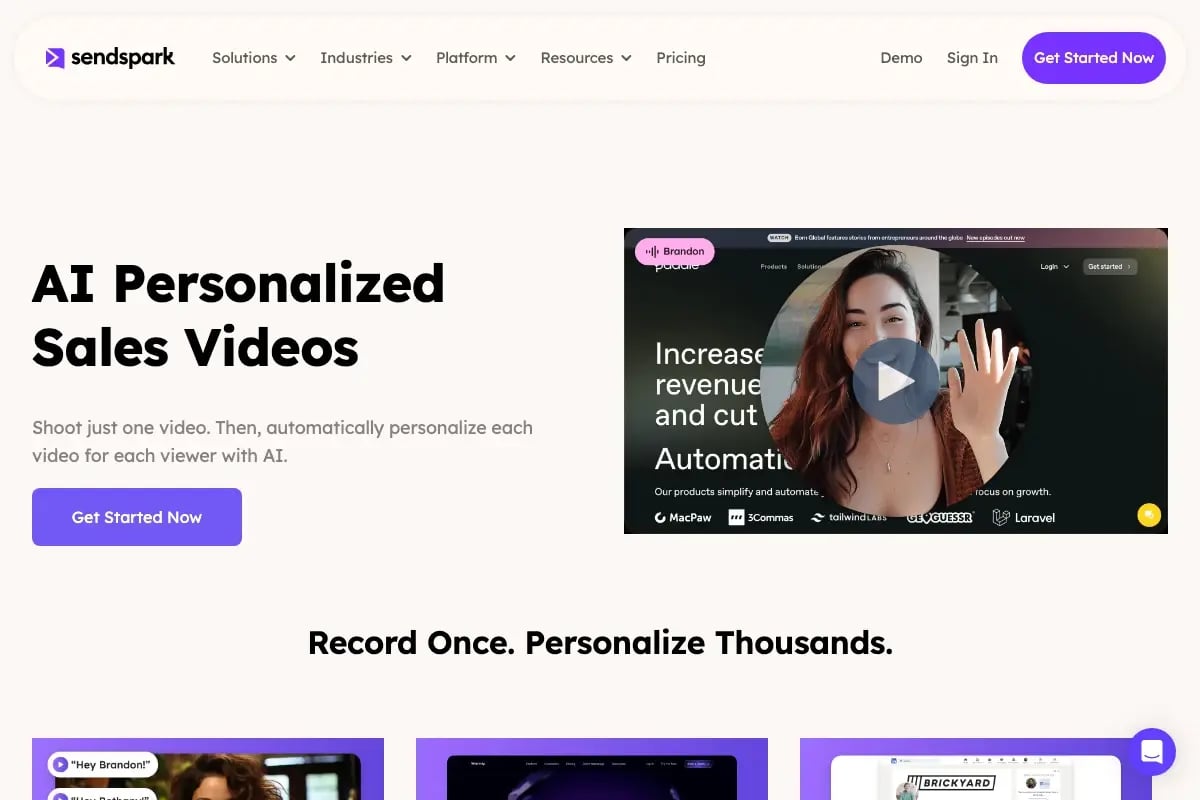
Dynamic backgrounds and personalized thumbnails are two mechanics that changed prospect behavior significantly. A static Loom thumbnail showing a generic screen capture blends into the visual noise of an inbox. A personalized thumbnail that displays the prospect’s company name, logo, or website screenshot tells them instantly that this video was made for them. That single change lifts open-to-play rates. Dynamic backgrounds go further: the video itself shows the prospect’s own website or LinkedIn profile behind the speaking rep, which creates an immediate recognition trigger in the first two seconds. Sendspark’s AI personalized video intro feature handles both the voice cloning and background swapping in one workflow, so reps don’t need to manage two separate tools.
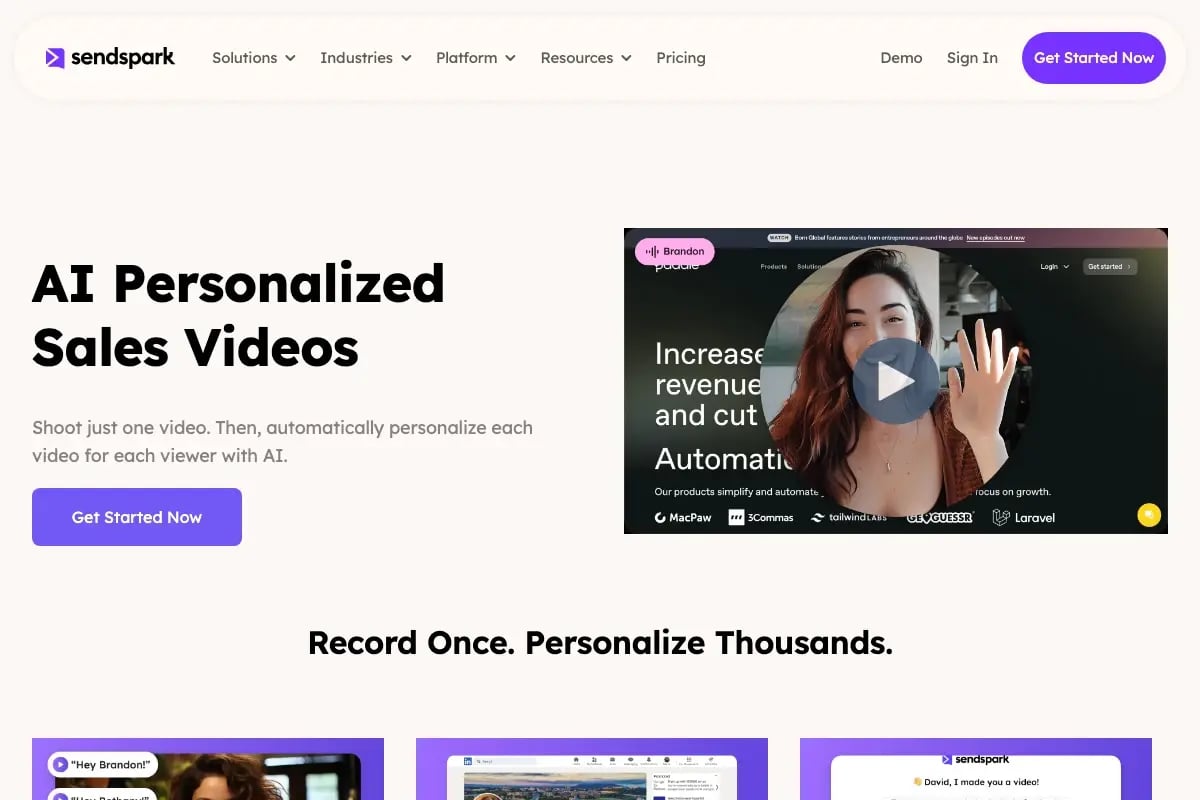
ABM campaigns are where the combination of Clay enrichment, AI voice cloning, and Sendspark’s video personalization capabilities delivers the clearest ROI. Rather than sending one generic video to an account’s buying committee, teams build account-specific video variants, different background, different name spoken, different pain point reference, all generated from a single recorded master. HubSpot’s 2026 video marketing data shows that personalized video in email generates 2 to 3 times higher click-through rates than non-personalized video. When you combine that lift with the volume efficiency of AI-generated variants, the business case for moving beyond solo Loom recordings becomes straightforward. For a full breakdown of how to build this kind of workflow, Sendspark’s comprehensive AI video personalization guide for outbound sales covers the full stack from Clay to send.
Record One Video. AI Personalizes Thousands.
Sendspark is the AI video personalization platform for B2B sales. Record once, and AI voice cloning generates thousands of individually personalized videos with dynamic backgrounds and personalized thumbnails, each prospect hears their name, sees their website, in your voice. Sales teams see 2-3x more replies.
Get Started NowLoom Limitations for B2B Sales (And What Breaks at Scale)
Loom is a well-built tool for what it was designed to do: async communication between people who already know each other. The friction points emerge when B2B sales teams try to use it as their primary outbound video channel. Several structural limitations make that use case increasingly difficult as volume grows.
- Every video is a manual recording, one at a time. There is no batch generation, no AI-driven personalization, no variable insertion. Every prospect receives a video that either sounds generic or required a human to record individually. At 200 prospects per week, that’s a full-time job by itself.
- CRM data integration is shallow compared to dedicated sales video platforms. Loom’s HubSpot integration and Salesforce sync offer basic link sharing and task creation, but they don’t pull contact-level variables into the video content itself. Sendspark’s native CRM sync means prospect names, company names, and ICP data flow directly into the AI voice cloning layer.
- Thumbnails and backgrounds are static. You get whatever your screen looks like at the moment you paused recording. There’s no mechanism to insert a prospect’s logo, swap a background to match their brand, or generate a personalized thumbnail that signals “this video is for you.” That generic preview is a conversion bottleneck in cold outreach. See our full breakdown of why Sendspark is the leading Loom alternative for sales teams.
- Lag and quality issues with high-resolution screen capture. This is well-documented. If you’ve experienced choppy playback or upload delays, our Loom lag troubleshooting guide covers the main culprits, but many teams find the workarounds add friction to an already manual workflow.
- Watermarks and brand misalignment on the free tier. The free plan places Loom branding on your videos and limits recording length. For enterprise sales teams where brand consistency matters, a Loom-watermarked video sent to a C-suite prospect creates a credibility gap.
- Loom’s AI Summary feature doesn’t close the personalization gap. Loom added AI-generated summaries of recorded content, which is useful for internal documentation. But summarizing what a rep said after the fact is a fundamentally different problem from generating personalized video at outbound scale before it’s sent. The feature solves a viewer convenience problem, not a sales personalization-at-scale problem.
Common mistake
Teams often add a prospect’s first name in the email subject line and assume that’s enough personalization to justify attaching a generic Loom recording. Prospects in competitive categories receive dozens of cold emails per day. A non-personalized video thumbnail next to a personalized subject line creates a trust mismatch that reduces reply rates rather than increasing them.
For a broader look at how Loom compares to other screen recording and async video tools, our comprehensive Loom alternatives list covers the full landscape. And if you’re evaluating Loom for content rather than sales, our Loom vs Vimeo comparison is worth reading.
Loom vs Sendspark: Side-by-Side Feature Comparison
The two platforms serve overlapping but distinct jobs. Loom optimizes for ease of async recording and sharing. Sendspark optimizes for personalized video at outbound scale with deep RevOps stack integration. Here’s how the key features stack up.
| Feature | Loom | Sendspark |
|---|---|---|
| AI voice cloning | Not available | Record once, clone to thousands |
| Video recording method | Manual 1:1 screen or camera recording | Record master video, AI generates variants |
| Dynamic backgrounds | Static screen capture only | Prospect website, LinkedIn, or custom brand assets |
| Personalized thumbnails | Generic auto-generated preview | Prospect name, logo, or website in thumbnail |
| CRM integration depth | Basic link sharing and task creation | Native variable sync with HubSpot and Salesforce |
| Clay and Smartlead integration | Not available | Native support for agentic outbound workflows |
| Workflow automation | Limited (Slack, Jira, Notion notifications) | Outreach, SalesLoft, Apollo, HubSpot sequences |
| Primary use case | Internal async communication and support | Outbound prospecting and ABM at scale |
| Free tier watermark | Yes, on free plan | No watermark on paid plans |
The core distinction comes down to workflow philosophy. Loom is built around a single person recording a message for another person. Sendspark is built around one recording becoming a scalable asset inside a sales prospecting workflow where data, automation, and AI do the personalization work that human recording time cannot sustain.
When to Use Loom vs an AI Video Personalization Platform
Neither tool is universally better. The right choice depends on three variables: the volume of recipients, the depth of personalization required, and whether the workflow lives inside a CRM or sales engagement platform. Here’s a practical decision framework.
Use Loom when:
- You’re sending a video to a specific person you already have a relationship with, such as a customer success update or an internal async standup recording.
- Your audience is internal, like engineering handoffs, product walkthroughs for a small team, or manager-to-report communications.
- You need to record a support reply or product demo for a single support ticket where personalization at scale isn’t the goal.
- Volume is under 10 to 15 videos per day and each recipient context is genuinely unique enough to justify a fresh recording.
Use an AI video personalization platform like Sendspark when:
- You’re running outbound prospecting sequences where each list contains 50 or more contacts and you need each video to feel individually crafted.
- Your outreach is part of an ABM campaign targeting named accounts where the buying committee might include 3 to 8 stakeholders, each needing a distinct message.
- Your RevOps stack already includes Clay enrichment, Smartlead automation, or a sales engagement platform like Outreach or SalesLoft, and you need video to plug into that infrastructure rather than sit outside it.
- Your team has measured open rates and reply rates and found that generic video thumbnails are underperforming relative to your text-only sequences.
“The question isn’t whether video works in sales outreach. The question is whether your current video workflow scales to the volume your pipeline requires.”
Decision framework in three questions:
- Volume: Are you sending this to more than 30 people this week? If yes, manual 1:1 recording is not a sustainable process. Move to variable-driven video with AI voice cloning.
- Audience: Is this an existing relationship or a cold prospect? Existing relationships tolerate a more informal, unpolished recording. Cold prospects are making a trust judgment in the first three seconds, and personalized thumbnails and dynamic backgrounds accelerate that trust signal.
- Integration: Does your video need to trigger from CRM data, fire inside a sequence, or report engagement back to a deal record? If yes, a screen recording tool is the wrong layer. You need a platform built for that workflow.
Migration tips for SDR teams switching from Loom to Sendspark:
- Record your three most-used video scripts as master recordings first. These become the foundation for AI voice cloning. Quality matters here: record in a quiet room with a good microphone.
- Export your prospect list from your CRM with first name, company name, and job title fields populated. These become the variables that drive personalization.
- Set up your HubSpot or Salesforce sync in Sendspark before you launch your first sequence so engagement data flows back to contact records automatically.
- A/B test your first 100 sends: personalized thumbnail versus generic thumbnail. The data will validate the investment in under two weeks.
Frequently Asked Questions
How to record a Loom video without sharing screen
To record a Loom video without sharing your screen, select the “Camera Only” recording mode from the Loom recorder panel before you start. This captures your webcam feed exclusively, with no screen content visible. It’s the right choice for personal message videos, quick check-ins, or any time you want to record yourself speaking directly to the camera without a screen walkthrough behind you.
How to record a Loom video on Mac
On a Mac, install either the Loom Chrome extension or the Loom desktop app from Loom’s website. After installation, go to System Preferences, then Privacy and Security, then Screen Recording, and make sure Loom is checked. If you’re using the Chrome extension, also grant microphone and camera access through Chrome’s site permissions. Once permissions are set, click the Loom icon in your menu bar or browser toolbar, choose your recording mode, and hit the record button. The process is otherwise identical to the six-step workflow described above.
How to record a video on Loom without sharing screen
Before clicking record, open the Loom recorder and choose the webcam-only option, which is typically represented by a camera icon with no screen icon beside it. This disables screen capture entirely and records only your camera feed. This mode is useful for short personal video messages where you want the viewer’s full attention on your face rather than any on-screen content.
How do I use Loom to record a video
Install Loom via the Chrome extension or desktop app, sign in or create a free account, then click the Loom icon to open the recorder. Choose your mode: screen only, camera only, or screen plus camera. Verify your microphone and camera are selected correctly, click the red record button, and a three-second countdown will start. After recording, click stop, and Loom automatically saves the video to your library and generates a shareable link you can paste into any message.
How to record a Loom video with PowerPoint
Open your PowerPoint presentation in full-screen or presenter mode, then open the Loom recorder and select the “Screen + Camera” mode. Choose to share your full screen or just the PowerPoint window. Start recording, then advance through your slides as you narrate. Loom captures both your screen and your webcam bubble simultaneously. When you finish, stop the recording, trim any dead time at the start or end, and share the link. For best results, use presenter view so your notes are visible to you but not captured on screen.
What is the difference between Loom and AI personalized video
Loom is a screen and camera recording tool where a human records a video manually for each recipient or for a general audience. AI personalized video, as offered by platforms like Sendspark, lets you record one master video and use AI voice cloning to generate thousands of individually addressed versions, each speaking the prospect’s name in your actual voice, with dynamic backgrounds and personalized thumbnails tailored per recipient. Loom is built for communication between people who know each other. AI video personalization is built for high-volume B2B sales outreach where manual recording doesn’t scale. You can learn more about this distinction on Sendspark’s Loom alternative page.
Sources & References
- Wyzowl — “87% of marketers say video gives them a positive ROI” (2026)
- Salesforce State of Sales — “Sales reps spend less than 30% of their time actually selling” (2026)
- Gong Labs — “Personalized outreach consistently outperforms generic templates on reply rate and meeting booked rate” (2026)
- HubSpot Video Marketing Data — “Personalized video in email generates 2 to 3 times higher click-through rates than non-personalized video” (2026)
Record One Video. AI Personalizes Thousands.
Sendspark is the AI video personalization platform for B2B sales. Record once, and AI voice cloning generates thousands of individually personalized videos with dynamic backgrounds and personalized thumbnails, each prospect hears their name, sees their website, in your voice. Sales teams see 2-3x more replies.
Get Started NowTopics: Tips & Tricks