Published November 2026
Gong Engage can sequence an email to a thousand contacts in one afternoon. It still can’t record a single frame of video. If your team wants AI-personalized video inside a Gong Engage flow, there’s a catch nobody mentions up front: Gong doesn’t connect to Sendspark directly. The two platforms meet through a CRM field, and most teams get that setup wrong on the first try.
Key Takeaways
- Gong Engage has no native video connection. The bridge is a CRM field: an automated workflow writes a ready-to-use embed snippet into the field, and it works with Salesforce, HubSpot, Zoho, HighLevel, and Close CRM.
- The automated workflow needs three steps, not two: a trigger, a Find Contact lookup, then the field update. Skipping the lookup is the most common reason the setup breaks.
- Gong’s own platform data shows Engage users see a 34% higher response rate on average, and deals where reps act on a follow-up task within 24 hours close 11% faster.
- After BlueGrace Logistics put Gong Engage into its outreach, reply rates jumped from 16% to 30%, an 88% increase, according to SVP of Sales Bryce Williford.
- The video script matters as much as the delivery mechanism. Pull a specific detail from the Gong-recorded call into the video instead of sending the same generic clip to everyone in the sequence.
How the Gong Engage Video Bridge Works
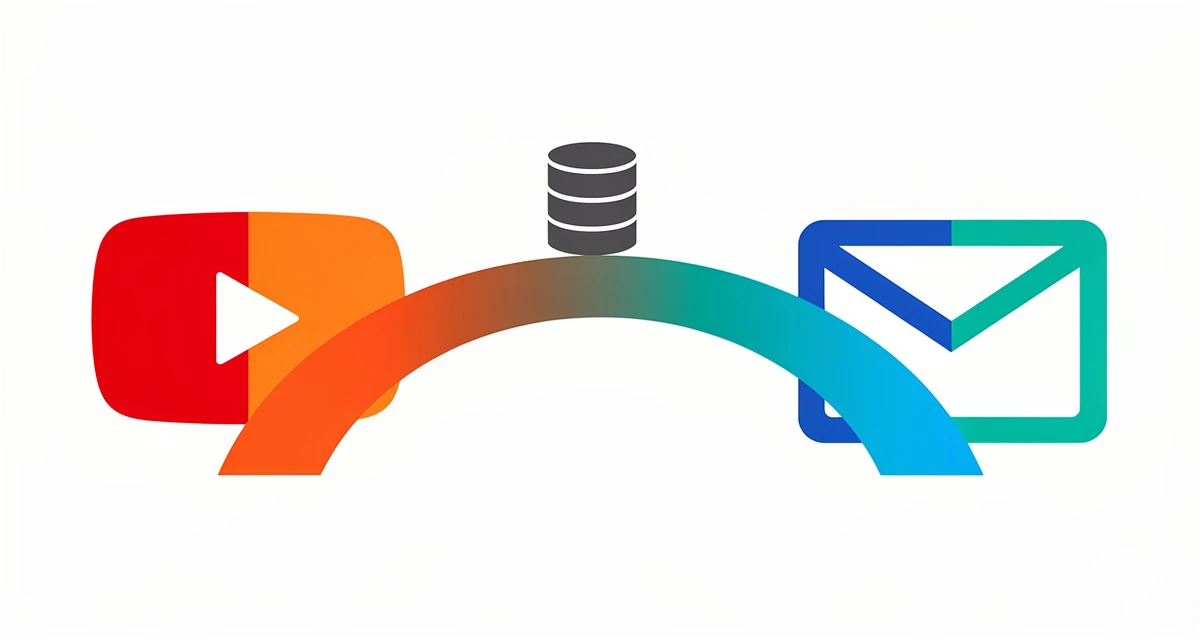
One recorded video can reach every contact in a Gong Engage sequence with each prospect’s name, company, and dynamic background already personalized by AI, but Gong Engage can’t generate that video itself. The connection runs through a CRM field both platforms already touch, not a direct app-to-app handshake, which is what makes the setup a workflow rather than a toggle.
That distinction changes who sets this up and how long it takes. This isn’t a setting buried in a menu. It’s a three-step automation that lives in a dedicated workflow builder, and it’s built for teams who already run full-cycle sequencing in Gong Engage and want a personalized video in those flows without recording a separate clip for every contact.
The teams who reach for this tend to be mid-funnel: a demo just happened, a trial just started, or a deal just moved stages in Gong, and the next sequence step needs to feel like it came from the rep who ran that call, not a template everyone on the list has already seen once. If that describes your deal progression workflow, the setup below is worth the hour it takes.
The division of labor is simple once it’s running. Cloning a rep’s voice to say each prospect’s name, pulling in the prospect’s own company website as the video background, and generating the whole batch in one pass is handled on the video side, covered in more depth on this AI-personalized video overview. Getting that video in front of the right contact at the right step of a sequence is what Gong Engage already does well.
Personalization pays off well beyond video. When HubSpot analyzed more than 330,000 calls-to-action, personalized versions converted 202% better than generic ones. A personalized video dropped into an already-personalized sequence applies the same logic to the highest-attention element in the email.
Pro tip
Build the video campaign first, with placeholders for first name and any other dynamic fields, before touching the automation. The workflow only moves video snippets that already exist.
Why Gong Engage Doesn’t Connect Directly
Gong Engage is built to read and write CRM fields inside its own sequence builder, not to call outside video APIs. A direct, one-click connection doesn’t exist on either side yet, so an automated workflow does the bridging instead: the moment a video finishes generating, a ready-to-use snippet gets written into a CRM field, and Gong Engage simply displays whatever sits in that field.
This is worth the setup time. On Gong’s own sales engagement platform page, the company reports that Engage users see a 34% higher response rate on average, and that deals where reps complete a follow-up task within 24 hours close 11% shorter than deals where that task drags on. A sequencing platform already pulling those numbers from text alone is exactly the kind of channel worth adding video to, rather than building a separate video workflow next to it.
The practical upside for a sales team is that nobody has to leave Gong Engage to see the result. Reps keep working in the tool they already live in every day, and the CRM field quietly carries the video snippet across for them.
There’s also a simpler reason this bridge exists instead of a native button: most sales orgs already run more software than any single vendor can realistically plug into. A sequencing platform, a CRM, a call-recording platform, and a video tool is a normal stack, not an edge case, and the fastest way to connect four separate vendors is almost always through the one system of record all of them already write to, which is the CRM.
Setting Up AI-Personalized Video in Gong Engage Step by Step
Setting this up takes five steps: build the campaign, create a three-step automated workflow, map the embed snippet to a CRM field, confirm the CRM is synced with Gong, then insert that field into a Gong Engage email. Most of the setup time goes into step two, where a missing lookup step is the single most common point of failure.
- Create your Dynamic Video campaign in Sendspark. Leave placeholders wherever a viewer’s first name or another dynamic field should appear, the same way you would for any personalized video campaign.
- Build a three-step automated workflow. The steps are a trigger, a Find Contact lookup in your CRM, and then the update. Without the middle lookup step, there’s no contact record for the workflow to write the video field to, so the update has nothing to attach to and silently fails.
- Map the output field. Point the “HTML Embed Email Snippet” output at a CRM field, for example one named “Email Embed HTML.”
- Confirm the CRM sync with Gong. The field only shows up inside Gong Engage if the CRM is already synced with Gong, since that’s how Gong reads the field in the first place.
- Insert the field into your Gong Engage email. Once the snippet is saved, add that CRM field into the email template. Enroll a contact in the flow, and their own video appears automatically.
Trigger scope is worth deciding up front. The workflow can fire on every video generated across the whole workspace, which is the simplest setup for a single, ongoing sequence. Or it can be scoped to one specific campaign and mapped to its own CRM field, which lets more than one video snippet stay live in the CRM at the same time, useful if different sequences need different videos.
Before turning the workflow on for a full list, run it against two or three test contacts first. Confirm the CRM field actually populates, that the embed renders correctly inside a Gong Engage draft, and that the video plays with the right name and background before a rep ever enrolls a real prospect. A broken field is far easier to catch on three test rows than to explain after a hundred contacts received an empty email.
Common mistake
A two-step workflow, trigger plus update, looks like it should work and often builds without an error. It fails quietly instead: there’s no Find Contact lookup in between, so the workflow has no record to write the video field to, and every row comes up empty inside Gong Engage.
This workflow builder sits behind the Growth plan and above, the same tier that includes API and webhook access generally. Confirm your plan before you start building, so the automation step isn’t the part that stalls the project.
Which CRMs Work With This Setup
This bridge works with five CRMs that Gong already syncs with directly: Salesforce, HubSpot, Zoho, HighLevel, and Close. Any CRM outside that list can’t carry the video field into Gong Engage, no matter how carefully the rest of the workflow is configured, because Gong has nothing to read the field from.
| CRM | Where the Field Lives | Notes |
|---|---|---|
| Salesforce | Custom field on the Lead or Contact object | Pair with the native Salesforce integration for the Find Contact lookup step |
| HubSpot | Custom contact property | Works alongside the existing HubSpot integration and property mapping |
| Zoho | Custom field on the Leads or Contacts module | Confirm Gong’s Zoho sync is active before building the rest of the workflow |
| HighLevel | Custom field on the Contact record | Common for agencies already running client campaigns through GoHighLevel automations |
| Close | Custom field on the Lead record | Smaller teams running a single CRM for both sales and outreach tend to favor this path |
If your team runs CRM automation beyond this one use case, the setup pattern is similar to triggering any other video send from a CRM event, covered in more depth in this guide to sales automation in CRM. For a broader look at every supported integration path, this CRM integration guide covers the native connections alongside workflow-based bridges like this one.
Which of the five CRMs a team uses rarely changes this side of the setup. What changes is where RevOps needs to look if the field doesn’t appear: a Salesforce admin checks field-level security on the Lead or Contact object, a HubSpot admin checks the property’s visibility settings, and a Close or HighLevel admin usually just needs to confirm the custom field was actually saved before the Gong sync last ran. None of that is a problem with the video side of the workflow, but it’s worth ruling out before assuming the bridge itself is broken.
What to Personalize Beyond the Trigger
Automating the delivery mechanism doesn’t automate what the video actually says. The biggest lift comes from referencing something specific from the Gong-recorded call, a question the prospect asked, an objection they raised, a feature they wanted to see again, instead of sending the same generic “great chatting with you” clip to everyone sitting in the sequence.
In practice, that means pulling two or three lines from Gong’s own call notes before recording the base video for that stage of the sequence. A rep who opens with “you asked about SOC 2 compliance on Tuesday, here’s exactly where that lives” reads as a continuation of a real conversation. A rep who opens with “thanks again for your time” reads as a template, even wrapped in a name and a dynamic background.
The name and company still personalize automatically through AI voice cloning and a dynamic background that can show the prospect’s own website behind the speaker. What doesn’t personalize automatically is the content of what’s said, and that’s the part a rep still writes. Budget five minutes per sequence stage to skim the Gong call summary before recording, not five minutes per contact. The video itself still gets personalized per contact automatically; only the script per stage needs a human pass.
“Since we launched Gong Engage, our outreach response rates have increased from 16% to 30%. That’s an 88% boost.”
— Bryce Williford, SVP of Sales, BlueGrace Logistics
Speed compounds here too. A separate Harvard Business Review analysis of 1.25 million sales leads found that companies contacting a prospect within an hour were nearly seven times as likely to qualify the lead as those that waited even one hour longer. That research is about inbound leads specifically, but the underlying logic holds for any follow-up: triggering a video the moment a demo wraps beats queuing it as the fourth item on a rep’s to-do list two days later.
Advanced strategy
Pair this workflow with Combined Videos: record a short, call-specific intro once per sequence stage, then stitch it to a longer, reusable demo reel. The personalized piece stays short enough to re-record often; the reusable piece never has to change.
If the sequence runs long enough to need more than a first-name swap, personalizing beyond first name is worth layering in once the Gong Engage bridge itself is working reliably. Build the connection first, then invest in the script.
| What’s Automated | What’s Still Manual |
|---|---|
| Video generation per contact (name, company, dynamic background) | What the rep says in the base video for that sequence stage |
| Writing the embed snippet into the CRM field | Pulling specifics from the Gong call into the script |
| Displaying the video inside the Gong Engage email | Deciding when a sequence stage needs a new video versus reusing one |
Frequently Asked Questions
Does Sendspark integrate directly with Gong Engage?
No. There’s no native, app-to-app connection between the two platforms. The video platform writes its output into a CRM field through an automated workflow, and Gong Engage reads that field because the CRM is already synced with Gong.
Which CRMs can bridge this video workflow and Gong Engage?
Salesforce, HubSpot, Zoho, HighLevel, and Close all work, because Gong already syncs with each of them. A CRM outside that list has no path for the video field to reach Gong Engage.
What is the “HTML Embed Email Snippet”?
It’s the output field generated once a dynamic video finishes rendering for a contact. Mapping that field into a CRM, then into Gong Engage, is what makes the personalized video show up inside the email.
Do I need a specific plan to automate this?
Yes. The automated workflow builder that bridges the video platform and a CRM is part of the Growth plan and above, the same tier that includes general API and webhook access.
Can more than one video campaign feed Gong Engage at a time?
Yes, if the trigger is scoped to a single campaign and mapped to its own CRM field instead of triggering on every video in the workspace. That keeps multiple snippets live in the CRM at once for different sequences.
Does the CRM need to be synced with Gong for this to work?
Yes. The video field only appears inside Gong Engage if the CRM holding that field is already connected to Gong. Without that sync, Gong has no way to read the field at all.
What’s the most common reason this automation doesn’t work?
A missing Find Contact lookup step. Teams often build a two-step workflow, trigger and then update, which looks complete but has no contact record to write the video field to, so every row comes up empty inside Gong Engage.
Record One Video. AI Personalizes Thousands.
Sendspark records your video once, then clones your voice to greet each prospect by name in front of their own website.
Get Started NowSources & References
- Gong: “On average, Gong Engage users see a 34% higher response rate” and deals closed within 24 hours of task completion are 11% shorter (2026)
- Gong customer case study, BlueGrace Logistics: outreach response rates increased from 16% to 30%, an 88% boost, after adopting Gong Engage (2026)
- HubSpot: personalized CTAs convert 202% better than default CTAs, based on an analysis of over 330,000 CTAs
- Harvard Business Review: companies contacting a lead within an hour were nearly seven times as likely to qualify it as those waiting even one hour longer, based on 1.25 million sales leads (2011)