If you’ve ever tried to drop a personalized video into a Mailchimp campaign and ended up with a broken thumbnail, a dead link, or a video that shows the same generic intro to every single subscriber, you’re not alone. Mailchimp doesn’t have a native video-personalization feature built in, but Sendspark does, and connecting the two takes about five minutes once you know where the pieces go.
This guide walks through exactly how Sendspark’s Mailchimp integration works, how to set up your first personalized send, and how to decide when Mailchimp is the right tool for the job versus a sales-focused platform like HubSpot or GoHighLevel. It’s written for marketing teams running newsletters, product launches, or event invites through Mailchimp who want the video itself — not just the subject line — to feel like it was made for one person.
Published September 2026
Key Takeaways
- Sendspark connects to Mailchimp through a copy-paste HTML embed snippet, not a native plugin, so it works inside any Mailchimp Code block.
- Merge tags pull Mailchimp contact properties (first name, company) into your video’s on-screen personalization automatically for every recipient.
- About 40% of email clients play the video inline; the rest show a clickable animated GIF preview, so keep videos 30-180 seconds and skip autoplay.
- Video in email lifts click-through rates by up to 65% and cuts unsubscribes by 26% (Campaign Monitor) — pairing that with AI voice cloning and dynamic backgrounds compounds the effect.
- If Mailchimp doesn’t show up in Sendspark’s share modal, it’s almost always a shortcut-configuration issue, not a missing integration.
How Sendspark’s Mailchimp Integration Actually Works
Sendspark connects to Mailchimp through a copy-paste HTML embed snippet that you drop into a Mailchimp Code block, not a native app you install from an app store. That means there’s no OAuth handshake or account-linking step: you generate a snippet in Sendspark, paste it into your Mailchimp email, and the video shows up as a clickable thumbnail. From there, you can layer on merge-tag personalization or scale it into a bulk send.
There are three distinct ways to get a Sendspark video into a Mailchimp campaign, and picking the right one depends on how much personalization you actually need:
| Method | Best for | Personalization | Setup effort |
|---|---|---|---|
| Quick share | A single newsletter or announcement video everyone sees | None — same video, same thumbnail for all recipients | Under 2 minutes |
| Personalize at scale (merge tags) | Segmented campaigns where you want each recipient’s name or company on-screen | Merge tags pull Mailchimp Contact Properties into the video thumbnail and text | 5-10 minutes |
| Dynamic bulk sending | Large lists where every recipient gets a distinct video experience | Full dynamic personalization, generated per contact | 15-20 minutes, plus video generation time |
Most teams start with quick share to test the waters, then graduate to merge-tag personalization once they see the engagement lift. Sendspark’s universal HTML embed method works the same way across every email client that supports code blocks, so the mechanics you learn here carry over if you ever add a second email platform.
It’s worth being precise about what “integration” means here, because it’s easy to assume Mailchimp and Sendspark talk to each other behind the scenes the way, say, a native CRM sync would. They don’t, and that’s actually a feature, not a limitation. There’s no data pipe moving your contact list into Sendspark or your video analytics back into Mailchimp automatically — the connection is the embed snippet itself, plus Mailchimp’s own merge-tag substitution running at send time. That keeps the setup simple and means you’re never waiting on an API rate limit or a broken OAuth token to send a campaign. The tradeoff is that view and click data live in two places: Mailchimp tracks whether the email itself was opened and clicked, while Sendspark’s own analytics dashboard tracks whether the video was actually watched, for how long, and whether the viewer clicked a call-to-action inside the video. Checking both gives you a fuller picture than either tool alone.
Step-by-Step: Send Your First Personalized Video in Mailchimp
Setting up your first personalized video send in Mailchimp takes five steps: create the video in Sendspark, add merge-tag personalization, click Share Video, select Mailchimp, and paste the snippet into a Code block. The whole process takes under ten minutes once your video is recorded, and you don’t need any development help.
- Create your video in Sendspark. Record it live, upload an existing file, or use Sendspark’s AI to generate one. This is your base video — the one every recipient will see a version of.
- Add personalization using merge tags on the video page. This is where you decide what changes per recipient — typically the name spoken or shown on-screen, and any dynamic background.
- Click “Share Video.” This opens Sendspark’s share modal, which lists every platform you can push the video to directly.
- Select Mailchimp from the share modal to copy the embed snippet. If Mailchimp isn’t listed by default, click the edit or “add” button in the share modal to add it as a shortcut — this is the most common reason people think the integration is missing when it isn’t.
- Paste the snippet into a Code block in your Mailchimp email, then save. A video-player thumbnail should render immediately in the Mailchimp editor preview. If it doesn’t, double-check that you pasted into a Code block and not a plain text block — Mailchimp’s other content blocks strip raw HTML.
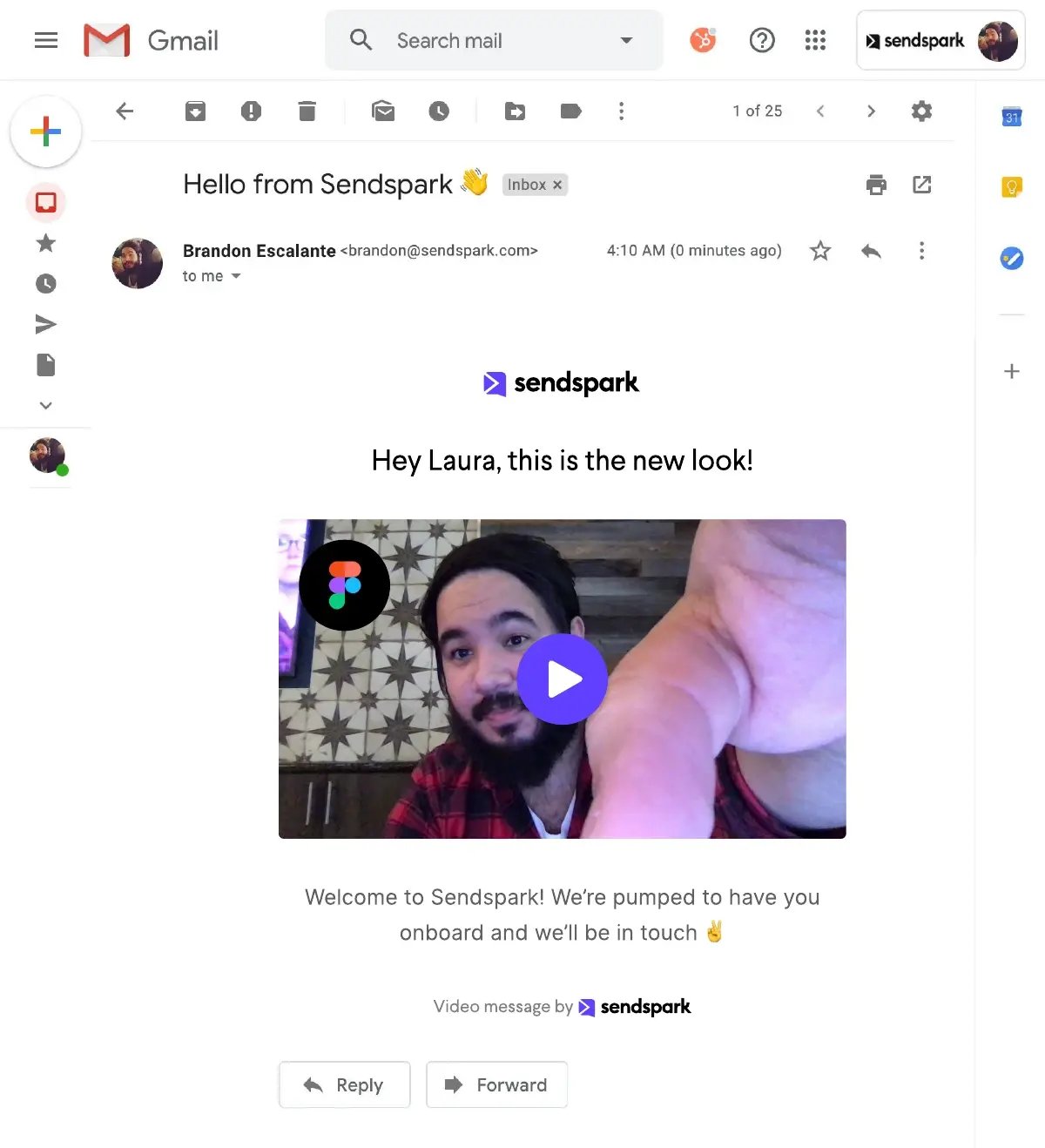
What your recipients actually experience depends on their email client. Where video plays inline, the recipient sees and hears the video without leaving their inbox. Everywhere else, they see an animated GIF built from your video’s first frame, and clicking it opens the full video in their browser on Sendspark’s hosted player. Both paths track back to the same analytics dashboard, so you’re not losing visibility just because the playback method differs.
Common mistake
Pasting the Sendspark snippet into a regular text block instead of Mailchimp’s dedicated Code block. Mailchimp’s text blocks sanitize HTML on save, which silently strips the video embed and leaves you with a blank space or raw code visible to subscribers.
Personalizing at Scale With Merge Tags
Merge tags let you automatically pull a recipient’s first name, company, or any other Mailchimp Contact Property into your video’s on-screen personalization, and they update per recipient the moment Mailchimp sends the campaign. You set the merge tag once on the video page in Sendspark, and every subscriber sees their own version without you touching the campaign again.
The mechanic is straightforward: Sendspark’s merge tag reads the same field Mailchimp already uses for your subject-line personalization (like *|FNAME|*), and maps it to the on-screen text or thumbnail in your video. If a contact is missing that field — say, you never collected a first name — Sendspark falls back to a generic value you set in advance, so no one sees a broken “Hi ,” greeting.
On-screen merge tags are the entry point, but they’re not the ceiling. Sendspark’s AI video personalization platform can go a level deeper: instead of just overlaying a name as text, AI voice cloning can speak the recipient’s name in your own cloned voice, and dynamic backgrounds can show the recipient’s own company website behind you as you talk. Record one video, and Sendspark generates a distinct version for each contact in your Mailchimp list — no re-recording, no manual editing per send.
This matters more for a Mailchimp list than it might for a smaller sales sequence, because Mailchimp campaigns are frequently sent to thousands of contacts at once. A single spoken name insertion at that scale is the difference between “another newsletter” and something that feels individually made, without asking your marketing team to record thousands of separate videos. The generation itself happens ahead of the send — you queue up the personalized variations in Sendspark, they process in the background, and the finished, per-contact video links are what get embedded when the campaign goes out.
Advanced strategy
Layer a voice-cloned name insertion on top of your Mailchimp merge tags. The thumbnail already shows the recipient’s name from the merge tag, so when the video opens and they hear their own name spoken back to them, the two personalization layers reinforce each other instead of just repeating the same first name twice.
Mailchimp Video Email Best Practices
The single biggest factor in whether your Mailchimp video gets watched is length and thumbnail design, because roughly 40% of email clients play the video inline while the other 60% show a clickable animated GIF preview that recipients have to actively choose to open. Keep videos between 30 and 180 seconds, skip autoplay entirely, and make sure your first frame or thumbnail earns the click for that 60%.
- Keep it short. 30-180 seconds is the sweet spot — long enough to make a real point, short enough that a busy subscriber will actually finish it.
- Never enable autoplay. Some email clients block autoplaying video outright, and the ones that don’t will flag it as a spam signal if it triggers unexpectedly.
- Design the thumbnail to earn the click. For the ~60% of recipients who see a static GIF preview instead of inline playback, your thumbnail is doing all the persuasion work. A genuine, expressive first frame outperforms a generic play-button overlay.
- Write short accompanying copy. The video is the message. A few lines of supporting text and a single clear call-to-action beat a wall of copy competing for attention.
- Test on a small segment first. Before you blast your full list, send to a 5-10% segment and confirm the embed renders correctly across Gmail, Outlook, and Apple Mail — the three clients responsible for most rendering quirks.
- Match the video to the campaign type. A product launch or event invite benefits from a slightly more produced feel; a simple “thanks for signing up” or re-engagement send works better as something quick and unpolished. Personalization reads as more genuine when the production quality matches the moment.
One thing worth flagging before you scale a personalized send to your full list: Mailchimp’s deliverability reputation is shared across every campaign you send from that account, so a video embed that renders as broken code or a dead link for a meaningful chunk of your list can hurt more than just that one campaign’s numbers. That’s the real reason to test on a segment first — it’s not just about polish, it’s about protecting your sender reputation before you commit the whole list.
Record One Video. AI Personalizes Thousands.
Sendspark is the AI video personalization platform for B2B sales. Record once, and AI voice cloning generates thousands of individually personalized videos with dynamic backgrounds and personalized thumbnails — each prospect hears their name, sees their website, in your voice. Sales teams see 2-3x more replies.
Get Started NowVideo in email isn’t a marginal tactic.
“Video can increase open rates by 19% and click rates by 65%, while reducing unsubscribe rates by 26%.”
— Campaign Monitor, Surprising Video Email Marketing Statistics
That’s before you add any personalization on top — Mailchimp’s own benchmark data puts the average click rate for all users at just 2.62%, which is the baseline a well-executed personalized video send is trying to beat.
Mailchimp vs. Sendspark’s Other Integrations: Which to Use
Mailchimp is the right choice when your video is going out through a marketing or newsletter workflow rather than a 1:1 sales sequence, but Sendspark connects to dozens of other platforms built for different jobs. Picking the right one depends on who’s sending the video and why, not just which tool your team already has a login for.
| Platform | Best for | Typical sender |
|---|---|---|
| Mailchimp | Newsletters, product announcements, marketing campaigns to a broad list | Marketing team |
| HubSpot | Combined sales + marketing workflows, sequence-based follow-up | Sales and marketing |
| GoHighLevel | Agencies and local-service businesses running client campaigns | Agency operators |
| Instantly / Smartlead | High-volume cold outbound with automated warm-up and rotation | SDRs / outbound teams |
| Generic HTML embed | Any platform that supports a Code block but isn’t listed as a native option | Anyone |
If your team runs marketing sends through Mailchimp today and sales outreach through a separate CRM, you don’t have to pick just one. Sendspark’s marketing solution and its sales-focused integrations share the same underlying video and personalization engine, so a video you record once can be repurposed across both without starting from scratch. For a broader walkthrough of the strategy behind this, see Sendspark’s comprehensive guide to personalized video email.
The practical dividing line is usually list size and sales-cycle involvement, not company size. A 50-person Series B company might run its top-of-funnel newsletter through Mailchimp to thousands of contacts, while its five-person SDR team uses Instantly or Smartlead for a few hundred highly targeted cold sends a week. Both use Sendspark, both benefit from AI voice cloning and dynamic backgrounds, but the volume and personalization depth they need from each send looks completely different. Agencies managing several client accounts tend to lean on GoHighLevel specifically because it lets them run the same Mailchimp-style bulk video workflow separately for each client without the accounts bleeding into each other.
Frequently Asked Questions
Does Mailchimp have its own video personalization feature?
No. Mailchimp supports embedding video through HTML Code blocks and can personalize subject lines and text using its own merge tags, but it doesn’t generate personalized video content itself. Sendspark fills that gap by generating the personalized video and handing Mailchimp a ready-to-embed snippet.
Do I need a Mailchimp plugin or app to use Sendspark?
No plugin or app install is required. You copy an HTML embed snippet from Sendspark’s share modal and paste it into a Mailchimp Code block — there’s no OAuth connection or marketplace app to configure.
Why isn’t Mailchimp showing up in Sendspark’s share modal?
This is almost always a shortcut-display issue, not a missing integration. Click the edit or “add” button on the share modal to add Mailchimp to your visible shortcuts, and it will appear going forward.
Can I personalize the video for each Mailchimp subscriber, or is it the same video for everyone?
Both are possible. A quick share sends the same video to everyone, while merge-tag personalization pulls each subscriber’s Mailchimp Contact Properties (like first name) into the on-screen video content, so each recipient sees their own version.
What happens if a subscriber is missing the merge tag data, like their first name?
Sendspark falls back to a generic value you configure in advance, so recipients without complete contact data still see a coherent video instead of a blank or broken personalization field.
Why does the video look different for some subscribers — sometimes it plays, sometimes it’s just an image?
Email clients handle embedded video differently. Roughly 40% of clients play the video inline, while the rest display an animated GIF preview that opens the full video in a browser when clicked. This is a client-side rendering limitation, not a bug in the Mailchimp integration.
Is video email personalization worth it for a Mailchimp newsletter list, or just for sales outreach?
It works for both, though the case is strongest wherever personalization is currently thin. Video already lifts click-through rates by up to 65% over text-only email, and personalized calls-to-action convert 202% better than generic ones — a broad newsletter list with only first-name personalization has more room to gain than a highly-targeted 1:1 sales sequence that’s already personalized.
Sources & References
- Campaign Monitor — “Video can increase open rates by 19% and click rates by 65%, while reducing unsubscribe rates by 26%.” (2026)
- HubSpot Blog — “Personalized call-to-actions perform 202% better than basic CTAs,” based on an analysis of over 330,000 CTAs (2026)
- Mailchimp — Average open rate of 35.63% and average click rate of 2.62% across all users (2026)
- HubSpot Blog, citing Epsilon — “80% of consumers are more likely to make a purchase when brands offer personalized experiences” (2026)
Record One Video. AI Personalizes Thousands.
Sendspark is the AI video personalization platform for B2B sales. Record once, and AI voice cloning generates thousands of individually personalized videos with dynamic backgrounds and personalized thumbnails — each prospect hears their name, sees their website, in your voice. Sales teams see 2-3x more replies.
Get Started Now