According to HubSpot’s Sales Trends Report, sales reps who use personalized video in outreach see up to 26% higher click-through rates compared to plain text emails — and that gap keeps widening as inboxes get more crowded. If you’re searching for how to do screen recording with webcam, you’re on the right track: combining your screen and face in a single video is one of the most effective formats in B2B sales. But in 2026, the real edge isn’t just recording — it’s using AI video personalization to turn one recording into thousands of individually tailored videos, at scale.
Key Takeaways
- Screen recording with webcam (picture-in-picture) is the gold standard format for B2B sales video outreach because it combines context with human connection.
- AI voice cloning lets you record one video and automatically generate personalized versions for every prospect — each one hears their own name, in your actual voice.
- Dynamic backgrounds show each prospect their own website or LinkedIn profile behind you during playback, making every video feel individually crafted.
- Sales teams using Sendspark’s AI video personalization platform report 200–300% increases in email response rates and 2x more LinkedIn replies.
- CRM video integration with HubSpot and Salesforce means your video engagement data flows directly into your pipeline — no manual logging required.
What Is Screen Recording with Webcam?
Screen recording with webcam means capturing your computer screen and your face simultaneously, displayed together in a single video — typically using a picture-in-picture layout where your webcam feed appears as a smaller window over the screen content. This format gives prospects both the context they need (what you’re showing) and the human presence that builds trust (you, explaining it).
This is the default format for video prospecting, product walkthroughs, demo follow-ups, and onboarding videos in B2B sales. The combination works because buyers don’t just want information — they want to feel like a real person took the time to show them something specifically relevant to their situation.
In a traditional screen recording, you might show a prospect’s competitor landscape or a software demo. Add your webcam, and suddenly it feels like a one-on-one conversation rather than a generic explainer. That shift in perception is what drives higher response rates.
What’s changed in 2026 is what happens after you hit record. Platforms like Sendspark have turned screen + webcam recordings into the input for AI-personalized video outreach — where one recording gets automatically customized for each person on your list, at scale. More on that in a moment.
How to Record Your Screen and Webcam at the Same Time
Recording your screen and webcam simultaneously takes less than two minutes to set up. You need a tool that supports simultaneous capture from both your display and your camera input, then outputs them as a combined video — either picture-in-picture or side-by-side. Here’s exactly how to do it with Sendspark’s screen recording tool.
Step 1: Install Sendspark
Download the Sendspark desktop app (available for Windows and Mac, including Apple Silicon) or add the Chrome extension for browser-based recording. The desktop app gives you the most reliable performance for longer sessions and full-screen capture.
Step 2: Choose Your Recording Mode
When you open a new recording, you’ll see options for Screen Only, Webcam Only, or Screen + Webcam (picture-in-picture). Select Screen + Webcam. You can choose which display or application window to capture and position your webcam overlay anywhere on the frame.
Step 3: Set Up Your Shot
Before you record, check your lighting (face the light source, don’t sit in front of a window), clear your desktop of anything you don’t want visible, and do a quick mic check. A clean, professional setup takes 60 seconds and makes a noticeable difference in how prospects perceive your video.
Pro tip
Before you record your prospecting video, open the prospect’s website or LinkedIn profile on your screen. When they watch the video and see their own site in the background, engagement spikes immediately — it signals that this isn’t a mass blast. Sendspark’s dynamic backgrounds feature does this automatically at scale, but even manually it works well for high-value accounts.
Step 4: Record and Review
Hit record, present your content naturally, and keep it under 90 seconds for cold outreach (more on ideal length in the best practices section). When you stop, Sendspark processes the video and gives you a shareable link immediately — no export wait times, no manual upload.
Step 5: Share with a Personalized Thumbnail
Personalized video thumbnails — a static image from your video that includes the prospect’s name or company logo — dramatically increase click-through rates when embedded in emails. Sendspark generates these automatically. Copy your video link, embed the thumbnail in your email, and send. Your recipient sees what looks like a custom video waiting for them before they even click play.
Record One Video. AI Personalizes Thousands.
Sendspark is the AI video personalization platform for B2B sales. Record once, and AI voice cloning generates thousands of individually personalized videos with dynamic backgrounds and personalized thumbnails — each prospect hears their name, sees their website, in your voice. Sales teams see 2-3x more replies.
Get Started NowHow AI Voice Cloning Turns One Webcam Recording into Thousands of Personalized Sales Videos
Here’s the core problem with traditional screen + webcam recording for sales: it doesn’t scale. Recording a personalized video for every prospect in a 500-person outreach sequence would take days. AI voice cloning solves this entirely — you record one video, and Sendspark’s AI generates a unique version for every single prospect, each one opening with their name spoken in your actual voice.
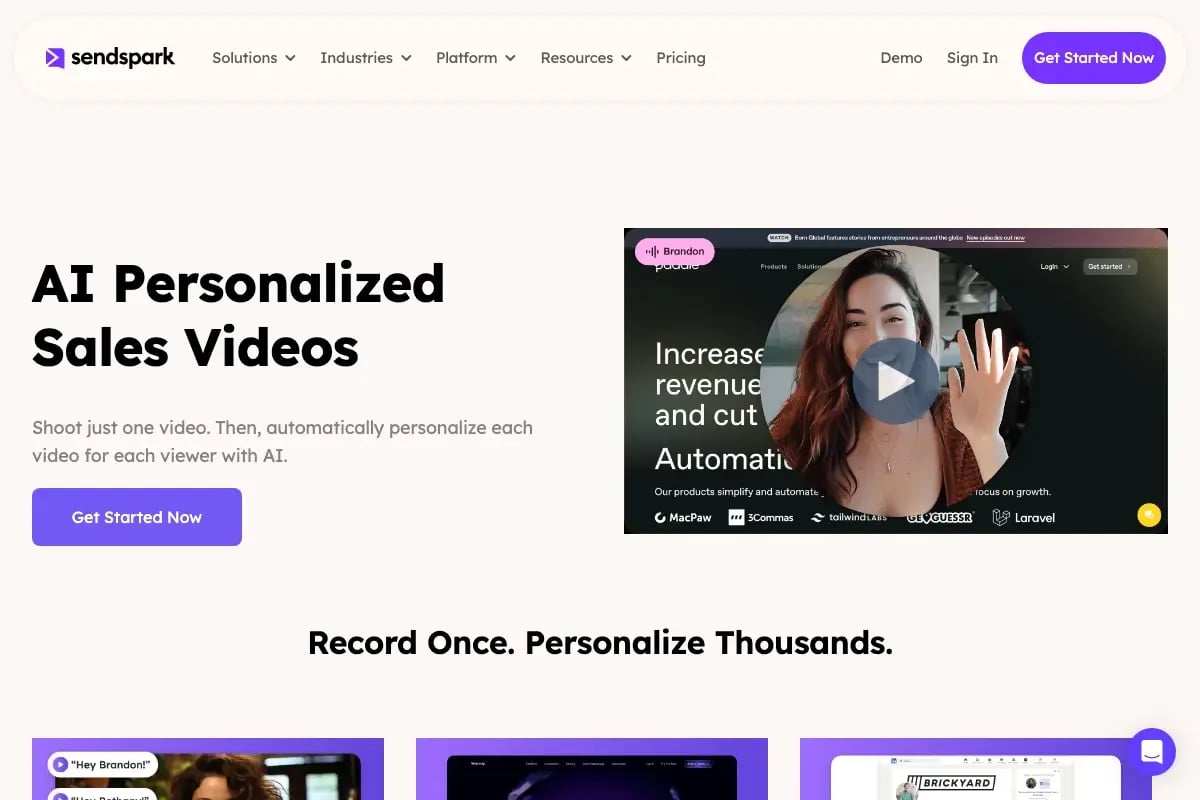
The workflow is called a combined video workflow, and it works like this: you record a generic screen demo — maybe a 60-second walkthrough of a relevant feature or use case. Then Sendspark’s AI attaches a personalized webcam intro to the front of that video for each recipient. The intro says something like “Hey [Prospect Name], I put together this quick walkthrough specifically for [Company Name]…” — spoken in your cloned voice, automatically generated from your prospect list. The result is a video that feels completely hand-crafted, even when it’s been produced at scale for hundreds of people.
Dynamic backgrounds take this further. Instead of a static wall or office behind you in the webcam frame, Sendspark can dynamically swap in each prospect’s own website or LinkedIn profile as the video background. When a prospect at Acme Corp hits play, they see the Acme homepage displayed behind you as you talk. When someone at a different company opens their video, they see their homepage. This is personalization at scale in the most literal sense — every visual element of the video is tailored to the individual, not just the copy around it.
The impact on asynchronous video sales is significant. You’re not on a live call — the video is doing the work for you while you sleep, travel, or work other deals. But because of the AI personalization layer, it doesn’t feel asynchronous to the buyer. They feel like you sat down specifically to record something for them. According to Salesforce’s State of Sales report, 72% of B2B buyers expect vendors to personalize communication to their needs — and a personalized video thumbnail with their name on it, leading to a video that opens with their name in your voice, delivers on that expectation immediately.
Video engagement analytics close the loop. Sendspark tracks exactly who opened your video, how long they watched, whether they clicked your CTA, and when — all at the individual prospect level. This isn’t aggregate data; it’s per-recipient behavioral intelligence. When a prospect watches your video three times in one day, your CRM gets updated automatically through CRM video integration with HubSpot or Salesforce. Your reps know to follow up, and they know what the prospect watched. That’s a fundamentally different level of pipeline visibility than you get from standard email open tracking.
The combination of picture-in-picture prospecting, AI voice cloning, and dynamic backgrounds positions AI-personalized video outreach as the highest-ROI format in modern B2B sales. Sendspark customers report 200–300% increases in email response rates and 3x email conversions compared to text-only outreach. You can explore what this looks like in practice through these video prospecting examples from real sales teams.
Advanced strategy
Build a library of 4–5 reusable screen demo recordings — one per use case or industry vertical — and use Sendspark’s AI intro feature to attach a personalized webcam intro to whichever demo matches the prospect’s profile. This way your team records once per segment and deploys personalized video to hundreds of prospects per campaign without any additional recording time. Learn how to create personalized sales videos that convert.
Screen + Webcam Recording Best Practices for B2B Sales
The most effective B2B sales videos using screen + webcam aren’t long, polished productions — they’re short, specific, and feel like they were made for one person. Follow these practices and your videos will consistently outperform text-based outreach in response rate, reply rate, and booked meetings.
Keep It Under 90 Seconds for Cold Outreach
A prospect who doesn’t know you yet has about 90 seconds of patience. Get to the point fast: acknowledge something specific about them (their company, a recent announcement, a pain point you noticed), show them one relevant thing on your screen, and give them a clear next step. Save longer demos for prospects who’ve already engaged.
For warm follow-ups or existing customers, 2–3 minutes is fine. But even then, respect their time. According to Gartner’s B2B Buying Journey research, buyers spend only 17% of their total purchase process time meeting with potential suppliers — every minute you ask for needs to earn its place.
Start with Their Name and a Specific Observation
The fastest way to signal that a video is personal (not a blast) is to open with the prospect’s name and one specific, accurate detail about them. “Hey Sarah, I noticed [Company] just expanded into the enterprise segment…” performs dramatically better than “Hey, I wanted to share this quick video with you.” Sendspark’s AI personalized video intros do this automatically for every prospect on your list.
Show Something Specific to Their Situation
The webcam alone doesn’t make a video personal — what you show on screen does. Pull up their website, show their current tech stack in a tool you’re demoing, reference a competitor they’ve mentioned. The screen content should say “I did my homework on you” as clearly as your words do. This is what separates sales prospecting video from generic marketing video.
Use a Strong Thumbnail with Their Name
Personalized video thumbnails are one of the highest-leverage tweaks you can make to your video outreach. An animated GIF thumbnail or a static image showing you mid-gesture with the prospect’s name overlaid increases email click-through rates significantly compared to a plain text link. Always use a thumbnail, never just paste a raw link.
End with One Clear CTA
Don’t give prospects three options at the end of your video. Pick one: book a call, reply to this email, or download a resource. Multiple CTAs split attention and reduce action. Sendspark lets you embed a clickable CTA button directly in the video player, so the prospect can act without leaving the video page.
Common mistake to avoid
Don’t record a video that would make sense for any prospect and just add their name at the start. Buyers can tell when the “personalization” is a thin layer on top of a generic pitch. The screen content is where real personalization lives — show something that only makes sense for their company, their industry, or their specific situation. If you’re recording one video for everyone, use Sendspark’s dynamic backgrounds to at least make the visual environment specific to each viewer.
What to Look for in a Screen + Webcam Recorder for B2B Sales
Not all screen + webcam recorders are built with B2B sales in mind. A general-purpose recorder gives you a video file. A sales-focused AI video personalization platform gives you a complete outreach workflow — from recording to personalization to delivery to analytics to CRM sync. Here’s what actually matters when you’re evaluating tools for a sales use case.
Core Recording Capabilities
At minimum, you need reliable simultaneous screen and webcam capture, picture-in-picture layout control, and instant shareable links (no manual export/upload). These are table stakes. If a tool makes you wait for exports or upload to a separate host, it adds friction that kills adoption across your team.
AI Personalization Features
This is where the real differentiation lives in 2026. Look for AI voice cloning (generates personalized audio greetings in your voice), dynamic backgrounds (swaps backgrounds per recipient), and personalized thumbnails (auto-generates name/logo overlays). These features are what allow you to reach hundreds of prospects with individual-feeling video without recording hundreds of individual videos. Check out our screen recorder with webcam overlay guide for setup specifics.
Analytics and Tracking
Video engagement analytics should be individual-level, not aggregate. You need to know that this specific prospect watched 85% of your video at 2:47pm on Tuesday — not that your video has a 64% average completion rate across all viewers. Per-recipient data is what makes video outreach actionable for follow-up.
CRM Integration
Your video tool should push engagement data into your CRM automatically. Sendspark’s HubSpot integration (rated 5/5 by users) and Salesforce integration offer bi-directional sync — video sends log as activities, opens and plays trigger notifications, and engagement scores can influence lead scoring. Without CRM integration, video data lives in a silo and your reps miss follow-up signals.
Team Features and Scalability
Individual reps using video is good. An entire sales team deploying consistent, on-brand, AI-personalized video at scale is a competitive advantage. Look for shared video libraries, brand customization, team analytics, and admin controls. The complete guide to video prospecting covers how to roll this out across a sales org.
| Feature | Basic Screen + Webcam Recorder | Sendspark AI Video Personalization Platform |
|---|---|---|
| Screen + webcam recording | ✅ Yes | ✅ Yes |
| Picture-in-picture layout | ✅ Yes | ✅ Yes |
| AI voice cloning for personalized intros | ❌ No | ✅ Yes — clones your voice per prospect |
| Dynamic backgrounds per recipient | ❌ No | ✅ Yes — shows their website/LinkedIn |
| Personalized video thumbnails | ❌ No | ✅ Yes — auto-generated with prospect name/logo |
| Per-recipient video analytics | ❌ No | ✅ Yes — opens, plays, watch time, CTA clicks |
| CRM integration (HubSpot, Salesforce) | ❌ No | ✅ Yes — bi-directional sync |
| Personalization at scale (100s of prospects) | ❌ Manual only — one recording per prospect | ✅ Yes — one recording, AI generates thousands |
| Team shared library + brand controls | ❌ Limited or none | ✅ Yes — full team workspace |
| Pricing | Free – $15/mo (individual use) | Growth $99/mo · Team $299/mo |
If you only need to record and share the occasional tutorial or internal update, a basic screen recorder works fine. But if you’re running outbound sequences, prospecting at scale, or trying to improve reply rates across a sales team, the comparison above makes the case for a purpose-built AI video personalization platform. The ROI math on a 200–300% response rate lift versus a $99/mo Growth plan is straightforward.
Frequently Asked Questions
How do I record my screen and webcam at the same time?
You need a tool that supports simultaneous capture from both your display and your camera. With Sendspark, install the desktop app or Chrome extension, start a new recording, and select “Screen + Webcam” mode. Your webcam appears as a picture-in-picture overlay on your screen recording. The whole setup takes under two minutes, and your video is shareable via link the moment you stop recording — no export required.
What is AI voice cloning and how does it work with screen recordings?
AI voice cloning creates a digital replica of your voice from a short training sample. In Sendspark’s workflow, you record one screen + webcam demo video, then upload your prospect list. The AI generates a personalized audio intro for each prospect — spoken in your cloned voice, using their name and company — and attaches it to your recording. Each prospect receives a video that opens with a greeting that sounds exactly like you recorded it just for them, even if you’re simultaneously reaching out to hundreds of people.
What are dynamic backgrounds in video prospecting?
Dynamic backgrounds are video backgrounds that automatically change per recipient. In Sendspark, you can set a prospect’s website or LinkedIn profile as your webcam background, and the platform swaps it out for each person on your list. When your prospect hits play, they see their own company’s site displayed behind you — a visual cue that the video was made specifically for them. This feature works in conjunction with AI voice cloning as part of a complete personalization at scale workflow.
What’s the best video length for sales prospecting?
For cold outreach, keep screen + webcam videos under 90 seconds. Prospects who don’t know you yet have limited patience, and shorter videos have higher completion rates. For warm follow-ups, 2–3 minutes is appropriate if you have substantive content to show. The most important thing isn’t length — it’s that every second earns its place. A 60-second video that gets to the point converts better than a 3-minute video that takes 90 seconds to get started.
How do personalized video thumbnails increase click-through rates?
Personalized video thumbnails work because they signal to a prospect, before they’ve even clicked, that this video was made for them. A thumbnail showing your face mid-gesture with the prospect’s name or company logo overlaid stands out immediately in a crowded inbox. Sendspark auto-generates these thumbnails for every recipient in your list. You can embed them as animated GIFs or static images in your email — both perform significantly better than a plain text link or generic preview image, according to HubSpot’s research on video in sales emails.
How does Sendspark integrate with HubSpot and Salesforce?
Sendspark’s HubSpot and Salesforce integrations work bi-directionally. When you send a video, it logs as an activity in your CRM. When a prospect opens, plays, or clicks your CTA, that engagement data syncs back automatically — no manual logging. You can set up notifications so reps get alerted the moment a high-value prospect watches their video, enabling perfectly timed follow-up. The HubSpot integration is rated 5/5 by Sendspark users and supports contact-level engagement tracking tied directly to deals and sequences.
Can my whole sales team use screen + webcam recording with AI personalization?
Yes — and it’s most effective when deployed team-wide with consistent workflows. Sendspark’s Team plan ($299/mo) includes shared video libraries, brand customization, team analytics, and admin controls. Reps can access pre-approved screen recording templates and AI intro frameworks so every video going out reflects your brand standards. Team-level analytics show you which reps’ videos are driving the most engagement and conversions, so you can coach based on what’s actually working. For a full rollout playbook, see the complete guide to video prospecting.
Sources & References
- HubSpot. Sales Trends Report: Video in Sales Emails. blog.hubspot.com/sales/video-in-sales
- Salesforce. State of Sales, 7th Edition. salesforce.com/resources/research-reports/state-of-sales
- Gartner. The B2B Buying Journey. gartner.com/en/sales/insights/b2b-buying-journey
Record One Video. AI Personalizes Thousands.
Sendspark is the AI video personalization platform for B2B sales. Record once, and AI voice cloning generates thousands of individually personalized videos with dynamic backgrounds and personalized thumbnails — each prospect hears their name, sees their website, in your voice. Sales teams see 2-3x more replies.
Get Started NowTopics: blog