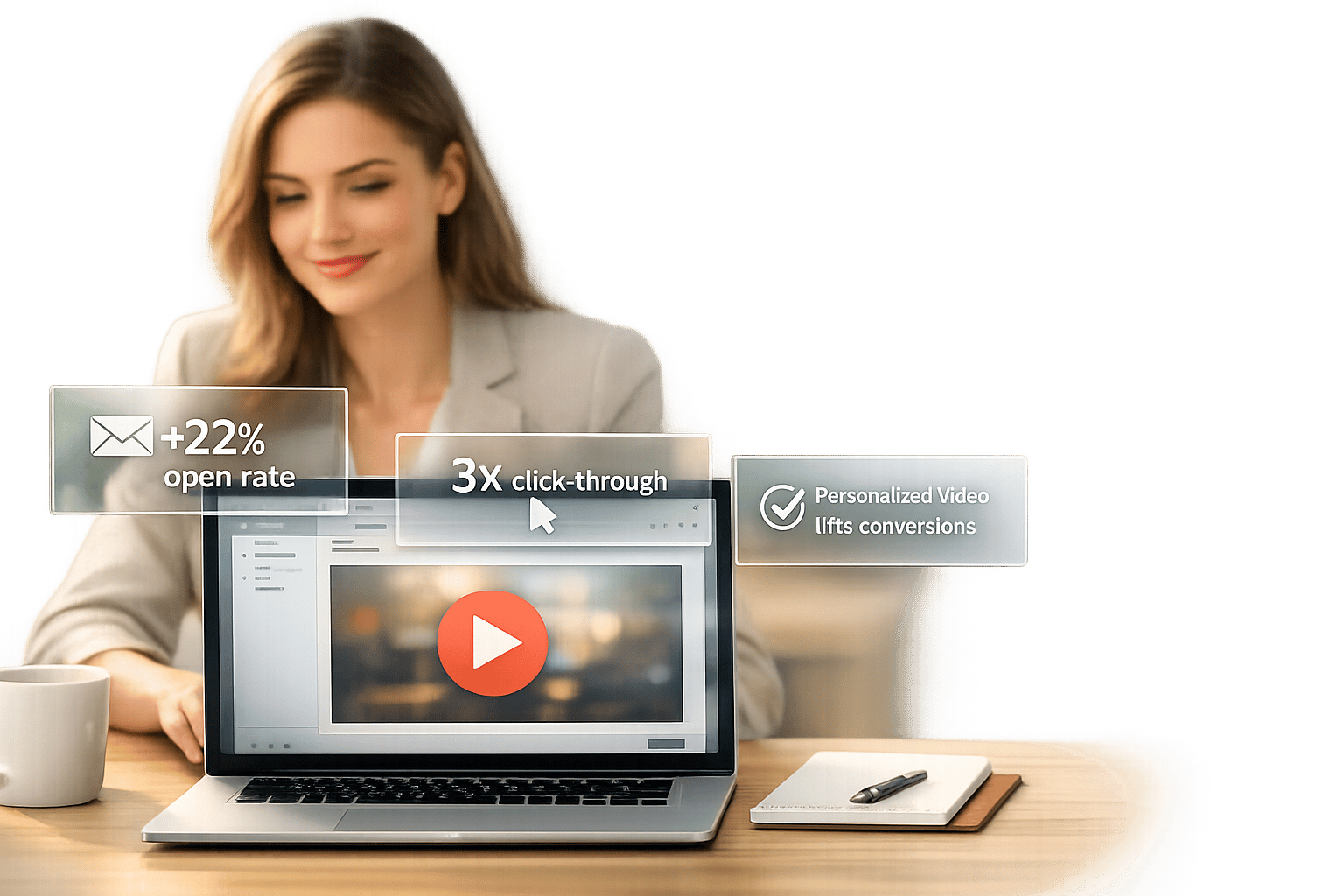
AI-personalized video marketing is a simple way to make your emails stand out. Adding videos to emails increases open rates by 19%, boosts click-through rates by 65%, and helps retain 95% of your message compared to plain text. It’s especially effective for sales and marketing teams aiming to connect with their audience.
Here’s how you can include videos in your emails:
- Thumbnail + Link: Use a static or GIF thumbnail with a play button that links to an external video.
- External Hosting: Host videos on platforms like Sendspark and share links or thumbnails.
- HTML5 Embed: Embed videos directly, but note this works for only about 40% of email clients.
Tools like Sendspark allow you to personalize videos at scale using AI for names, backgrounds, and more. Keep videos short (30–60 seconds), add captions, and track performance using analytics to improve results. This approach helps cut through inbox clutter and drive engagement.
AI-personalized video Marketing Statistics and Performance Metrics
Benefits of Adding Video to Email Campaigns
Incorporating video into your email campaigns is a game-changer. It boosts engagement, helps your message stand out, and drives higher conversions. These advantages align seamlessly with the AI-powered personalization tools discussed later.
Higher Engagement and Response Rates
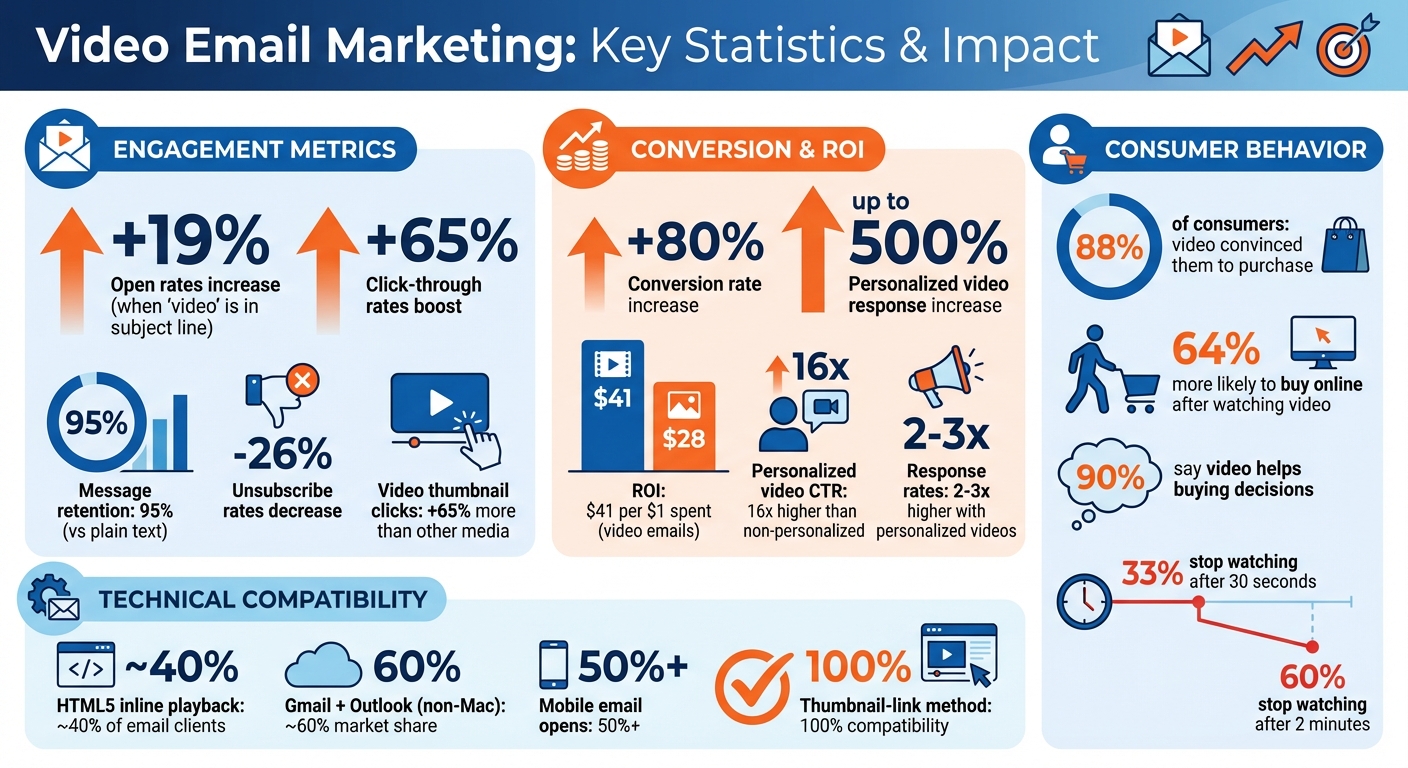
Adding video to your emails can dramatically improve performance metrics. For instance, simply including the word "video" in your subject line can increase open rates by 19%, boost click-through rates by 65%, and reduce unsubscribe rates by 26%. Why? Video content is more memorable, which explains why 88% of consumers say watching a brand’s video convinced them to make a purchase.
Sales teams using personalized videos see even greater success, with response rates doubling or tripling compared to plain text emails. Additionally, 64% of people are more likely to make an online purchase after watching a video. These numbers highlight video’s ability to cut through the noise and capture attention.
Standing Out in Crowded Inboxes
Let’s face it - most inboxes are flooded with emails that look the same: walls of text. Video offers a refreshing change. When recipients see a video thumbnail with a play button, it promises a more engaging and dynamic experience.
In fact, video thumbnails in emails receive 65% more clicks than other types of media. A short 30-second video featuring your face and voice creates a personal connection that plain text simply can’t replicate. Taking it a step further, personalized touches - like including the recipient’s name on a whiteboard or showing a screen recording of their website - make the message feel custom-made.
Increasing Conversions with Personalized Videos
Personalized videos take engagement to the next level by tailoring the message to each recipient. These videos generate click-through rates 16 times higher than non-personalized ones and can boost conversion rates by up to 80%. The return on investment is clear: AI-personalized videos bring in an average of $41 for every $1 spent, compared to $28 for image-only emails.
AI tools make it easier than ever to scale this approach. You can record a single video and use AI voice cloning to automatically insert each recipient’s name, while dynamic backgrounds display their company logo or website. This level of personalization leads to 2-3x more replies for sales teams.
Trust is another key factor. Seeing a real person in a video builds instant credibility, and 90% of customers say video helps them make buying decisions. Personalized videos turn cold emails into warm, engaging conversations that inspire action.
Methods for Adding Videos to Emails
Adding videos to emails isn't as straightforward as attaching a file. Email clients often have compatibility issues and file size limits, so you’ll need to get creative. Luckily, there are three effective ways to include videos in your emails that work across most platforms.
Using Thumbnail Images with Play Buttons
One of the simplest and most reliable methods is to use a static thumbnail image with a play button overlay. This image links to your video hosted on an external platform. Since email clients handle images universally, this approach works every time. The red play button grabs attention and signals interactivity, encouraging recipients to click.
Want to take it up a notch? Use an animated GIF as your thumbnail. Movement naturally draws the eye, and GIF thumbnails can increase clicks by up to 65% compared to static images. Just keep the file size under 1 MB to avoid slow loading times. Be aware, though, that older versions of Outlook (2007–2013) will only display the first frame of the GIF. For the best results, use a 1280×720 pixel thumbnail, position it near the top of your email, and include a timestamp to show the video’s length. Don’t forget to add descriptive alt text for accessibility.
After setting up your thumbnail, focus on choosing a hosting platform that offers not just shareable links but also detailed performance analytics.
Hosting Videos on External Platforms
Uploading your video to an external hosting platform like Sendspark is another effective option. These platforms provide shareable links and detailed analytics, making it easy to track engagement. Once your video is hosted, you can either add a clickable thumbnail (as described above) or include a simple text link. Thumbnails typically perform better because they visually signal the presence of a video.
For an added touch, you can append "?play" to the video URL to enable autoplay when recipients click on the link. This small tweak can make the viewing experience even smoother.
If you’re looking for a more seamless integration, you might consider embedding the video directly into the email using HTML5.
Embedding Videos with HTML5
Embedding videos directly into emails using the HTML5 <video> tag allows for inline playback in the recipient’s inbox. However, this method only works for about 40% of email users. It’s supported by Apple Mail (Mac/iOS), Outlook for Mac, Samsung Mail, and Thunderbird.
Here are some key points for HTML5 embedding:
- Hosting and format: Host the video on a direct server or Content Delivery Network (CDN). Use the MP4 format for maximum compatibility, and keep the file size under 10 MB.
- Fallback options: Since most email clients don’t support inline playback, include a fallback like a static image or GIF. Use the "poster" attribute to display a thumbnail while the video loads.
| Method | Compatibility | Setup Difficulty | Analytics Capabilities |
|---|---|---|---|
| Static Image + Link | Universal (100%) | Low | High (Tracks clicks to landing page) |
| Animated GIF + Link | High (90%+) | Medium | High (Tracks clicks to landing page) |
| HTML5 Embedding | Limited (~40%) | High (Requires coding) | Low (Inline plays are harder to track) |
For most marketers, the thumbnail-and-link approach strikes the perfect balance between ease of use, engagement, and tracking. It ensures your video content reaches every recipient while still providing valuable insights into performance.
Creating Personalized Videos with Sendspark
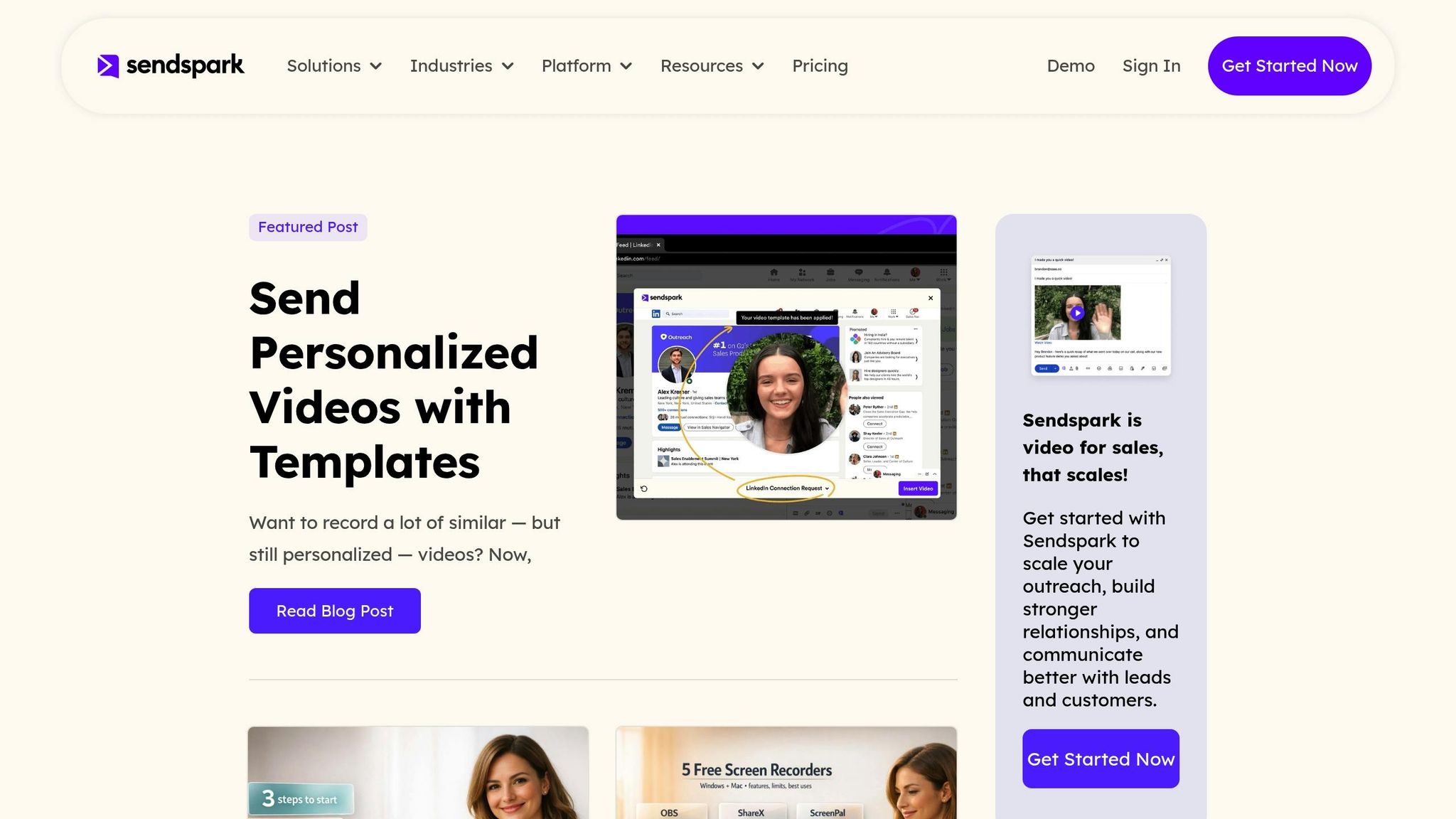
Once you’ve chosen your video creation method, it’s time to personalize your content. While generic videos can get the job done, personalized videos can boost conversions by up to 300% compared to plain text emails. By combining effective video embedding techniques with tailored content, you can achieve deeper engagement and better conversion rates. Sendspark’s AI makes it possible to generate thousands of personalized videos from just one recording, perfectly complementing your AI-personalized video strategy.
Record Once, Personalize at Scale
Here’s how it works: record a single video and let AI handle the personalization. For instance, instead of saying the recipient’s name, use a placeholder like “Hi placeholder” during the recording. Then, activate Sendspark’s AI voice cloning feature in your campaign settings. Upload your contact list, and the platform will automatically replace the placeholder with each recipient’s name using a clone of your voice.
This creates a unique, personal experience for every recipient. To make it even more realistic, you can enable the Lip Sync (Beta) feature, which aligns your speech with the personalized name.
Want to take it up a notch? Add dynamic visual elements to make your videos even more engaging.
Adding Dynamic Backgrounds and AI Voice Personalization
Dynamic backgrounds are another way to enhance personalization. Simply include a backgroundUrl field in your CSV file with links to each recipient’s website or LinkedIn profile. Sendspark will use that URL as the background of your video, giving the impression that you’re browsing their site while speaking.
You can also enable features like Simulated Scrolling and Mouse Cursor Animation to create the illusion of actively navigating the recipient’s website. Combining these dynamic visuals with AI voice personalization results in a highly tailored and engaging outreach experience.
"I'm confident I've found the best video prospecting tool, and it's Sendspark. Welcome to the world where AI meets video."
– William Padilla, Account Executive at GRIN
To ensure consistency, set a Fallback URL in your campaign settings. If a specific background link is missing from your CSV, the fallback ensures your video still looks polished and professional.
Combining Personalized Intros with Pre-Recorded Demos
Another powerful feature is the ability to combine personalized intros with pre-recorded demos. Start with a short, AI-personalized intro (20–40 seconds) that greets each prospect by name and uses their dynamic background. Then, seamlessly transition into your standard demo video using the Combined Videos feature.
After recording the personalized intro with placeholders, attach your pre-recorded demo content. The result? A smooth, cohesive video that starts with a personal touch and ends with detailed product information. To make it easy for recipients to take the next step, include a Call-to-Action button - like a Calendly link - on the video landing page, so they can book a meeting effortlessly.
sbb-itb-afd3f9e
How to Send Sendspark Videos in Emails
Once you’ve created your personalized videos, the next step is choosing the best way to share them with your audience. The method you choose will depend on your platform and the preferences of your recipients.
Recording and Personalizing Your Videos
Start by selecting your recording tool. The Sendspark Chrome Extension is perfect for browser-based recordings and offers seamless integration with tools like Gmail, LinkedIn, HubSpot, Outreach, and Salesforce. If you’re working outside of Chrome, such as creating content for PowerPoint or PDFs, the Desktop App provides high-quality recording options. For quick access, pin the Chrome extension to your browser toolbar.
When recording, you can pick from three modes:
- Face: Webcam only
- Screen: Screen only
- Both: A webcam bubble overlaying your screen
To make your video more engaging, use the Spotlight feature to focus on yourself at the start, then shift to your screen content for a balanced mix of personal connection and information delivery. You can also adjust the size and shape of your webcam bubble (circle, square, or rectangle) and apply effects like background blur or touch-ups for a polished look.
If you’re creating a video for multiple recipients, record using a placeholder like “Hi there.” Later, activate AI voice cloning in your campaign settings to automatically personalize the video with each recipient’s name.
Once your video is ready, it’s time to integrate it into your email campaigns.
Adding Videos to Your Email Campaigns
There are several ways to include your video in emails, depending on your platform and audience. Here are your options:
- Copy Linked GIF: Ideal for sending 1:1 emails in Gmail or Outlook. This method pastes an animated preview that links to your video’s landing page. It also tracks clicks across most email clients.
- HTML Embed Code: Best for marketing automation platforms like HubSpot or Mailchimp. This allows inline playback in supported email clients (e.g., Apple Mail, Outlook for Mac) and defaults to a GIF for others.
- Static Thumbnail: A practical choice for older versions of Outlook that don’t support animated GIFs. This ensures your video preview displays correctly for all recipients.
Before hitting send, customize your video landing page with a title, welcome message, logo, and a call-to-action button. Don’t forget to add text above the video in your email body - this not only provides context but also helps avoid spam filters.
"Adding the word 'video' to an email's subject line increases open rates by up to 19%." – Thomson Reuters
Keep in mind that the first 30 seconds of your video are critical. Studies reveal that 33% of viewers stop watching after 30 seconds, and 60% drop off after two minutes. Make those first moments count.
Tracking Video Performance and Analyzing Data
Sending your video is just the beginning. To fine-tune your strategy, you need to measure how your audience interacts with your content. Sendspark’s analytics provide detailed insights, showing who watched your video, how much they watched, and whether they clicked on your call-to-action button. This level of detail goes beyond standard email metrics, thanks to the GIF-to-landing-page approach, which tracks engagement that email clients typically can’t capture.
Integrate Sendspark with your CRM, such as HubSpot, Salesforce, or Outreach, to sync video engagement data directly into your sales reports and contact records. Platforms like HubSpot, Mailchimp, and Klaviyo even let you see exactly how much of the video each contact watched.
To improve future videos, pay attention to the "percentage watched" metric. If viewers tend to drop off at a certain point, adjust your content to deliver key information earlier. You can also track CTA button clicks on your video landing page to measure conversions. Focus your follow-ups on leads who watched the video multiple times or all the way through - these are likely your most interested prospects.
Finally, use video analytics to monitor performance over time. This data helps you refine your approach, so you can focus on what resonates best with your audience.
Common Challenges and Solutions
AI-personalized videos are known for their high engagement, but they come with their own set of hurdles. From technical issues to deliverability concerns, understanding these challenges - and knowing how to tackle them - can make a big difference in your email marketing success.
Working with Email Client Limitations
Here’s the reality: most email clients don’t support inline video playback. In fact, around 85% of inbox providers, including Gmail, Outlook (Windows/Web), and Yahoo Mail, lack this functionality. Inline video works only in a few platforms like Apple Mail (Mac/iOS), Outlook for Mac, iOS Mail, Samsung Mail, and Thunderbird. Given that Gmail and non-Mac Outlook together account for about 60% of the market, most of your audience won’t see embedded videos.
The easiest workaround? The thumbnail-link method. Use a static image or animated GIF with a play button overlay that links to your video hosted on a landing page. For those with more technical expertise, consider adding fallback options within the HTML5 <video> tag so unsupported clients display a linked image instead. Don’t forget to include alt text for video thumbnails - this not only improves accessibility but also ensures your message is clear even if the image doesn’t load.
Another key issue to address is how video file size can impact email performance.
Optimizing Video Load Times and Quality
Large video files can be a double-edged sword. They slow down email loading times and are often flagged by spam filters. The solution? Host your videos externally and link to them.
"Large video attachments trigger spam filters, slow inbox placement, and signal outdated outreach practices."
To keep things efficient, compress your videos to 720p or 480p using the H.264 codec at 3,000–5,000 kbps. If you’re using animated GIFs, make sure they’re under 1MB. This is especially important for mobile users, who now account for over 50% of email opens. Large files not only eat up their data but can also lead to frustration. Another tip: optimize your videos for silent viewing by adding captions or on-screen text, as many users watch without sound.
Avoiding Spam Filters
Even with proper video setup, poorly designed emails can still end up in the spam folder. To avoid this, maintain a 60:40 text-to-media ratio. Include some brief text around the video thumbnail to give spam filters context about your email’s content. Steer clear of spam-trigger words like “Free,” “Guarantee,” or “Winner” in your subject line, and never set videos to autoplay with sound.
Improving your email’s deliverability also means taking a few technical precautions. Implement authentication protocols like SPF, DKIM, and DMARC to verify your sender identity. Regularly clean your email list by removing hard bounces and unengaged subscribers. Over time, these efforts, combined with the higher engagement rates of AI-personalized videos - which can be 2–3 times higher than text-only emails - will boost your sender reputation.
Conclusion
AI-personalized video marketing offers a powerful way to stand out in crowded inboxes and connect with your audience on a personal level. The numbers speak for themselves - AI-personalized videos achieve higher open rates and engagement, with personalized videos increasing response rates by as much as 500%.
To navigate technical challenges, use thumbnail images with play buttons that link to hosted videos. Keep your videos short (30–60 seconds) and ensure they’re optimized for silent viewing by adding captions. Including the word "video" in your subject line can also increase open rates by up to 19%.
For a seamless experience, platforms like Sendspark simplify the process. With tools like AI voice cloning and dynamic backgrounds, you can create thousands of personalized videos without recording each one. Sendspark also handles the technical side, from generating animated GIF thumbnails for Gmail to providing HTML5 embeds for Apple Mail.
What sets Sendspark apart is its detailed analytics, which show you exactly who watched your videos and for how long. These insights go beyond basic email metrics, giving you a clearer picture of your campaign’s impact.
FAQs
How can I make sure my AI-Personalized Videos work across different email clients?
To make sure your AI-personalized videos function smoothly across various email clients, rely on animated GIFs or static image thumbnails that link to your video. This method works well because, while embedded videos aren’t broadly supported, most email platforms display images without a hitch.
It’s also smart to include a backup option for email clients that don’t support native video playback, like Gmail or Outlook on Windows. This way, recipients can still view your content easily, boosting both engagement and the overall experience.
How can I personalize AI-Personalized Videos to increase engagement?
Creating personalized AI-personalized videos is an effective way to grab attention and foster deeper connections with your audience. The key is to customize the content to align with each recipient's interests, preferences, or recent interactions with your brand. For instance, you could mention their name, reference a recent purchase or inquiry, or even address a specific challenge they’ve shared with you.
To make this work, you need solid information about your audience. The better you understand their needs, the more tailored and engaging your message will be. Tools that incorporate dynamic elements can also help by automatically adjusting parts of the video for each recipient, making it feel more personal and relevant. When done right, personalized videos show your audience that you value them - something that can lead to significantly higher engagement and response rates.
How can I measure the success of my AI-Personalized Video campaigns?
To gauge how well your AI-personalized video campaigns are performing, focus on metrics that show how recipients interact with your content. Start with the open rate - this tells you how effective your subject lines and preheader text are at grabbing attention. Then, dive into click-through rates to see how many people are actually clicking on your video thumbnails or links to watch.
Because not all email clients support embedded video playback, it’s important to track clicks on static thumbnails or GIFs that lead to your video. This helps you measure engagement accurately. Beyond clicks, pay attention to viewing time and conversion rates - like purchases or form submissions after watching - to understand how well your video motivates action.
Don’t forget to monitor email deliverability metrics, such as bounce rates and spam complaints, to ensure your messages are landing in inboxes. By keeping an eye on these metrics, you can fine-tune your campaigns and drive better results next time.