Most sales reps send plain-text emails into a void and wonder why reply rates are stuck in the low single digits. Research from Gong shows that personalized outreach dramatically outperforms generic messaging — yet most teams still send the same template to every prospect. Free screen capture software gives you a fast way to record product walkthroughs, demos, and personal messages without spending a dime. But recording a video is only the first step — pairing it with AI video personalization is what turns a one-off recording into a scalable sales asset that generates replies at volume.
Key Takeaways
- Several high-quality free screen capture tools exist for Windows and Mac — OBS Studio, ShareX, ScreenRec, CamStudio, and Icecream Screen Recorder are the best options for sales teams on a budget.
- Free tools handle the recording; Sendspark’s AI video personalization platform handles personalization at scale using AI voice cloning, dynamic backgrounds, and personalized thumbnails.
- Recording one video and using AI to personalize it for thousands of prospects is far more efficient than re-recording individual messages for every contact.
- Sales teams that combine screen recordings with AI-personalized video outreach consistently see 2–3× higher reply rates compared to text-only sequences.
- You can integrate this workflow directly into HubSpot and other CRMs so personalized video slots naturally into your existing sales sequences with video.
What Makes Free Screen Capture Software Worth Using for Sales
Free screen capture software is worth using for sales because it removes the friction between having something valuable to show a prospect and actually showing it. You can record a product demo, a custom proposal walkthrough, or a personalized screen message in under five minutes — no studio, no budget, no editing suite required.
The bar for “good enough” in sales video is lower than most reps think. Prospects don’t need cinematic production quality. They need to see something relevant to them, delivered in your voice, that answers the question they haven’t asked yet. A lightweight free recording tool handles that job perfectly.
That said, free screen capture tools have one meaningful limitation for sales teams: they record one video for one person. If you’re prospecting at any real volume — 50, 100, 500 accounts a month — re-recording a unique video for every contact doesn’t scale. That’s the gap that AI video personalization fills. You record once, and the platform generates individualized videos for every prospect automatically.
According to the Salesforce State of Sales report, high-performing sales teams are significantly more likely to use personalization throughout their outreach cadence. Video is the medium where personalization lands hardest — and combining a free recording tool with an AI personalization layer gives you enterprise-level output at zero extra cost for the capture step.
Before choosing a tool, look for these qualities in any free screen capture application you consider for sales work:
- No watermark — A watermark on your video looks unprofessional and signals to prospects that you’re using a free trial. Avoid it.
- System + microphone audio capture — You need to record your voice and, if you’re doing a software demo, the audio from the app itself.
- No hard recording time limit — A 5-minute cap will kill your demo mid-sentence. Look for tools with no limit or a generous one.
- Easy export or cloud share — You need a shareable link, not a 200MB file attached to an email.
Need more context on the broader category of browser-based recording options? Check out our guide to screen recorder extensions for a comparison of lightweight in-browser tools as well.
Best Free Desktop Screen Capture Software
The best free desktop screen capture software for sales teams in 2026 are OBS Studio, ShareX, ScreenRec, CamStudio, and Icecream Screen Recorder. Each is genuinely free with no watermark on recorded output, and each handles audio capture well enough for sales video use cases. Here’s how they compare side by side.
| Tool | Platforms | Watermark-Free | Recording Limit | Audio Capture | Cloud Sharing |
|---|---|---|---|---|---|
| OBS Studio | Windows, Mac, Linux | ✅ Yes | No limit | System + Mic | Local only |
| ShareX | Windows only | ✅ Yes | No limit | System + Mic | 80+ destinations |
| ScreenRec | Windows, Mac, Linux | ✅ Yes | No limit | System + Mic | Free cloud link |
| CamStudio | Windows only | ✅ Yes | No limit | System + Mic | Local only |
| Icecream Screen Recorder | Windows, Mac | ✅ Yes (free tier) | 10 min (free) | Mic only (free) | Local only |
OBS Studio
OBS Studio is the most powerful free screen recording tool available and it’s entirely open source. It handles multi-source recording (webcam + screen + audio simultaneously), has no watermark, no time limit, and exports clean files ready for upload. The learning curve is steeper than other tools here, but for sales reps who want full control over what they record and how, it’s hard to beat. It’s available on Windows, Mac, and Linux.
ShareX
ShareX is a Windows-only screen capture tool that punches far above its weight. It supports over 80 cloud upload destinations, meaning you can record and have a shareable link in seconds. Annotation tools are built in, and the workflow automation features let you set up hotkeys for instant recording. For Windows-based sales teams doing high-volume prospecting, ShareX is one of the fastest capture-to-link tools available for free.
ScreenRec
ScreenRec is a cross-platform screen recorder with a built-in free cloud hosting layer. You finish recording and immediately get a shareable link — no manual uploading required. It’s one of the most frictionless free options for sales reps who need to get a video link into an email quickly. The free plan includes unlimited recordings and a private cloud storage library at no cost.
CamStudio
CamStudio is a lightweight Windows recorder that’s been around for years. It doesn’t have cloud sharing or fancy features, but it records clean screen video with audio and produces local files you can upload wherever you need. If you’re already storing and sharing files through a cloud drive and just need a simple capture tool, CamStudio does the job without any fuss.
Icecream Screen Recorder
Icecream Screen Recorder has one of the cleanest interfaces of any free screen capture application and is available on both Windows and Mac. The free tier caps recordings at 10 minutes and mic-only audio, which is limiting for longer demos. For short, punchy sales intro videos under 10 minutes, though, it works well — especially on Mac where free options are thinner on the ground.
Pro tip
On Mac, the native QuickTime Player (built into macOS) records your screen and audio for free with no watermark or time limit. Go to File → New Screen Recording to get started. It won’t give you cloud sharing or editing, but it’s a reliable fallback when you just need a fast capture.
Record One Video. AI Personalizes Thousands.
Sendspark is the AI video personalization platform for B2B sales. Record once, and AI voice cloning generates thousands of individually personalized videos with dynamic backgrounds and personalized thumbnails — each prospect hears their name, sees their website, in your voice. Sales teams see 2-3x more replies.
Get Started NowHow AI Video Personalization Turns a Screen Recording Into a Sales Asset
A screen recording becomes a true sales asset the moment it stops being generic and starts speaking directly to one specific prospect. AI video personalization does that automatically — you record one video, and the platform uses AI voice cloning and dynamic visual layers to create a version of that video personalized for every single prospect on your list.
Here’s the core problem with recording individual videos manually: it doesn’t scale. If you spend three minutes recording a personalized video for each of 200 prospects, that’s 10 hours of recording time — before you’ve written a single email. Most reps either abandon the approach entirely or send one generic video to everyone, which defeats the purpose.
AI Personalized Video from Sendspark solves this by cloning your voice from a single recording. The AI then generates a unique audio intro for each prospect — saying their name, their company name, or any custom variable from your CRM — in your voice, attached to your base recording. No re-recording. No synthetic-sounding robot voice. Your voice, personalized at scale.
“Personalization is the baseline expectation now. The question isn’t whether to personalize — it’s how to do it at a volume that actually moves revenue.”
Beyond AI voice cloning, Sendspark’s AI video personalization platform adds two more layers that make a huge visual difference:
Dynamic backgrounds let you pull in a prospect’s own website as the background behind your talking-head video. When a prospect opens your video and sees their own homepage in the frame, the message is unmistakable: this was made for them. It’s not a visual trick — it’s a signal of intent that captures attention in the first two seconds.
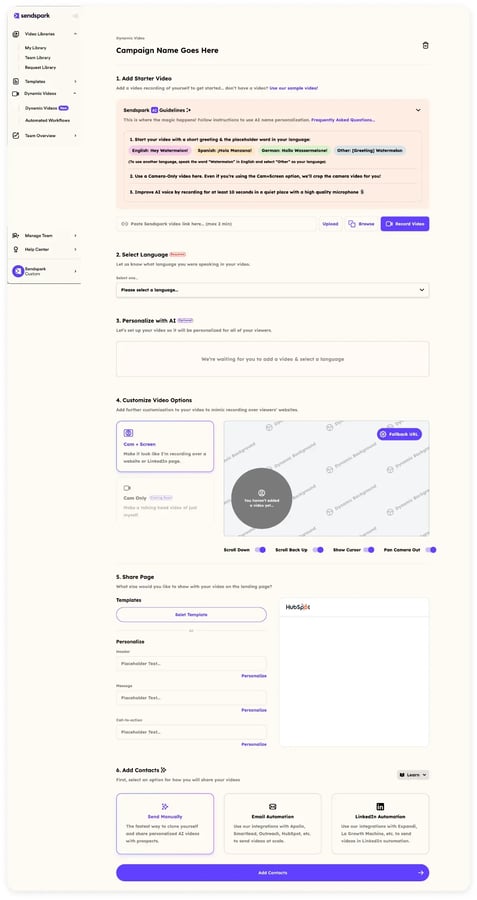
Personalized thumbnails display the prospect’s name, company logo, or custom text directly on the video preview image in the email. Before they’ve clicked a single button, they already know this video is about them specifically. Thumbnail personalization alone measurably improves click-through rates because it interrupts the pattern of generic email outreach.
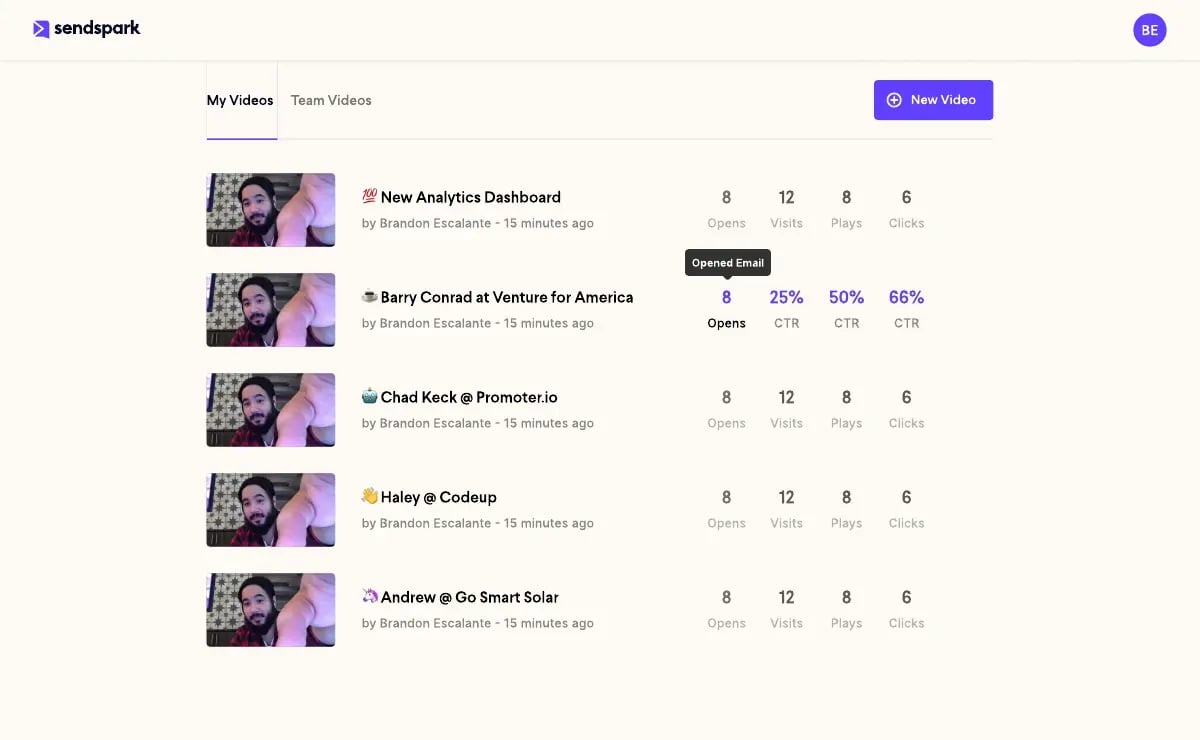
Add video engagement analytics on top of that — knowing who watched your video, how much of it they watched, and whether they clicked through — and you have a complete picture of prospect intent that plain-text email simply can’t provide. You’ll know exactly which prospects watched all the way through and which ones dropped off after five seconds, letting you prioritize follow-up with precision.
This is the combination that transforms a free screen recording into a complete AI-personalized video outreach system. For a deeper look at how this fits into a prospecting motion, see our sales prospecting workflow guide and the video prospecting guide.
Setting Up Your Screen-to-Personalized-Video Workflow
Setting up a screen-to-personalized-video workflow takes about 30 minutes the first time and runs automatically afterward. The process has four distinct stages: capture, upload, personalize, and send. Here’s how each step works in practice.
Step 1: Record Your Base Video
Use any free screen capture tool from the list above to record your base video. This is typically a 60–90 second screen recording — a product demo, a proposal walkthrough, or a direct-to-camera pitch. Keep it short. The AI personalization layer adds an intro, so your base video should get straight to the value.
If you want the screen recording and the AI personalization layer in one tool, Sendspark has a built-in screen recorder that feeds directly into the personalization workflow — no exporting or uploading required.
Step 2: Upload and Set Up Your Personalization Template
Upload your base recording to Sendspark’s AI video personalization platform. From there, you configure your personalization template: which variables you want the AI to include (first name, company name, custom lines), which dynamic background to use (the prospect’s website URL pulled from your contact list), and how you want the personalized thumbnail to look.
Sendspark clones your voice from the base recording. You don’t need to record a separate training clip — it captures your vocal characteristics automatically and uses them to generate the personalized AI intro for each contact.
Step 3: Import Your Prospect List
Pull in your prospect list from your CRM or upload a CSV. Each row becomes a personalized video. The AI generates a unique version of your video for every contact, with their name spoken in your voice at the start, their company website behind you in the frame, and their name on the thumbnail preview.
If you’re running sales sequences with video inside HubSpot, the Sendspark HubSpot integration handles this automatically — personalized video links populate directly in your sequence templates without manual work.
Common mistake
Don’t include the personalized video link as a raw URL in your email. Embed the personalized thumbnail as a clickable image instead. A static image of your face with the prospect’s name on it drives dramatically more clicks than a plain hyperlink, and many spam filters treat raw video links with suspicion.
Step 4: Send and Monitor Engagement
Send your videos through your email client or sequencing tool. Sendspark’s video engagement analytics dashboard shows you who opened, who watched, and how long they watched. Use this data to trigger timely follow-ups — a prospect who watched 90% of your video and clicked through to your site is a very different conversation than one who opened and bounced in five seconds.
For a full walkthrough of this cadence in context, read our guides on video prospecting and using video for sales. Both go deep on how to sequence AI-personalized videos alongside traditional email touchpoints for maximum reply rate.
The full combined video workflow — free capture tool → AI personalization → CRM integration → engagement analytics — is something most enterprise sales teams pay significant software costs to replicate. Building it with free screen capture at the front end and Sendspark’s AI video personalization platform in the middle keeps your costs focused where personalization actually creates value.
Quick Comparison: Free Screen Capture vs. AI Video Personalization
Free screen capture tools and AI video personalization platforms solve different problems. Understanding the distinction helps you use both strategically rather than treating them as alternatives. Here’s a direct comparison of what each layer does and doesn’t do for your sales outreach. For a closer look at exactly where the line falls, see our breakdown of screen recording vs. AI video personalization.
| Capability | Free Screen Capture Tools | Sendspark AI Video Personalization |
|---|---|---|
| Screen + audio recording | ✅ Core function | ✅ Built-in screen recorder included |
| Personalize video per prospect | ❌ Manual re-record only | ✅ AI voice cloning at scale |
| Dynamic backgrounds | ❌ Not available | ✅ Prospect’s website as background |
| Personalized thumbnails | ❌ Not available | ✅ Auto-generated per prospect |
| Video engagement analytics | ❌ None | ✅ Full viewer analytics dashboard |
| CRM integration | ❌ None | ✅ HubSpot, Salesforce, and more |
| Personalization at scale | ❌ One video at a time | ✅ Thousands of videos from one recording |
| Cost | Free | Paid (with free trial) |
The takeaway is simple: free screen capture tools give you the raw material. Sendspark’s AI video personalization platform gives you the multiplier that makes that raw material worth sending to hundreds of prospects. They’re complementary, not competing.
If you’re just getting started with video prospecting and want to test the concept before committing to any paid platform, recording a few manual videos with one of the free tools above is the right first step. Once you see reply rates improve, the case for personalization at scale with an AI layer becomes obvious quickly.
Frequently Asked Questions
What is the best free screen capture software for Windows in 2026?
OBS Studio and ShareX are the best free screen capture tools for Windows. OBS is more powerful with no recording limits, multi-source capture, and full audio control. ShareX is faster to use day-to-day with built-in cloud sharing to 80+ destinations and a simpler recording workflow for short sales videos. Both are completely free with no watermark.
Is there a good free screen capture application for Mac?
Yes — macOS has QuickTime Player built in, which records your screen and microphone audio for free with no watermark or time limit. For more features, OBS Studio and ScreenRec both have Mac versions. Icecream Screen Recorder also supports Mac but caps free recordings at 10 minutes. For sales reps who want recording and AI personalization in one tool, Sendspark’s built-in screen recorder works natively in the browser on Mac.
Can free screen capture software record audio?
Yes — most quality free screen capture tools record both system audio and microphone audio simultaneously. OBS Studio, ShareX, ScreenRec, and CamStudio all support dual-channel audio capture. The main exception is Icecream Screen Recorder’s free tier, which limits you to microphone-only audio. Always check that your recording has captured your voice before sending to prospects.
What’s the difference between screen capture and AI video personalization?
Screen capture records what’s on your screen or your webcam into a single video file. AI video personalization takes that recording and automatically generates individualized versions for each prospect — using AI voice cloning to say their name, applying dynamic backgrounds like the prospect’s own website, and creating personalized thumbnails, all without re-recording. Screen capture creates the asset; AI video personalization makes it scalable for B2B sales outreach.
How does AI voice cloning work for video personalization?
AI voice cloning analyzes a voice recording — your base sales video — and builds a model of your vocal characteristics. The platform then synthesizes new audio in your voice from text inputs, like a prospect’s name or company. In Sendspark’s AI video personalization platform, this means each prospect hears a personalized intro in your actual voice, not a generic text-to-speech robot. The result sounds natural because it’s built from your real voice, not a synthetic template.
Do I need to use a specific free screen recorder to work with Sendspark?
No — Sendspark accepts video uploads from any source, so you can record with OBS, ShareX, ScreenRec, or any other free screen capture tool and upload the file directly. Sendspark also has a built-in screen recorder that connects directly to the AI personalization workflow if you prefer an all-in-one approach. Either way, the personalization layer works the same.
Will a free screen recording tool integrate with my CRM?
Most standalone free screen capture tools have no CRM integration at all — they produce a local file or a cloud link, and that’s it. CRM integration happens at the video personalization layer. Sendspark integrates with HubSpot via the HubSpot integration, allowing personalized video links to populate automatically inside your sequences, contact records, and deal stages — no manual copy-paste required.
Record One Video. AI Personalizes Thousands.
Sendspark is the AI video personalization platform for B2B sales. Record once, and AI voice cloning generates thousands of individually personalized videos with dynamic backgrounds and personalized thumbnails — each prospect hears their name, sees their website, in your voice. Sales teams see 2-3x more replies.
Get Started NowSources & References
- Salesforce State of Sales Report — “High-performing sales teams are 2.8× more likely to use personalization throughout their sales cycle” (2024)
- Gong Sales Email Statistics — Data on personalized outreach and reply rate benchmarks across B2B sales teams (2024)
- Harvard Business Review — Research on buyer attention, personalization effectiveness, and the psychology of relevance in B2B communication
- OBS Project — Official documentation for OBS Studio open-source screen recording and streaming software
- ShareX Official Site — Feature reference for ShareX free screen capture and upload workflow tool
Topics: blog