Sales reps who send personalized video outreach get 2-3x more replies than those sending plain text emails — yet most Windows 10 users are still screen-recording demos and blasting the same file to every prospect on their list. If you’re using free screen capture software on Windows 10 for B2B sales, the recording is just the first step. What you do with that recording determines whether it converts.
Key Takeaways
- Windows 10 includes two built-in free screen capture tools — Snipping Tool and Xbox Game Bar — that work for basic demo recording with no software install required.
- OBS Studio and ShareX are the strongest free third-party options for professional B2B demo recording on Windows 10, with no watermarks, no time limits, and advanced recording modes.
- Recording a great screen demo is only half the equation — sending the same recording to every prospect produces poor results compared to personalized outreach.
- Sendspark’s AI video personalization platform lets sales teams record one screen demo, then use AI voice cloning to generate thousands of personalized versions — each prospect hears their name in your voice, sees their company website as a dynamic background.
- Sales teams using AI-personalized video outreach report 2-3x higher reply rates compared to generic video emails, according to Sendspark customer data.
Why Screen Capture Matters for B2B Sales Teams on Windows
Screen recording gives B2B sales reps a concrete, visual way to demonstrate product value — prospects who watch a demo recording are significantly more likely to respond than those receiving a wall of text. Video removes ambiguity, shortens evaluation cycles, and lets your product make the case before a live call ever happens. For outbound prospecting especially, a well-recorded demo landing in the inbox is a genuine competitive differentiator.
The evidence for video in sales is hard to ignore. According to the Wyzowl State of Video Marketing 2026, 92% of marketers say video gives them a positive ROI — a figure that has climbed steadily year over year. For B2B sales specifically, video outreach drives higher open rates, longer engagement time, and more qualified replies compared to text-only email sequences.
Windows 10 remains the dominant enterprise operating system globally, which means the majority of B2B sales reps are recording on Windows machines every day. The good news: Windows 10 ships with built-in screen capture tools, and several professional-grade free options are available for download. The question isn’t whether you can record — it’s what happens to that recording after you hit stop.
This is where most sales teams hit a wall. They record a solid product demo, attach it to an email, and send the exact same file to 200 prospects. The recording is good. The distribution is the problem. According to Salesforce’s State of Sales research, buyers increasingly expect personalized communication at every stage — a generic video with a name swap in the subject line doesn’t meet that bar.
The gap between basic screen capture and AI video personalization is where sales results actually diverge. Recording is a commodity. Personalized delivery at scale is the differentiator — and that’s what this guide covers.
How We Evaluated These Tools
Every tool in this guide was assessed against four criteria relevant to B2B sales use cases on Windows 10:
- Recording quality: Does it capture screen, webcam, and audio clearly enough for professional outreach?
- Ease of use: Can a sales rep start recording in under two minutes without a technical setup process?
- Free tier limitations: Are there watermarks, time limits, or paywalled export formats that break real-world sales workflows?
- AI personalization compatibility: Can recordings be uploaded to an AI video personalization platform like Sendspark to generate personalized versions at scale?
Pro tip
Before your demo recording, prep a script outline — not word-for-word, just bullet points. Natural delivery performs better with AI personalization because the voice clone captures your authentic cadence, not a rehearsed reading.
Top Free Screen Capture Software for Windows 10
The five strongest free screen capture options for Windows 10 in B2B sales contexts are OBS Studio, ShareX, Snipping Tool, ScreenRec, and Xbox Game Bar — each suited to a different workflow, from quick prospect clips to full professional demos with no recording limits or watermarks.
OBS Studio — Best for Professional B2B Demos
OBS Studio is the gold standard for free, professional-grade screen and webcam recording on Windows 10. It supports multiple recording modes — full screen, application window, or custom region — combined with simultaneous webcam and microphone capture. For sales reps recording product demos, OBS delivers broadcast-quality output with no watermarks, no time limits, and no export restrictions. The learning curve is steeper than built-in tools, but the output quality is noticeably better. Once configured, reps can save scene presets so every future recording starts consistently framed. OBS exports in formats that upload cleanly to any AI video personalization platform, making it the preferred choice for teams who record demos frequently and need reliable, high-quality source files.
ShareX — Best for Automation and Productivity Teams
ShareX is a powerful open-source screen capture tool built for Windows 10 users who want workflow automation baked into their recording process. Beyond basic screen recording, ShareX supports scrolling screenshots, region capture, annotations, and automated upload to cloud destinations — all triggered by customizable hotkeys. For sales engineers or productivity-focused teams, the ability to capture a demo, annotate it, and push it to a shared folder in one keystroke significantly reduces the friction between recording and sending. ShareX has no time limits, no watermarks, and no paid tier — everything is free. Recordings export in standard formats compatible with Sendspark and other platforms for downstream AI personalization.
-–
Record One Video. AI Personalizes Thousands.
Sendspark is the AI video personalization platform for B2B sales. Record once, and AI voice cloning generates thousands of individually personalized videos with dynamic backgrounds and personalized thumbnails — each prospect hears their name, sees their website, in your voice. Sales teams see 2-3x more replies.
Get Started Now-–
Snipping Tool — Best for Quick Screen Clips
Windows 10’s built-in Snipping Tool (accessible via Start menu or the shortcut Win+Shift+S) covers both static screenshots and short video recordings without any download required. For quick prospect-specific clips — showing a specific feature, capturing a relevant screen to reference in an email, or recording a brief walkthrough of a landing page — Snipping Tool is the fastest route from idea to file. It’s limited to basic screen recording without webcam overlay or audio mixing options, which means it’s best for supplementary clips rather than full-length demos. Files export as MP4 and are immediately uploadable to Sendspark’s screen recorder workflow for AI personalization.
ScreenRec — Best for Cloud Sharing and Business Users
ScreenRec is a lightweight Windows 10 screen capture tool designed specifically for business users who need to record, share, and collaborate quickly. It supports screen recording with webcam overlay, includes 4K capture capability, and generates an instant shareable link the moment you finish recording — no manual upload step required. The free tier requires a signup but imposes no time limits per recording, making it practical for full-length product demos. ScreenRec’s speed-to-share workflow suits sales reps who need to send a demo clip quickly during an active email thread. For personalized, scalable outreach, recordings can be downloaded and uploaded to Sendspark for AI voice cloning and dynamic background treatment. Check out these product demo video examples to see how the output should look before you record.
Xbox Game Bar — Best for Zero-Setup Built-In Capture
Every Windows 10 machine ships with Xbox Game Bar, accessible instantly via the Win+G keyboard shortcut. Despite the gaming-focused branding, it’s a capable screen recorder for B2B purposes — it captures the active application window in MP4 format with audio, requires no installation, and has no watermarks or time limits. The primary constraint is that it records the foreground application only, not the full desktop, which can be a limitation for demos that require switching between multiple windows. For single-application product demos or quick feature walkthroughs, it’s genuinely useful. Microsoft’s official Xbox Game Bar documentation covers the full setup and keyboard shortcuts. Before recording, read through how to record a great video of yourself to make sure your setup produces clean, professional output.
How AI Video Personalization Turns Screen Recordings into Sales Tools
Recording a compelling product demo is table stakes — the actual performance gap in B2B video outreach comes from what happens after you stop recording. A generic screen recording sent to every prospect on your list gets treated like a generic asset; AI video personalization closes the gap between “I recorded a demo” and “every prospect feels like I made this specifically for them.”
The Old Way: Record Once, Send the Same File to Everyone
The traditional video outreach workflow looks like this: a sales rep records a polished product demo, uploads it to a sharing platform, pastes the link into an email template, swaps in the prospect’s first name in the subject line, and sends. This approach works better than plain text — but it scales poorly on the personalization side. Every prospect receives the same video, the same thumbnail, the same intro. Reply rates reflect that.
The problem isn’t the recording quality. It’s that modern B2B buyers can tell within seconds whether an outreach asset was made for them or for a list. A video that opens with “Hey there, check out what we built” reads exactly as impersonal as it sounds, regardless of how good the demo content is.
The New Way: Record Once, AI Personalizes at Scale
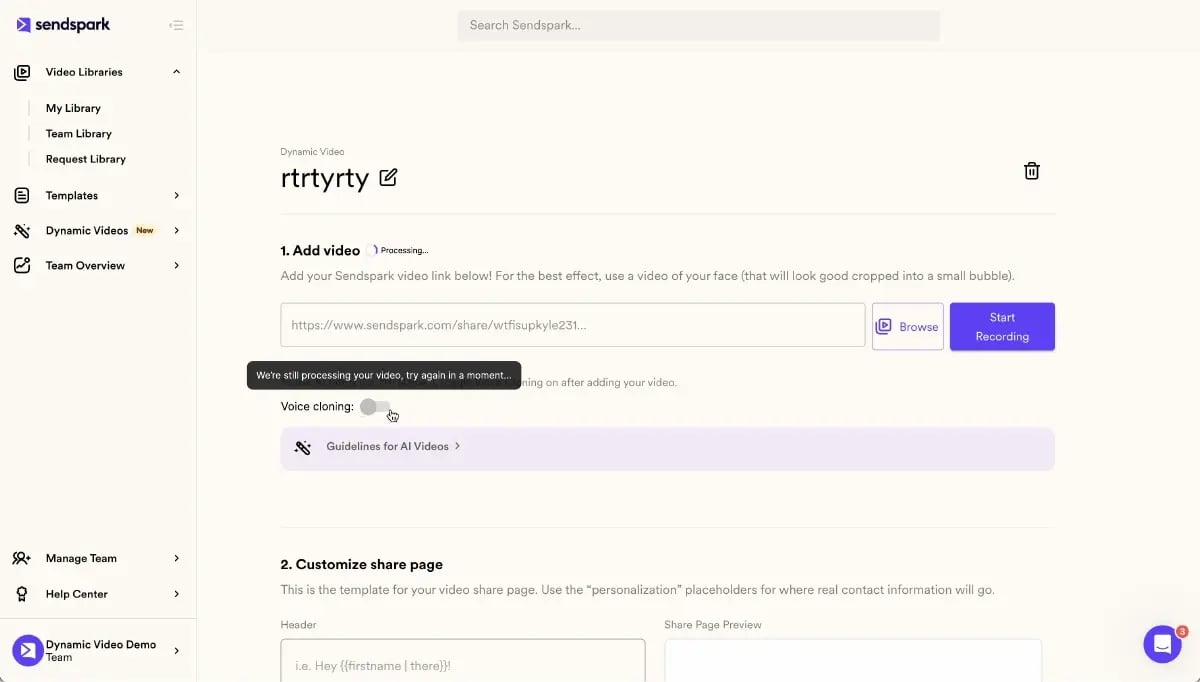
Sendspark’s AI video personalization platform changes the math entirely. The workflow for a sales team on Windows 10 looks like this:
- Record your product demo using any Windows 10 screen capture tool — OBS Studio, ShareX, Xbox Game Bar, or Sendspark’s built-in screen recorder. Aim for a focused, 2-4 minute demo covering the value most relevant to your target segment.
- Upload to Sendspark and complete a brief voice cloning session — read a short script so Sendspark’s AI can model your voice accurately.
- AI voice cloning personalizes each intro — Sendspark generates a unique version for each prospect where the AI says their name in your actual voice. Not a robotic text-to-speech voice. Your voice.
- Dynamic backgrounds pull each prospect’s company website — instead of a static background behind your webcam, Sendspark dynamically renders each company’s live website, making every video visually specific to that recipient.
- Personalized thumbnails increase open rates — each prospect sees a thumbnail with their name on it before they even click play, which dramatically improves open and play rates.
The result: a sales rep records one demo and one intro template, and Sendspark generates hundreds of fully personalized video versions — each one feeling hand-crafted for the individual prospect. Sales teams using this workflow report 2-3x more replies compared to generic video outreach. Explore AI Personalized Video to see how the voice cloning and dynamic personalization works in practice.
“The moment a prospect hears their own name in your voice at the start of a video — before any demo content — the psychology of the interaction changes. It’s not just personalization. It’s proof that you did your homework.”
For the complete strategic playbook on this approach, the complete guide to video prospecting walks through sequencing, targeting, and scaling personalized video campaigns end-to-end.
Advanced Strategy
Use Sendspark’s combined video feature to merge a short personalized intro (AI voice clone) with your product demo screen recording — you record each element once and AI assembles hundreds of personalized versions. The intro addresses each prospect by name in your voice; the demo content that follows is your standard, well-produced recording. Together, they create a video that feels entirely custom-built without the production time.
To see how personalized video outreach fits into a broader email strategy, see the guide on personalized video emails for tactical sequencing advice.
Common mistake
Don’t send the same screen recording to every prospect in a sequence. Even a 10-second AI-personalized intro — your cloned voice saying their name and referencing their company — dramatically outperforms a polished but generic recording.
Comparing Free Windows Screen Capture Tools for Sales
Choosing between free Windows 10 screen capture tools for B2B sales comes down to three factors: recording quality for professional demos, ease of use during active outreach, and compatibility with AI personalization workflows. Each tool below has a clear best-fit context — the right choice depends on your sales motion and volume.
In practice, B2B sales teams report that OBS Studio produces the highest-quality source files but takes the most setup time upfront. ShareX wins on flexibility and automation. The built-in Windows tools (Snipping Tool and Xbox Game Bar) are the fastest to start but most limited in capability. ScreenRec sits in the middle — easy to use, cloud-native, and fast to share, but requiring a free account. All five integrate cleanly with Sendspark for AI personalization downstream.
| Tool | Best For | Recording Modes | Free Limits | AI Personalization Support |
|---|---|---|---|---|
| OBS Studio | Professional demos | Screen + webcam + audio | No limits | Upload to Sendspark |
| ShareX | Automation workflows | Screen + screenshots | No limits | Upload to Sendspark |
| Snipping Tool | Quick clips | Screen only | No limits | Upload to Sendspark |
| ScreenRec | Cloud sharing | Screen + webcam | No time limits (signup required) | Upload to Sendspark |
| Xbox Game Bar | Built-in capture | Screen (active window) | No limits | Upload to Sendspark |
| Sendspark | AI-personalized sales videos | Screen + webcam + AI | Free trial available | Native AI voice cloning |
Common Mistake to Avoid
Sending the same screen recording to every prospect with just a name change in the email copy is the most common failure mode in B2B video outreach. Even a 10-second AI-personalized intro using your cloned voice — added to the front of your standard demo recording — dramatically outperforms this approach. The voice is what signals genuine effort.
For a deeper look at how personalized video fits into a full outbound strategy, see how sales teams are using sales prospecting workflows built around AI video personalization to book more meetings from cold outreach.
Frequently Asked Questions
What is the best free screen capture software for Windows 10?
OBS Studio is the best free screen capture option for Windows 10 when recording quality and professional B2B demos are the priority — it has no watermarks, no time limits, and supports simultaneous screen, webcam, and audio recording. For a zero-install option, Xbox Game Bar (Win+G) covers the basics for quick recordings without downloading anything. The best choice depends on whether you need a quick one-off clip or a repeatable, high-quality demo recording workflow.
How do I record my screen on Windows 10 for free without downloading software?
Windows 10 includes two built-in options: Snipping Tool (Win+Shift+S for screenshots, or search “Snipping Tool” for video recording) and Xbox Game Bar (Win+G), which records the active application window in MP4 format. Both require no download and are available on every Windows 10 device. Xbox Game Bar is generally the faster option for video recording; Snipping Tool is faster for screenshots and short clips.
Can I use free screen capture software for B2B sales demos?
Free screen capture software works well for recording the demo content itself — OBS Studio and ShareX in particular produce professional-quality recordings suitable for any B2B outreach context. The limitation isn’t the recording quality; it’s personalization at scale. Recording a great demo with free tools, then uploading it to an AI video personalization platform like Sendspark, is the most cost-effective combination for sales teams wanting high-quality, personalized outreach without large tool budgets.
What is the difference between screen capture and AI video personalization?
Screen capture is the act of recording what’s on your screen — it produces a single video file identical for every viewer. AI video personalization takes that recording and generates unique versions for each prospect: AI voice cloning inserts each person’s name in your voice, dynamic backgrounds show their company’s website, and personalized thumbnails display their name before they click play. Screen capture creates the asset; AI video personalization makes that asset relevant to each individual at scale.
How do I turn a Windows screen recording into a personalized sales video?
Record your product demo using any Windows 10 screen capture tool, then upload the file to Sendspark’s AI video personalization platform. From there, Sendspark’s AI voice cloning generates a personalized intro for each prospect in your contact list — addressing them by name in your voice — and combines it with your demo recording. Each recipient receives a video that opens with their name spoken in your voice, with their company’s website visible in the dynamic background. See the full workflow on the AI Personalized Video page.
What does Sendspark add to basic Windows screen recording?
Sendspark adds the personalization layer that basic Windows screen capture tools don’t provide: AI voice cloning that speaks each prospect’s name in your actual voice, dynamic backgrounds that pull each company’s live website, personalized video thumbnails that display the prospect’s name, and analytics showing who watched, for how long, and when. Sendspark’s screen recorder also lets you record directly within the platform, skipping the upload step entirely, while still giving you access to all AI personalization features for B2B sales prospecting at scale.
Sources & References
- Wyzowl. State of Video Marketing 2026. https://www.wyzowl.com/video-marketing-statistics/
- Salesforce. State of Sales Report. https://www.salesforce.com/resources/articles/sales-statistics/
- Microsoft Support. Record a game clip with Xbox Game Bar on Windows 10. https://support.microsoft.com/en-us/windows/record-a-game-clip-with-xbox-game-bar-on-windows-10
- OBS Project. OBS Studio — Free and open source software for video recording and live streaming. https://obsproject.com/
- ShareX Team. ShareX — Screen capture, file sharing and productivity tool. https://getsharex.com/
Record One Video. AI Personalizes Thousands.
Sendspark is the AI video personalization platform for B2B sales. Record once, and AI voice cloning generates thousands of individually personalized videos with dynamic backgrounds and personalized thumbnails — each prospect hears their name, sees their website, in your voice. Sales teams see 2-3x more replies.
Get Started NowTopics: blog