Sales reps waste an average of 21% of their workday on manual, repetitive outreach tasks — and recording individual screen capture videos for every prospect is one of the biggest culprits. The good news: the right screen capture tool with audio, paired with an AI video personalization platform, lets you record once and reach thousands of prospects with a message that feels one-to-one.
Key Takeaways
- The best free screen capture tools with audio for sales teams in 2026 are Sendspark, OBS Studio, Windows Xbox Game Bar, macOS QuickTime, and Canva Screen Recorder.
- Sendspark is the only AI video personalization platform on this list — it combines screen recording with AI voice cloning and dynamic backgrounds so you record one video and personalize it at scale.
- Sales teams using AI-personalized video outreach see 2–3x more replies compared to generic screen recordings.
- For professional audio, your microphone setup and room environment matter more than which tool you use — most free tools support external mic input.
- macOS QuickTime cannot capture system audio natively; Windows Xbox Game Bar and Sendspark both support simultaneous mic and system audio recording.
What Sales Teams Actually Need in a Screen Capture Tool with Audio
Sales teams need a screen capture tool that records mic and system audio simultaneously, shares instantly via a link, adds zero watermarks, and works across Windows and Mac. Ideally, it also connects to an AI video personalization platform so each recording can reach more prospects without extra recording time. Here is what to prioritize.
Simultaneous mic and system audio. When you are walking a prospect through a product demo or a pricing slide, they need to hear both your voice and any in-app sounds. Tools that only capture mic audio leave gaps in context.
Zero watermarks, no time caps (or generous ones). A watermarked video signals to a prospect that you are using a free tier. That small detail erodes credibility. Look for tools that give you clean output on the free plan.
Instant shareable links. Downloading a file, uploading it to a separate host, and then copying the link adds friction to every send. The best tools generate a shareable link immediately after recording.
Cross-platform support. Your team likely runs a mix of Windows and Mac machines. Pick a tool that works consistently across both so your process does not break when someone switches hardware.
Pro tip
If you are sending more than 10 prospecting videos per week, a plain screen capture tool will become a bottleneck fast. Pair your recorder with an AI video personalization platform from day one so the workflow scales with your pipeline — not against it.
AI personalization capability. This is the feature most screen capture tool roundups ignore entirely. For B2B sales, the goal is not just to record — it is to make every recipient feel the video was made specifically for them. That requires AI-personalized video outreach capabilities built into the platform, not bolted on afterward.
The 5 Best Free Screen Capture Tools with Audio in 2026
The five tools below cover the full range of sales team needs: from quick one-off recordings to full-scale AI-personalized video outreach. Each has a genuinely usable free tier. The best choice depends on whether you need a standalone screen recorder or an end-to-end AI video personalization platform built for sales.
1. Sendspark — AI Video Personalization Platform with Built-In Screen Recording
What it is: Sendspark is an AI video personalization platform designed specifically for B2B sales teams. It includes professional-grade screen recording as one feature within a broader suite that covers AI voice cloning, dynamic backgrounds, and personalized thumbnails.
Audio capabilities: Sendspark captures mic audio, system audio, or both simultaneously. More importantly, it uses AI voice cloning to generate individualized audio for each prospect — so the version of your video sent to “Sarah at Acme” has your voice saying her name, her company, and her specific context, without you re-recording anything.
Best for: B2B sales teams that want to record one video and personalize it at scale. If you send prospecting videos, follow-ups, or product demos at volume, Sendspark’s AI personalized video capabilities are purpose-built for that workflow.
Limitations: Sendspark is built for sales outreach, not for gaming streams or long-form tutorial libraries. If your use case is something outside of sales and customer communication, a general-purpose tool may be a better fit.
2. OBS Studio — Open-Source Professional Recording
What it is: OBS Studio is a free, open-source screen recording and live streaming application available on Windows, Mac, and Linux. It is the tool of choice for advanced users who need granular control over every aspect of their recording setup.
Audio capabilities: OBS supports multi-track audio, meaning you can record mic and system audio on completely separate tracks. That gives you flexibility in post-production to adjust each independently. It also supports virtual audio devices and noise suppression filters natively.
Best for: Sales engineers, technical presales professionals, or anyone who records complex, multi-source demos and needs the most control over their output. OBS has no time limits and produces no watermarks.
Limitations: The learning curve is steep. First-time users typically spend 30–60 minutes configuring scenes and sources before getting a clean recording. There is no built-in shareable link — you save files locally and distribute them yourself.
3. Windows 11 Xbox Game Bar — Zero-Install Built-In Option
What it is: The Xbox Game Bar is built directly into Windows 11. Press Win + G, and you have a screen recorder with audio ready to go — no download, no account, no watermark.
Audio capabilities: Game Bar captures both mic and system audio. You can toggle each on or off before recording. Output files are saved as MP4s to your Videos/Captures folder automatically.
Best for: Windows users who need a fast, clean recording without installing anything. It is a solid option for recording a quick product walkthrough or a one-off follow-up video to attach to an email.
Limitations: Game Bar only records one application window at a time and cannot record the Windows desktop itself. There are no shareable links, no cloud storage, and no personalization features of any kind.
Record One Video. AI Personalizes Thousands.
Sendspark is the AI video personalization platform for B2B sales. Record once, and AI voice cloning generates thousands of individually personalized videos with dynamic backgrounds and personalized thumbnails — each prospect hears their name, sees their website, in your voice. Sales teams see 2–3x more replies.
Get Started Now4. macOS QuickTime Player — Simple Built-In Mac Recording
What it is: QuickTime Player comes pre-installed on every Mac. Open it, go to File > New Screen Recording, and you are ready to capture your screen in under ten seconds.
Audio capabilities: QuickTime records external microphone audio natively. It cannot capture system audio without a third-party virtual audio driver (such as BlackHole). For a simple talking-head-plus-screen recording, it works well. For demos where in-app audio matters, you will need a workaround.
Best for: Mac users who need a quick, reliable recording with voiceover and no setup. QuickTime is genuinely the fastest path from “I need to record this” to a clean MP4 file on a Mac.
Limitations: No system audio capture natively. No shareable link. No editing tools. Files save locally and you distribute them yourself. For anything beyond a basic recording, you will outgrow QuickTime quickly.
5. Canva Screen Recorder — Browser-Based, Design-Friendly
What it is: Canva’s built-in screen recorder is available inside Canva’s desktop app and lets you record screen, webcam, or both with audio. Recorded videos are immediately available as Canva assets you can edit, annotate, or overlay with graphics.
Audio capabilities: Canva captures both mic and system audio simultaneously. The 25-minute per session cap is generous for most sales use cases. Output files are stored in your Canva account and can be downloaded or shared via link.
Best for: Sales or marketing team members who already live in Canva for design work and want to produce video content without switching tools. The ability to add branded overlays, text, and graphics directly to a screen recording is a genuine advantage for polished outreach assets.
Limitations: Desktop-only (no browser recording on the free tier). Unavailable in some regions. No AI personalization features, no voice cloning, and no dynamic backgrounds for individualized outreach at scale.
How to Get Professional Audio Quality in Your Screen Recordings
Professional-sounding audio comes down to three things: the right microphone, a quiet environment, and correct input levels — in that order. Most free screen capture tools support external mic input, so the tool itself is rarely the limiting factor. Your recording environment and hardware matter far more than which software you use.
Choose an external microphone. Your laptop’s built-in mic picks up keyboard clicks, fan noise, and room echo. Even an entry-level USB cardioid microphone (under $50) produces dramatically cleaner audio. Position it 6–8 inches from your mouth, slightly off-axis to reduce plosives.
Record in a treated space. Hard walls create flutter echo that makes audio sound thin and distant. Recording in a small room with soft furnishings — a closet full of clothes is genuinely one of the best recording environments — absorbs reflections without any acoustic treatment budget.
Common mistake
Setting your mic input level too high causes clipping — a harsh, distorted sound that cannot be fixed in post-production. Set your input level so your voice peaks around -12 dB on the meter, leaving headroom for louder moments. This single fix eliminates the most common audio complaint in sales video reviews.
Enable noise suppression in your tool. OBS Studio has a built-in Noise Suppression filter under Audio Filters. Sendspark processes audio server-side to clean up background noise. For QuickTime or Game Bar, consider using a noise suppression app at the operating system level before recording.
Record mic and system audio on separate tracks when possible. OBS supports multi-track audio, which means you can adjust your voice volume independently from on-screen application sounds in any video editor afterward. This gives you much more control over the final mix.
For a deeper look at optimizing your audio specifically for sales video, read our guide to recording sales video audio — it covers everything from mic placement to post-processing for B2B outreach.
How AI Voice Cloning Turns One Screen Recording Into Thousands of Personalized Videos
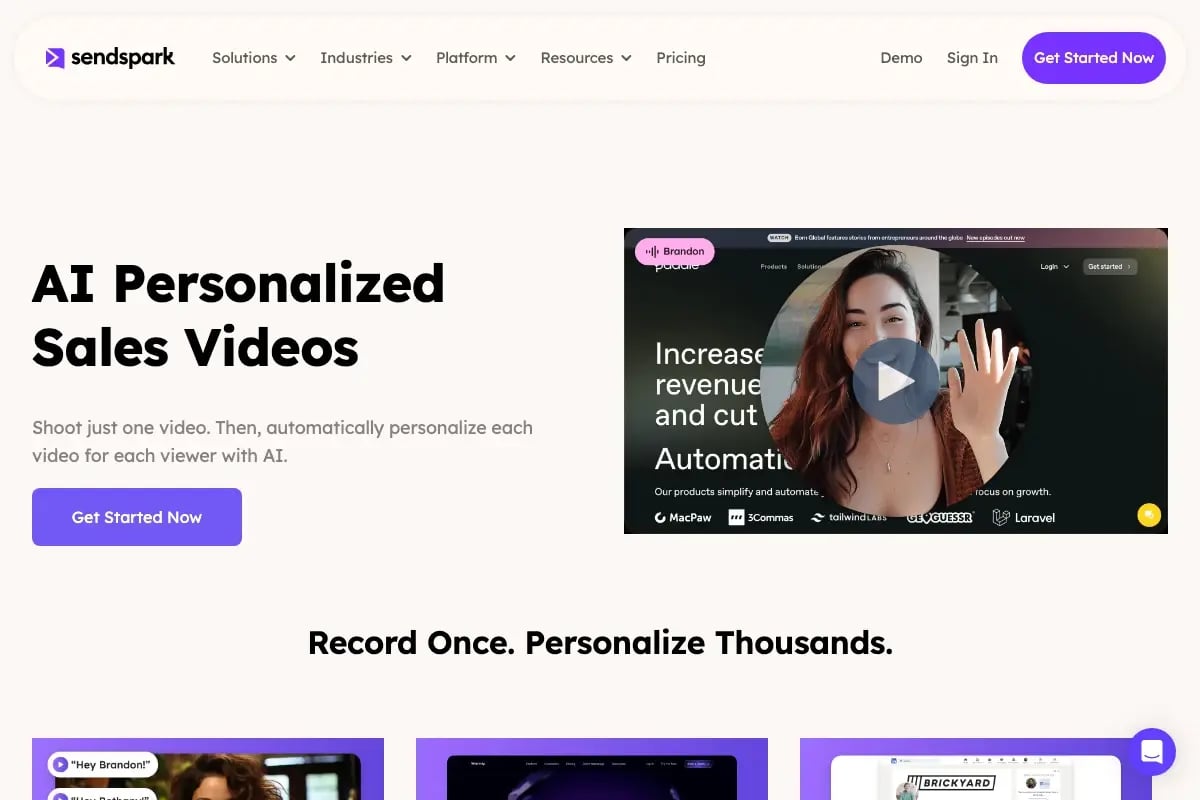
AI voice cloning lets you record a single screen capture, then have an AI model generate individualized audio introductions in your voice for each prospect — saying their name, their company, and their specific context. The result is a video that sounds like you recorded it just for them, at a fraction of the time cost. This is the core of what makes AI-personalized video outreach different from standard screen recording.
The traditional screen recording workflow for sales looks like this: record a video for Prospect A, re-record for Prospect B, record again for Prospect C. If you are working a 200-name sequence, that means 200 individual recordings. Even at three minutes per recording, that is ten hours of work — before you have written a single email.
Sendspark’s model flips that workflow entirely. You record one high-quality screen capture — your product demo, your walkthrough, your follow-up message. Sendspark’s AI voice cloning then generates a personalized intro for each prospect in your list. Each version of the video opens with your cloned voice saying “Hey Sarah, I noticed Acme recently expanded into enterprise accounts…” while the rest of the video remains your original recording. You record one video and personalize it at scale.
Dynamic backgrounds take this further. Instead of a static background behind your talking-head intro, Sendspark automatically pulls in each prospect’s own website as the video background. Sarah at Acme sees Acme’s homepage. James at Finrise sees Finrise’s homepage. Combined with personalized thumbnails showing each prospect’s name, the video looks completely custom before they even press play. According to Salesforce’s State of Sales report, high-performing sales reps are significantly more likely to use video as part of their outreach strategy — and AI personalization is what makes that scalable.
The reply rate impact is measurable. Sales teams using AI-personalized video outreach through Sendspark consistently see 2–3x more replies compared to sending the same generic screen recording to every prospect. HubSpot’s cold email research consistently shows that personalization at the individual level — not just merging a first name into a subject line — is the primary driver of reply rate improvement. Video personalization is the highest-signal version of that principle.
For implementation, read Sendspark’s AI voice cloning best practices guide before you launch your first campaign. It covers how to train your voice model, what contexts produce the best results, and how to maintain authenticity at scale. You can also find step-by-step setup instructions in the guide on how to make personalized video emails. For the full strategic picture on using video throughout your pipeline, the complete guide to video prospecting is the best starting point.
Quick Comparison: Best Free Screen Capture Tools with Audio
Choosing between these tools depends on your primary goal. If you are building scalable sales prospecting sequences, the AI personalization column is the deciding factor. If you need a quick, no-setup local recorder, the built-in OS tools are hard to beat. Here is how all five compare on the features that matter most to sales teams.
| Tool | Audio Types | Watermark | Time Limit | AI Personalization | Best For |
|---|---|---|---|---|---|
| Sendspark | System + Mic | No | None | Yes — AI voice cloning + dynamic backgrounds | B2B sales teams |
| OBS Studio | System + Mic (multi-track) | No | None | No | Professional recording, streaming |
| Windows Game Bar | System + Mic | No | None | No | Quick Windows captures |
| macOS QuickTime | Mic only (no system audio) | No | None | No | Simple Mac recordings |
| Canva Screen Recorder | System + Mic | No | 25 min | No | Design-focused creators |
For B2B sales, Sendspark is the only tool that combines screen capture with AI voice cloning and dynamic personalization.
If you want a deeper look at making video in sales outreach work without adding hours to your week, that post covers the exact workflows sales teams are using in 2026 to stay efficient at scale.
Frequently Asked Questions
What is the best free screen capture tool with audio?
For B2B sales teams, Sendspark is the best option because it combines screen recording with AI voice cloning and dynamic backgrounds — features that no other free tool on this list offers. For general-purpose professional recording, OBS Studio is the strongest free option, with no time limits, no watermarks, and multi-track audio support.
How do I record my screen with audio for free?
On Windows 11, press Win + G to open Xbox Game Bar and hit the record button — no installation required. On Mac, open QuickTime Player, click File, then New Screen Recording, and select your microphone from the dropdown. Both options produce clean MP4 files with no watermarks on the free tier.
Can I record screen and audio at the same time?
Yes — all five tools on this list support simultaneous screen and audio recording. The exception is macOS QuickTime, which captures mic audio but cannot record system audio natively without a third-party virtual audio driver. Sendspark, OBS Studio, Windows Game Bar, and Canva all capture both mic and system audio simultaneously out of the box.
What screen capture tool is best for sales videos?
Sendspark is built specifically for sales video workflows. It handles screen recording as part of a broader AI video personalization platform, meaning your recordings can be instantly personalized for individual prospects at scale. Other tools on this list are solid for recording but require you to manage distribution, personalization, and tracking separately.
How does AI voice cloning work with screen recordings?
You train Sendspark’s AI on a sample of your voice — typically a few minutes of clean audio. After that, the platform can generate new audio in your voice from a text script. When you upload a prospect list, Sendspark creates a personalized intro for each prospect using your cloned voice, then attaches it to your screen recording automatically. Each prospect hears their name and company spoken in your voice without you re-recording anything. Read the AI voice cloning best practices guide for full setup details.
How many videos can Sendspark personalize from one recording?
There is no hard cap on the number of personalized versions Sendspark can generate from a single screen recording. Sales teams routinely use a single master recording to generate hundreds or thousands of individually personalized videos in a single campaign send. The limiting factor is the size of your prospect list, not the platform. See the complete guide to video prospecting for recommended sequence sizes and send cadences.
Sources & References
- Salesforce. State of Sales Report (2024). https://www.salesforce.com/resources/research-reports/state-of-sales/
- HubSpot. Cold Email Statistics (2024). https://blog.hubspot.com/sales/cold-email-stats
- OBS Project. OBS Studio (2026). https://obsproject.com/
- Microsoft Support. Record a video clip in Windows 11 (2026). https://support.microsoft.com/en-us/topic/record-a-video-clip-in-windows-11-0e5b63ea-8f09-4e93-bc12-bc4cade9e578
- Apple Support. QuickTime Player User Guide (2026). https://support.apple.com/guide/quicktime-player/welcome/mac
- Canva. Canva Screen Recorder (2026). https://www.canva.com/
Record One Video. AI Personalizes Thousands.
Sendspark is the AI video personalization platform for B2B sales. Record once, and AI voice cloning generates thousands of individually personalized videos with dynamic backgrounds and personalized thumbnails — each prospect hears their name, sees their website, in your voice. Sales teams see 2–3x more replies.
Get Started NowTopics: blog, Xbox Game Bar