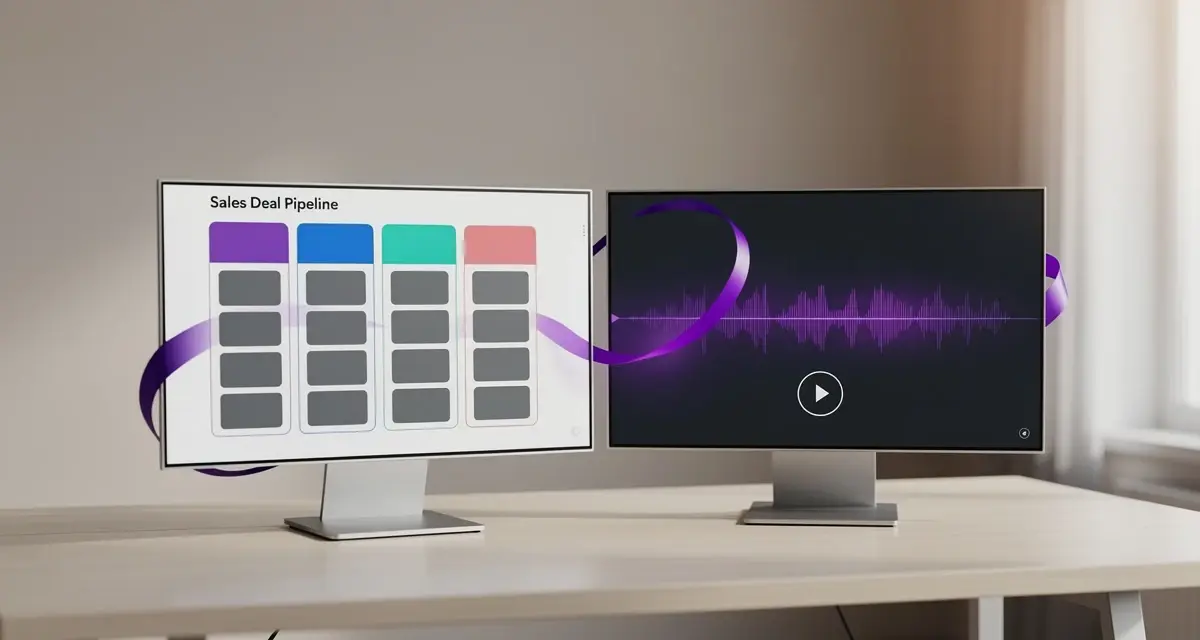
Most HubSpot video setups break in the same place. The video gets recorded, the email goes out, and then nothing in the CRM knows it happened. No timeline event, no watch percentage, no way to tell the rep who actually paid attention. The integration is what closes that loop, and connecting it properly takes about fifteen minutes.
Updated August 2026
This guide walks through connecting Sendspark and HubSpot, building the two workflows that actually generate and deliver AI-personalized video, and wiring engagement data back into your pipeline. It also covers the two things that quietly break automated video programs in 2026: running out of dynamic video minutes mid-campaign, and tripping the sender reputation limits that decide whether your email lands at all.
Key Takeaways
- The integration is authorized from Sendspark’s Settings, not by pasting a HubSpot ID. Connecting takes one OAuth approval, and it is available on every Sendspark plan.
- Automated video needs two HubSpot workflows, not one. The first generates a personalized video per contact, the second sends the email once that video exists.
- Five engagement events sync to the contact timeline: Video Visited, Video Played, Video Watched (with percentage), Video Liked, and Video CTA Clicked.
- Watch percentage is the most useful field you will get. Branching follow-ups on it separates genuine interest from an accidental click.
- Google and Yahoo enforce a hard 0.3% spam complaint ceiling on bulk senders, with 0.1% as the working target. Automated video volume does not get an exemption.
What the Sendspark HubSpot Integration Actually Does
The integration does two jobs. It lets HubSpot workflows generate an AI-personalized video for each contact using CRM field data, and it streams every viewing event back onto that contact’s timeline. The result is that video stops being an untracked attachment and starts behaving like any other measurable touch in your pipeline.
That second half is the part teams underestimate. Recording video is easy. Knowing that a VP of Sales watched 94% of a two-minute walkthrough at 7:40am, then clicked the booking link, is what changes how a rep spends their morning. Without the integration, that signal lives in a separate tool and dies there.
The five engagement events that sync
Once connected, Sendspark writes these events to the HubSpot contact record:
- Video Visited: the contact opened the video landing page.
- Video Played: they pressed play. The gap between Visited and Played is your thumbnail’s report card.
- Video Watched: how much they consumed, as a percentage. This is the field worth building automation on.
- Video Liked: an explicit positive reaction.
- Video CTA Clicked: they took the action the video asked for.
Each event carries metadata alongside it, including creator name, video name, watch percentage, and the dynamic video campaign identifier. Those properties are what make custom HubSpot reports possible later, and they are covered in more depth in our breakdown of the metrics worth tracking on CRM-triggered video campaigns.
What the integration does not do
It does not host your marketing site’s video player, and it does not replace HubSpot’s native file hosting for embedded page content. It is built for outbound and lifecycle motions: sales sequences, marketing emails, and workflow-triggered follow-ups where each recipient should see something addressed to them specifically.
If you’re deciding whether a specific send belongs in a Sequence or a Workflow, see HubSpot Sequences vs. Workflows for Video Outreach for a full decision framework.
It also does not retroactively attach engagement to videos you shared through a plain copied link. Tracking rides on the HubSpot share option, which appends the parameters that let Sendspark match a view back to a CRM record. Copy the generic link instead and the view still happens, it just arrives anonymous.
What You Need Before You Connect
You need admin permissions in HubSpot, an active Sendspark account on any plan, and four credentials from your Sendspark workspace: Workspace ID, Dynamic Campaign ID, API key, and API secret. Most failed setups trace back to the last two, because the connection itself succeeds without them and only the workflow step fails later.
On the HubSpot side
Admin access is non-negotiable. You need it to install an app from the marketplace, to create workflows, and to edit the marketing emails those workflows send. If you are working inside a client portal with restricted permissions, sort that out first rather than discovering it three steps in.
You also want permission to filter activity on contact records. Sendspark events are hidden by default on the timeline, and unhiding them is a per-user display setting rather than something the integration flips globally.
On the Sendspark side
The HubSpot integration is included on every Sendspark plan, so plan tier is not a blocker for connecting. What varies by plan is dynamic video minutes, which is the actual constraint on how many personalized videos your workflows can generate per month.
If you want reps recording from inside HubSpot rather than switching tabs, install the Sendspark Chrome extension too. With it, a Sendspark control appears directly in the HubSpot compose window. Without it, you can still create videos in Sendspark and share them into HubSpot, you just lose the in-context recording.
The credentials checklist most teams miss
Before you open the workflow builder, collect these four values. Workspace ID lives in your workspace settings. API key and API secret come from the API credentials page. Dynamic Campaign ID is pulled out of the campaign builder URL, sitting between the final two slashes.
Common mistake
In the workflow action, there is a checkbox authorizing Sendspark to buy additional dynamic video minutes if a campaign needs them. Leave it unchecked and your automation stops the moment your balance hits zero, silently, mid-campaign. Contacts still enroll, they just never get a video. Check it if you want pay-as-you-go continuity, and set a calendar reminder to review usage either way.
Record One Video. AI Personalizes Thousands.
Sendspark is the AI video personalization platform for B2B sales. Record once, and AI voice cloning generates thousands of individually personalized videos with dynamic backgrounds and personalized thumbnails, so each prospect hears their name and sees their website, in your voice. Sales teams see 2-3x more replies.
How to Connect Sendspark and HubSpot
Connecting is a single authorization, not a credential paste. Open Settings, then Integrations, in your Sendspark account, choose the HubSpot app, and approve the OAuth prompt against the HubSpot portal you want to sync. The connection activates immediately and applies to your whole workspace.
Install and authorize the HubSpot app
Go to your Sendspark integrations settings, find HubSpot, and connect. HubSpot will ask you to pick an account and confirm the permissions Sendspark is requesting, which cover reading contact properties (so videos can personalize against them) and writing timeline events back.
If you administer several HubSpot portals, read the account selector carefully. Authorizing against a sandbox and then wondering why production timelines are empty is a genuinely common half hour to lose.
Turn on Sendspark timeline events
This is the step that makes people think the integration failed. Sendspark events are filtered out of the contact timeline by default. Open any contact record, click Filter activity, and tick Sendspark in the list. The events were always arriving, they were just not being displayed.
Test without touching a real prospect
Do not test on a live deal. Generate a dynamic video, then open its link in an incognito window. That counts as a genuine view and fires the analytics chain end to end without burning a prospect’s first impression on a configuration test.
Within a minute or so you should see Video Visited on the associated contact, followed by Video Played and Video Watched once you actually play it. If nothing appears, re-check the activity filter before you re-check the connection. The filter is the culprit far more often.
Pro tip
Always share through the HubSpot option in the Sendspark share modal rather than copying the generic link or GIF. Only the HubSpot share attaches the tracking parameters that tie a view back to a contact record. And when you drop video into a HubSpot marketing email, use an HTML module rather than an image block, or the snippet will not render as intended.
Build the Two-Workflow Video Engine
Automated video needs two workflows working in sequence, and this is the part most guides skip. The first workflow generates a personalized video for each enrolled contact. The second waits for that video to exist, then sends the email containing it. One workflow cannot do both, because generation is not instant.
Trying to compress this into a single workflow is the single most common reason a video campaign sends empty-looking emails. The email fires before the render finishes, and the recipient gets a broken placeholder.
Workflow 1 generates the video
Create a contact-based workflow with whatever enrollment trigger fits the motion: a form submission, a lifecycle stage change, a list membership, or a deal stage update. Then add an action from Connected Apps and choose Create a Dynamic Video.
Fill in the four credentials you collected earlier, then map the contact fields the video will personalize against. First name, email, company name, and job title are the usual set, plus a website URL if you want the prospect’s own site rendering as a dynamic background behind you. Map fallback values for anything that might be blank, because an empty merge field reads far worse than a generic greeting.
Workflow 2 delivers the video
Create a second contact-based workflow and set the enrollment trigger to When filter criteria is met. Filter on the Sendspark property Dynamic Video Generated for Contact, then narrow it with your Dynamic Campaign ID so this workflow only catches the campaign you intend.
Add a Send Email action. Inside the email editor, insert an HTML module and paste the HubSpot Marketing Hub share snippet, which you copy from Share Campaign at the bottom of the Sendspark campaign builder. That snippet renders an animated thumbnail linking through to the personalized video. When you publish, choose to enroll existing contacts who already meet the trigger, otherwise anyone whose video rendered before you hit publish is stranded.
If you want a deeper walkthrough of the branching options available once this scaffolding exists, our guide to adding video to HubSpot workflows covers the variations in more detail. Workflows are the marketing-side mechanism; if your reps work out of Sales Hub instead, the same personalized video drops into a one-to-one cadence, which we cover in choosing between HubSpot Sequences and Workflows for video.
Three campaigns worth building first
Do not start with a thousand-contact cold blast. These three are small, high-signal, and forgiving:
- Inbound speed-to-lead. Trigger on form submission. A named video that arrives within minutes of someone raising their hand converts better than a polished one that arrives on Thursday.
- Post-demo recap. Trigger on deal stage moving to a post-meeting value. Recap what was discussed, name the next step, and give the champion something they can forward internally without having to summarize it themselves.
- Watch-based re-engagement. Trigger on Video Watched above 50% with no CTA click. These contacts consumed most of your pitch and stopped short. That is a different problem from indifference, and it deserves a different follow-up.
The third pattern is what SDR teams running AI video follow-ups tend to scale first, because the trigger population is small and the intent is unusually clear.
Signal-Triggered Video Workflows in 2026
The shift this year is from list-based enrollment to signal-based selling. Instead of sending video to everyone in a static list, you trigger on evidence: a buyer intent signal from HubSpot’s Breeze Intelligence, a watch-through rate that crosses a threshold, or a research pattern that suggests someone is actively in-market. Fewer videos, aimed better.
That change is worth making for a blunt reason. Salesforce’s 2026 State of Sales research found that 73% of B2B buyers actively avoid sellers who send irrelevant outreach. Volume is no longer a neutral lever. Sending more of the wrong video actively costs you access to the account.
Trigger on buyer intent, not form fills
HubSpot’s Breeze Intelligence buyer intent identifies companies researching your category, including anonymous visitors it can resolve to an organization, and surfaces buying moments such as funding rounds, executive hires, and repeat visits to high-intent pages. In 2026 those signals are usable directly as workflow enrollment triggers.
Wire that into the video engine and the sequencing changes meaningfully. A prospect who has read your pricing page twice this week and just hired a VP of Sales gets a video referencing the specific problem that hire usually signals. That is a different message from the one a cold list gets, and it should be.
Standard field enrichment became free in 2026, which matters here because AI video personalization is only as good as the CRM fields feeding it. Enriched company data means fewer fallback values and fewer videos that open with a generic line because the job title field was empty.
Branch on watch-through data
Watch percentage is the most underused property the integration gives you. Treat it as a scoring input rather than a vanity metric, and build explicit branches:
- Above 80%, no CTA click. High interest, blocked somewhere. Route to a rep with the watch data attached rather than dropping them into another nurture email.
- Between 30% and 80%. Partial engagement. Worth a second, shorter video that leads with the point they did not reach.
- Under 30%, repeatedly. Your opening is not landing. Fix the first eight seconds and the thumbnail before you touch anything else.
Feeding these into a HubSpot lead scoring model gives revenue attribution something concrete to work with, since each event carries the campaign identifier. The same pattern applies if your CRM is elsewhere, as our write-up on tracking video engagement in Salesforce shows. You can build these reports directly from the synced properties in video analytics.
Deliverability decides whether the video ever lands
None of this matters if the email is filtered. Two years into enforcement, Google and Yahoo hold bulk senders to published sender requirements: authenticate with SPF and DKIM, publish a DMARC record and pass DMARC alignment, honor one-click unsubscribe, and keep reported spam complaints below 0.3%. The practical target is 0.1%, because 0.3% is the ceiling where enforcement begins rather than a level to operate at.
Any domain sending 5,000 or more messages per day to Gmail addresses is classified as a bulk sender, and that classification does not lapse when volume drops. Automated video campaigns push volume up quickly, which is precisely why the signal-triggered approach is the safer one. It sends fewer messages to people more likely to want them, which protects the complaint rate that governs everything else.
Advanced strategy
Add a suppression branch to Workflow 2 that removes contacts with no engagement across your last three sends. It feels counterintuitive to shrink an automated campaign, but complaint rate is calculated against messages delivered. Pruning the least engaged segment lifts your placement for everyone else, including the prospects who would have watched.
For teams running video inside broader email programs, the same discipline applies to your video email sends generally, and to any sales prospecting motion where video volume scales faster than list quality.
Which trigger for which motion
| Trigger | Signal it uses | Video to send | Best follow-up |
|---|---|---|---|
| Form submission | Explicit hand raise | Named welcome, under 60 seconds | Calendar link in the video CTA |
| Buyer intent signal | Breeze Intelligence research and buying moments | Problem-led, referencing the trigger event | Rep task with the signal attached |
| Deal stage change | Pipeline movement | Demo recap, forwardable internally | Multi-threading ask |
| Video Watched above 80% | Watch-through rate | None, route to a human | Direct outreach within the hour |
| Video Watched 30-80% | Partial watch-through rate | Shorter cut leading with the missed point | Single specific question |
| No engagement, three sends | Absence of signal | None, suppress | Remove to protect deliverability |
Frequently Asked Questions
Is the HubSpot video integration available on all Sendspark plans?
Yes. The HubSpot integration is included on every Sendspark plan, including the entry tier. What differs by plan is your allowance of dynamic video minutes, which caps how many AI-personalized videos your workflows can generate each month rather than whether the integration works.
What HubSpot permissions do I need for the video integration?
You need admin permissions. Admin access is required to install the app, create and publish workflows, and edit the marketing emails those workflows send. You also need the ability to filter activity on contact records so Sendspark events are visible on the timeline.
Why are Sendspark events not showing in HubSpot?
The most common cause is display filtering, not a broken connection. Open a contact record, click Filter activity, and confirm Sendspark is selected. The second most common cause is sharing via a copied link instead of the HubSpot share option, which omits the tracking parameters needed to match a view to a contact.
Can you embed a video in a HubSpot email?
Email clients do not reliably play embedded video, so the integration sends an animated thumbnail that links to a personalized video page. Paste the Sendspark share snippet into an HTML module in the HubSpot email editor rather than an image block, which is what allows the thumbnail and its tracking to render correctly.
How do I trigger a Sendspark video from a HubSpot workflow?
Use two workflows. The first enrolls contacts and calls the Create a Dynamic Video action under Connected Apps to generate the video. The second enrolls on the Dynamic Video Generated for Contact property, filtered by your campaign ID, and sends the email containing the share snippet.
How many videos can I automate before deliverability becomes a problem?
Volume alone is not the limit, complaint rate is. Google and Yahoo require bulk senders to stay under a 0.3% spam complaint rate, with 0.1% as the working target, and any domain sending 5,000 or more daily messages to Gmail is treated as a bulk sender permanently. Trigger on intent and watch signals rather than list size to keep complaints low.
Sources & References
- Salesforce, State of Sales - “73% of B2B buyers actively avoid sellers who send irrelevant outreach” (2026)
- HubSpot, Breeze buyer intent - buying-moment signals including funding rounds, executive hires and high-intent page visits, usable as workflow triggers (2026)
- Google, Email sender guidelines - authentication, one-click unsubscribe, and the 0.3% reported spam rate threshold for bulk senders (2026)
- HubSpot Knowledge Base, Create workflows - enrollment triggers, filter criteria and connected app actions (2026)
Record One Video. AI Personalizes Thousands.
Sendspark is the AI video personalization platform for B2B sales. Record once, and AI voice cloning generates thousands of individually personalized videos with dynamic backgrounds and personalized thumbnails, so each prospect hears their name and sees their website, in your voice. Sales teams see 2-3x more replies.
Topics: blog